
Office LTSC 2021 loses support on 13 October 2026
After that date, Microsoft stops providing security updates, bug fixes and technical support for it. The apps will still open, but they will no longer be protected. Office LTSC 2024 is supported until 9 October 2029, so it is the safer choice if you need a perpetual, on-premises version of Office.
Below, you will learn how to install Office LTSC 2024 step by step, with screenshots.
Important: uninstall your old Office first
Before you install Office LTSC 2024, remove every older version of Office from the computer. The installation will not work properly if an older version is still installed. Microsoft’s own deployment guide gives the same instruction.
To remove it, open Settings, go to Apps, then Installed apps, uninstall each older Microsoft Office entry, and restart the computer if Windows asks you to.
How to Install Office LTSC 2024 Step by Step
Office LTSC 2024 is a volume licensed product, so it does not come with a simple “Setup” file you can double click. Microsoft installs it through a free command line program called the Office Deployment Tool (ODT). The process sounds technical, but on Windows 11 it comes down to a few things: download the tool, build a small settings file with Microsoft’s web tool, put both in one folder, and run one command.
Remove any older version of Office first, as explained in the warning above. You will also need a valid Office LTSC 2024 license key, an internet connection, and a Windows account with administrator rights.
Step 1: Download the Office Deployment Tool
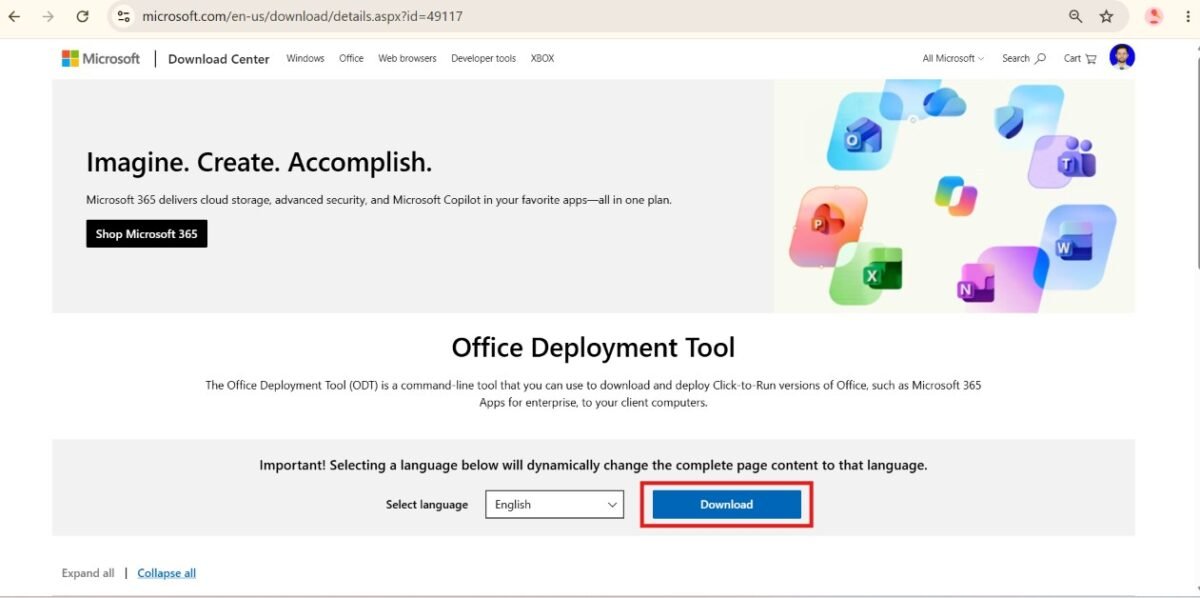
Open the official Office Deployment Tool page on the Microsoft Download Center and click the Download button. If the page asks which file you want, choose the standard Office Deployment Tool file and confirm. Microsoft advises always using the latest version of the tool, so download a fresh copy instead of reusing an old one.
Step 2: Create your settings file with the Office Customization Tool
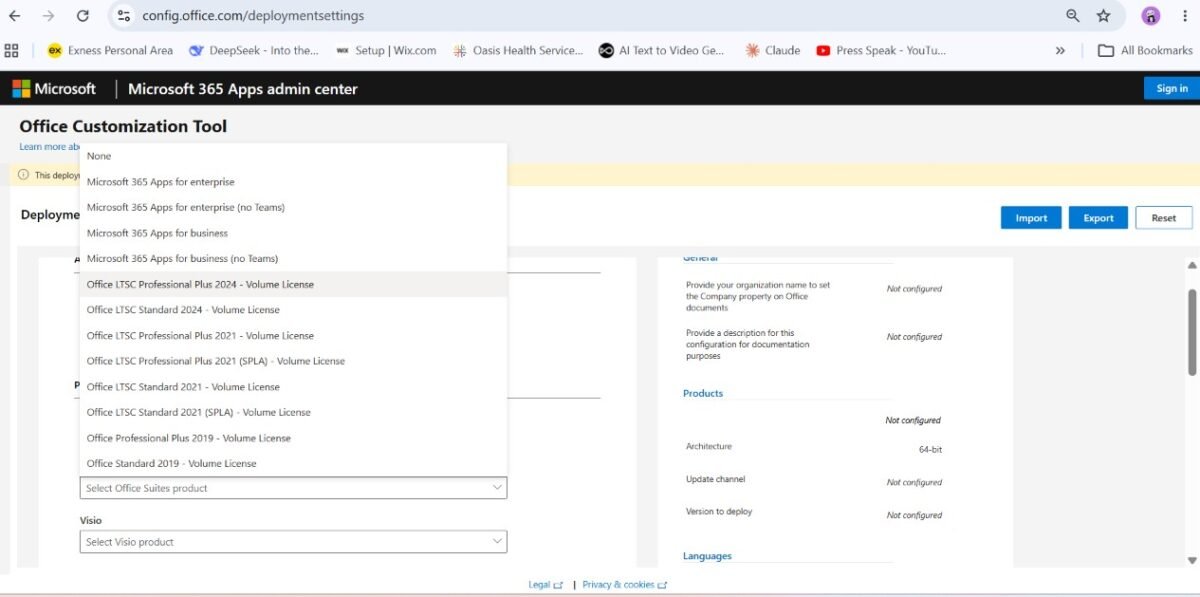
The settings file tells the installer which Office edition to install and in which language. Instead of writing it by hand, use Microsoft’s Office Customization Tool. Microsoft recommends this web tool because it avoids typing mistakes.
- Open the tool and select Office LTSC Professional Plus 2024 as the product.
- Choose English (United States) as the language.
- Leave the remaining options at their default values.
- Click Finish at the end of the setup pages.
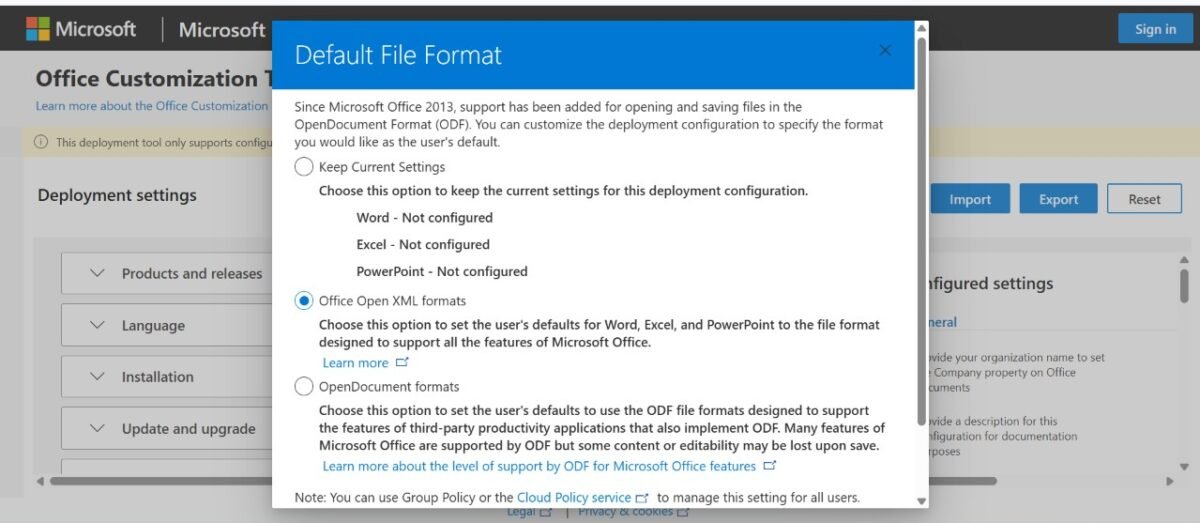
- Click Export and choose the Office Open XML format.
The tool downloads a small XML file to your computer.
If you already have a Multiple Activation Key (MAK), the same tool can store it for you. Under Licensing and activation, select MAK next to the product and enter your key before you export. Microsoft documents this method for Office LTSC 2024. Your key is a license, so never show it in a screenshot or share the exported file publicly.
Step 3: Put everything in one folder
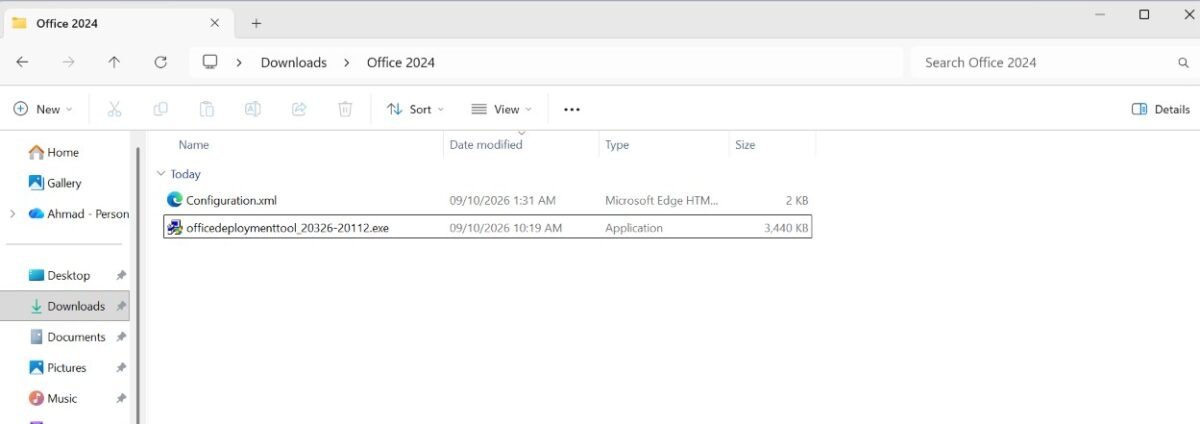
Create a new folder named Office 2024 anywhere you like, for example on your desktop. Then:
- Move the exported XML file into the
Office 2024folder. - Move the Office Deployment Tool file you downloaded in Step 1 into the same folder.
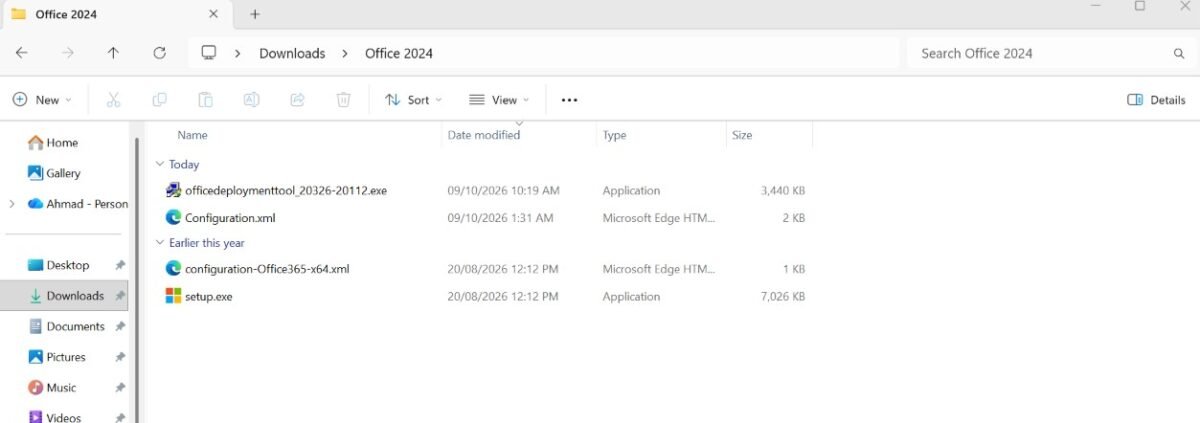
- Double click the Office Deployment Tool file, and when it asks where to extract the files, choose this same
Office 2024folder.
When extraction finishes, the folder holds setup.exe and your XML file side by side. The setup.exe file is the Office Deployment Tool itself.
Step 4: Open Command Prompt as administrator
The installer must run with elevated rights. Click the Start button, type cmd, right click Command Prompt, and choose Run as administrator. Approve the prompt that appears.
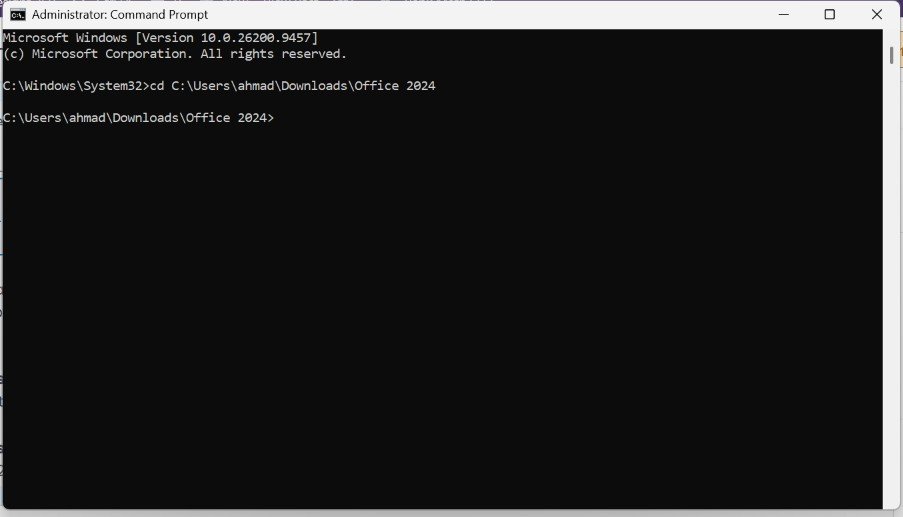
Now move into your folder. In File Explorer, select the Office 2024 folder, then right click it and choose Copy as path (or press Ctrl and Shift and C together). In Command Prompt, type cd followed by a space, paste the path, and press Enter.
cd C:\Users\ahmad\Downloads\Office 2024The path above is only an example, so paste your own. If your folder sits on a different drive from the one Command Prompt opened on, use cd /d instead of cd.
Step 5: Run the install command
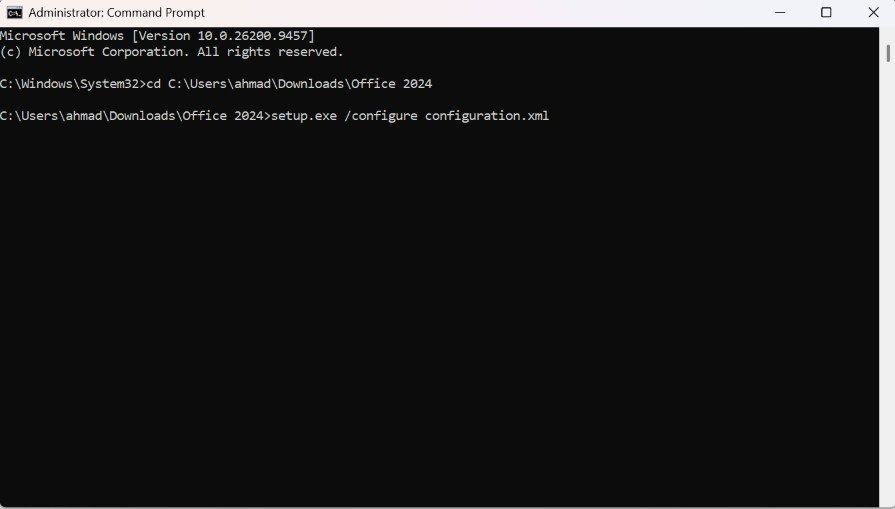
With Command Prompt pointing at your folder, type the following and press Enter:
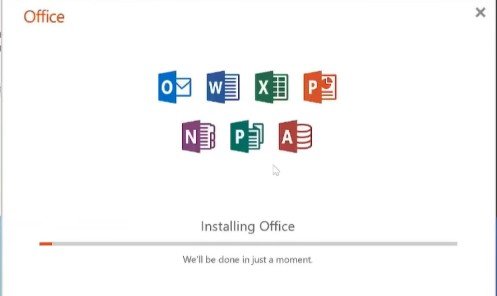
setup.exe /configure configuration.xmlIf your exported file has a different name, use that exact name in place of configuration.xml. The installation starts and downloads the Office files from Microsoft. The time depends on your internet speed. When it finishes, the Command Prompt returns and you can open the Office apps.
Microsoft installs Office LTSC 2024 on the system drive, usually C, and the location cannot be changed.

Step 6: Open Office and confirm the installation
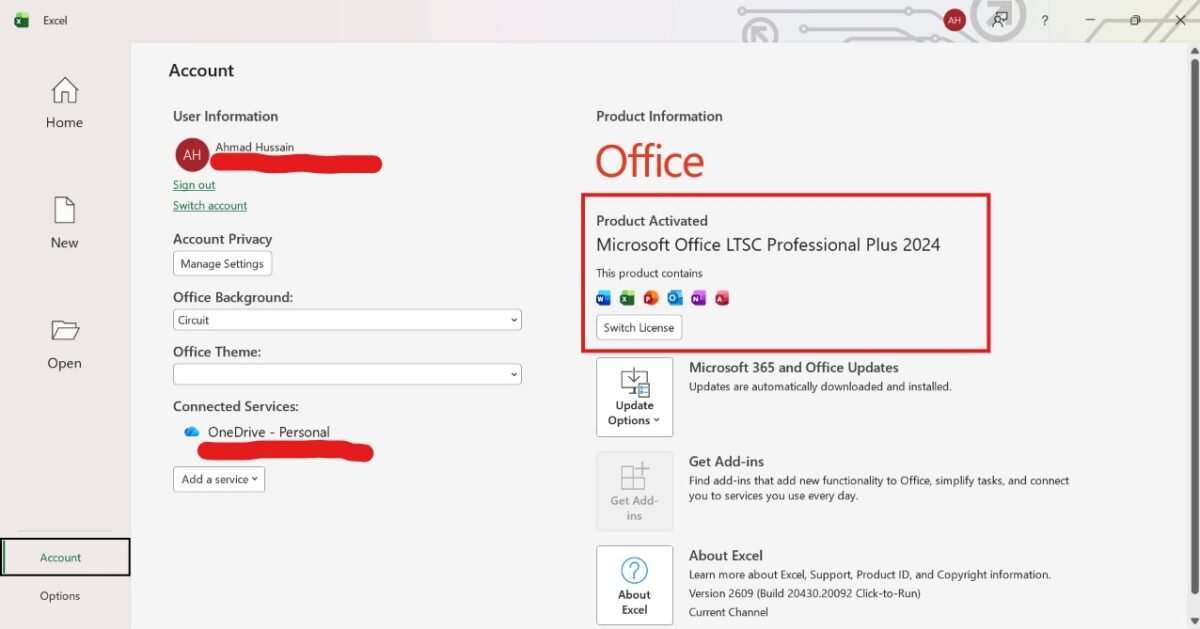
Open Word or Excel from the Start menu. Then go to File, then Account. This page shows the product name, which should read Office LTSC Professional Plus 2024, along with the license status and the build number.
If the Account page shows a valid, activated product, the installation is complete. If it shows a license or activation problem, the cause is usually the key or the license type, which we cover in the activation section below.
Office LTSC 2024 System Requirements and Pre-Install Checklist
Run through this list before you start the steps above. Most failed installations come from one of these points.
| Check | What to know |
|---|---|
| Windows version | Microsoft lists Office LTSC 2024 as supported on Windows 11 and Windows 10. Microsoft also notes that Windows 10 itself was supported only until 14 October 2025, so Windows 11 is the safer base. |
| Processor type | On Arm based devices, Windows 11 is the minimum supported version. |
| 32 bit or 64 bit | Both are supported, but all Office products on one computer must use the same architecture. Microsoft recommends 64 bit on devices with 4 GB of memory or more. |
| Older Office versionsDO FIRST | Uninstall every previous version first. Microsoft’s deployment guide gives this instruction, and a manual uninstall through Settings is the simplest way. |
| Apps included | Word, Excel, PowerPoint, Outlook, OneNote and Access (Windows only). Microsoft Publisher is not included, and Teams is a separate download. |
| License | A valid Office LTSC 2024 volume license key. The tool downloads the software, but the key is what licenses it. |
| Account rights | You need to run Command Prompt as an administrator. |
How Office LTSC 2024 Activation Works
Activation is where most readers get stuck, so it helps to understand the options Microsoft provides. Office LTSC 2024 is a volume licensed product, and it is activated in one of two official ways.
MAK activation (Multiple Activation Key). This is a one time activation through Microsoft’s own activation services over the internet or by telephone. Each MAK allows a set number of activations that depends on your volume licensing agreement, and every activation counts toward that limit. For Office LTSC 2024, Microsoft says you place the key in the configuration.xml file that the Office Deployment Tool uses. That is what you do under Licensing and activation in the Office Customization Tool in Step 2.
KMS activation (Key Management Service). This method is for organizations that run their own KMS host. In the configuration file, the PIDKEY field takes a Generic Volume License Key instead of a MAK. If you are a home user or a small business without an IT team, you will almost always be using a MAK.
If you need to enter or change the key after installation
Microsoft documents two ways to do this on a single computer.
Option 1: Use the Office app. Open Word or Excel, go to File, then Account, choose Change Product Key under Product Information, enter the key and select Activate.
Option 2: Use Microsoft’s activation script from the command line. Office includes a script named ospp.vbs. Open Command Prompt as administrator, move to the folder where it is stored, and run it with the cscript engine. Microsoft states the script is located in Program Files\Microsoft Office\root\Office16.
cd "C:\Program Files\Microsoft Office\root\Office16"
cscript ospp.vbs /inpkey:xxxxx-xxxxx-xxxxx-xxxxx-xxxxx
cscript ospp.vbs /act
cscript ospp.vbs /dstatus
Replace the sample key with your own valid key. The three commands do the following, according to Microsoft: /inpkey installs a product key, /act activates the installed product key, and /dstatus displays license information for the installed keys.
Why you should avoid public activators and scripts
You will find websites and videos offering command line scripts that “activate” Office without a purchased key, usually by pointing the computer at a third party server. These do not license the software. They are piracy tools, and they carry real risks: malware bundled with the script, no legitimate license if you are ever audited, and the possibility of losing access to client files. For accountants and finance teams who handle confidential data, that risk is rarely worth taking. If cost is the problem, the legal routes are a Microsoft 365 subscription, the free web versions of Office apps, or an open source suite such as LibreOffice.
Common Office LTSC 2024 Installation Errors and Fixes
The fixes below come from Microsoft’s own deployment and activation documentation.
| Problem | Likely cause | What to do |
|---|---|---|
| The installer does not start or access is denied | Command Prompt is not elevated | Close it, then open Command Prompt again with Run as administrator. |
| Command Prompt says it cannot find setup | You are in the wrong folder | Use the cd command to move into the folder that contains setup.exe and configuration.xml. |
| Command Prompt cannot find your settings file | The exported file has a different name, or it is in another folder | Make sure the XML file is in the same folder as setup.exe, and type its exact name in the command. |
| Installation conflicts with another Office version | Older Office is still installed | Uninstall the older Office completely, restart the computer, and run the command again. |
| Office will not install alongside other Office apps | 32 bit and 64 bit are mixed | Use the same architecture for every Office product on the computer. |
| Activation fails | Wrong key type, key mistyped, or the MAK activation limit has been reached | Run cscript ospp.vbs /dstatus to see the license state, and check the key with your license provider. |
| An activation error code appears | Various causes | Run cscript ospp.vbs /ddescr: followed by the error code to display its description, and /dhistoryacterr to view the MAK activation failure history. |
If an activation limit has been reached, only the organization or reseller that issued the key can sort it out. Another command will not fix it.
Office LTSC 2024 vs Microsoft 365 Apps: Which One Should You Choose?
The two products are built for different situations, and the choice is mostly about how you work.
| Factor | Office LTSC 2024 | Microsoft 365 Apps |
|---|---|---|
| Licensing model | Volume licensed, installed with the Office Deployment Tool | Subscription |
| Support window | Fixed: mainstream support ends 9 October 2029, with no extended support | Continuous while the subscription is active |
| Features | A subset of Microsoft 365 Apps features | Includes all Office LTSC 2024 features and more |
| Updates | Security and quality updates only | Ongoing feature updates |
| VBA macros | Supported | Supported |
| Publisher | Not included | Check Microsoft’s current plans, as Publisher is being retired |
| Teams | Separate download | Check your plan |
Choose Office LTSC 2024 if you need a fixed set of features for the next few years, if your computers work in restricted or offline environments, or if your organization has a volume license agreement.
Choose Microsoft 365 Apps if you want the newest features as they arrive, or if you prefer a monthly or yearly subscription over a one time license.
Microsoft’s own guidance is that organizations already on Microsoft 365 Apps do not need Office LTSC 2024.
Office LTSC 2024 for Accountants and Excel Users
If you build financial models, reconciliations or reporting workbooks in Excel, there are two points worth knowing.
First, Microsoft confirms that Office LTSC 2024 continues to support Visual Basic for Applications, so VBA macros remain available. Second, because LTSC includes only a subset of the Microsoft 365 Apps feature set, new Excel capabilities that arrive through Microsoft 365 will not necessarily appear in your installation. That is a trade-off to weigh: a stable, unchanging version suits a locked down finance environment, while a subscription suits teams that want new tools quickly.
This is our analysis rather than a Microsoft statement. Test your most important workbooks and macros on a copy before you roll the version out across a team.
If you want to see how AI can speed up Excel work, read our guide to Claude for Excel for accountants, or see which tools help most with AI for Excel VBA macros.
Frequently Asked Questions
Is Office LTSC 2024 free?
No. Office LTSC 2024 requires a valid volume license. Microsoft provides the Office Deployment Tool free of charge, but that tool only installs the software. The license is separate.
Can I install Office LTSC 2024 on Windows 10?
Microsoft lists Office LTSC 2024 as supported on both Windows 11 and Windows 10. However, Microsoft states that Windows 10 was supported only until 14 October 2025, so Windows 11 is the better choice for a new installation.
Does Office LTSC 2024 include Publisher or Teams?
Neither is included. Microsoft Publisher is not part of Office LTSC 2024, and Microsoft Teams is not preinstalled, although it can be downloaded separately.
Does Office LTSC 2024 support VBA macros?
Yes. Microsoft states that Office LTSC 2024 continues to support Visual Basic for Applications.
What happens to Office LTSC 2021 on 13 October 2026?
Microsoft ends support for it on that date, which means no more security updates, bug fixes or technical support. Moving to Office LTSC 2024 or Microsoft 365 Apps keeps you on a supported product.
Final Thoughts
Installing Office LTSC 2024 comes down to a short, repeatable process: download the Office Deployment Tool, prepare your configuration file with a valid key, run setup /configure configuration.xml from an elevated Command Prompt, and confirm the product on the Account page. With Office LTSC 2021 support ending on 13 October 2026, the move to Office LTSC 2024, supported until 9 October 2029, is worth making soon.
If you would rather spend your time on analysis than on setup, we also build Excel models and Power BI dashboards for finance teams. Get in touch to talk about your reporting needs, or explore more guides in the AI Insights Hub.
Tested on a Windows 11 computer on 9 October 2026 with Office LTSC Professional Plus 2024.
Written by Ahmad Hussain, ACCA, founder of AI Foresight 360. Last checked against Microsoft’s documentation on 9 October 2026.

Ahmad Hussain
ACCAAhmad builds advanced Excel models, Power BI dashboards, and AI automation for businesses. He writes AI Foresight 360 himself, and every pricing figure and feature claim is verified against official documentation at the source.
Connect on LinkedIn