
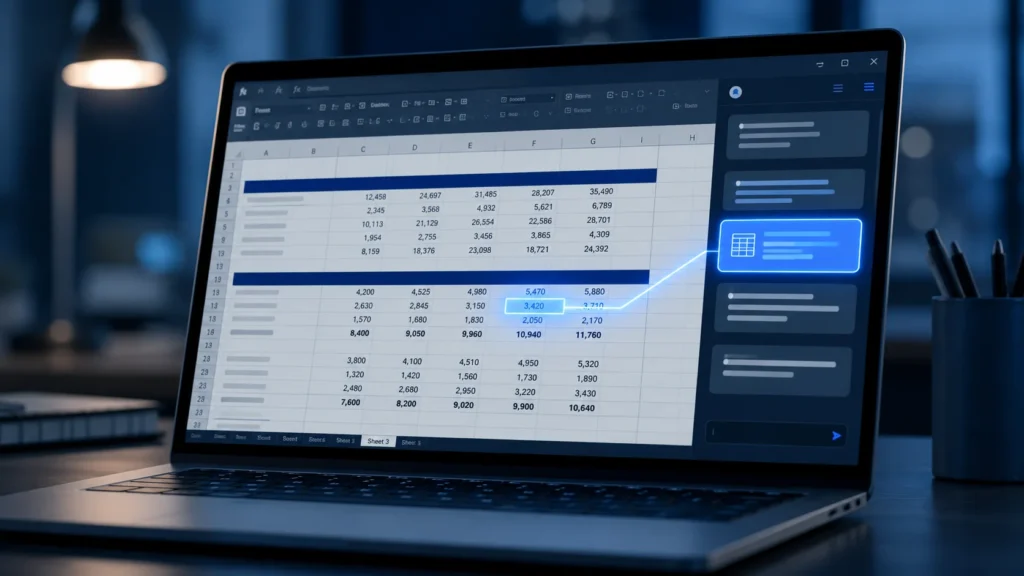
Every month end follows the same rhythm. Someone opens a workbook built by a colleague who left two years ago, stares at fifteen tabs of interlinked formulas, and tries to work out why the reconciliation is off by a few hundred dollars. Accountants do not need another chatbot in a separate browser tab. They need help inside the file where the work actually lives.
That is the gap Claude for Excel is built to fill. It is an official Anthropic add-in that runs as a sidebar directly inside Microsoft Excel, reading your open workbook, explaining calculations, writing formulas, and editing pivot tables through plain English instructions. After the February 2026 updates that added pivot table editing and live data connectors, it became one of the most talked about spreadsheet AI tools in the finance community.
This review of Claude for Excel for accountants looks at the tool specifically through a finance professional’s lens. We focus on the tasks that fill your week: month end reconciliations, formula debugging, variance commentary, and pivot tables. We also show how to build full CFO level dashboards phase by phase, compare it fairly against Microsoft Copilot, cover pricing, and are honest about where it should not be trusted. If you work in finance and want to know whether this tool earns a place in your workflow, this is written for you.
For a broader view of how Claude stacks up against other assistants in day to day accounting, our comparison of ChatGPT versus Claude for accountants is a useful companion read.
What Claude for Excel Actually Is
Claude for Excel for accountants is not a formula suggestion box. It is an add-in that installs from the Microsoft AppSource marketplace and opens a chat panel on the right side of your spreadsheet. Once connected to your Claude account, it can read the entire multi-tab workbook, follow how data flows between sheets, and act on what it finds.
According to Anthropic’s documentation, the add-in reads complex multi-tab workbooks, explains calculations with cell-level citations, and safely updates assumptions while preserving formula dependencies. In practice, that means you can open an unfamiliar model and ask how the summary tab pulls its numbers, and Claude will trace the logic across sheets and show you exactly which cells feed each result.
The tool is powered by Anthropic’s current flagship model, Claude Opus 4.8, with the February 2026 release adding a set of native Excel operations that moved it much closer to a full editing experience rather than a read only assistant. If you are new to how these assistants fit into finance work, our guide to the Business and AI category covers the wider landscape.
For more on how Claude, ChatGPT and Copilot compare when building VBA macros from scratch, see our detailed comparison of the three tools on four accounting tasks.
The Cell Level Citation Feature
The single most important feature for accountants is cell level citations, because verification is the heart of accounting. When Claude explains a calculation, it does not just describe it in words. Anthropic’s Help Center confirms that Claude highlights every cell it updates and provides explanatory comments, and when explaining calculations it includes clickable citations that navigate directly to referenced cells.
That matters more than it sounds. A generic AI answer that says “revenue is calculated from the sales tab” is useless for audit purposes. A clickable citation that jumps you straight to cell ‘Sales!D42’ lets you check the source yourself in one click. For anyone whose work has to survive a review or an audit trail, this provenance is the difference between a tool you can defend and one you cannot.
Testing Claude for Excel on Real Accounting Tasks
We evaluated the tool against the jobs accountants actually do, not generic demos. Here is how it performed across four core workflows, based on hands on testing and corroborating reviews from finance professionals.
Month End Reconciliation
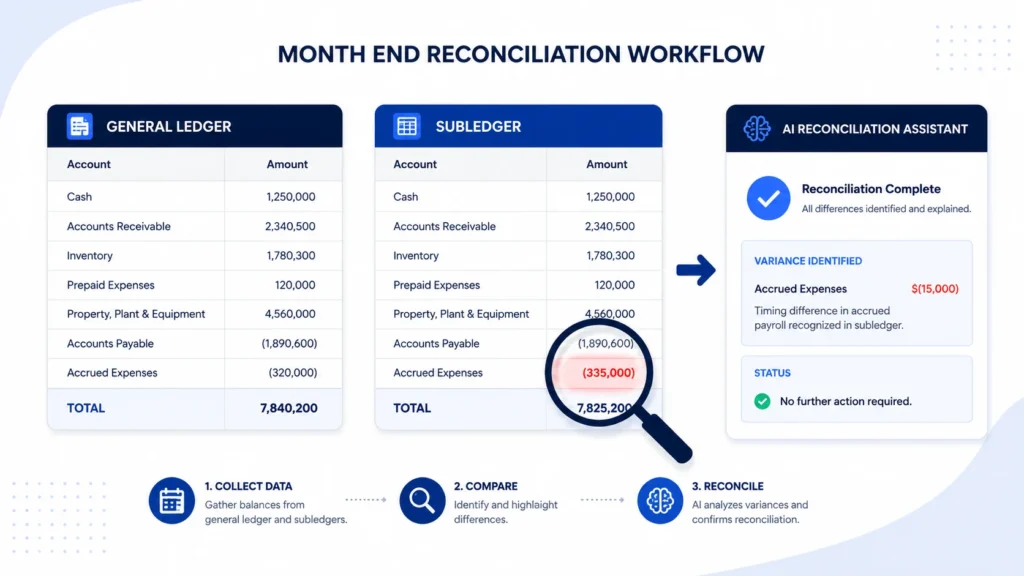
Reconciliation is where Claude’s whole workbook awareness shines. Because it maps relationships across every tab before suggesting anything, it can spot where a subledger total fails to tie to the general ledger and walk you through the difference. You can ask it to compare two ranges, flag mismatches, and explain the likely cause, then click straight through to the offending cells.
The realistic caveat is that Claude reads the workbook’s current state when you open it. It is not continuously monitoring live changes in the background, so after significant edits you may need to prompt it to reassess. Treat it as a very fast analyst reviewing a snapshot, not a live monitor.
Formula Debugging
Chasing a ‘#REF!’ or ‘#VALUE!’ error across a large model is one of the most tedious parts of the job. Claude handles this well. It identifies the broken reference, explains the root cause in plain language, and proposes a fix while preserving the surrounding formula relationships. Independent reviewers confirm it traces formulas across sheets impressively and provides cell-level citations, though the same testing found that complex sensitivity tables and circular references still trip it up.
So it is genuinely strong for the everyday broken lookup or a mistyped range, but you should still supervise it on intricate circular models.
Variance Commentary
Writing budget versus actual commentary is repetitive work that eats management accountants’ time. Claude is a good fit here. Point it at your variance columns and ask for a first draft of the narrative, and it produces structured, readable commentary that explains the movements. It will not know the business context behind a number unless you tell it, so the output is a strong first draft rather than a finished board note. Used that way, it can save real time each reporting cycle.
Pivot Tables
Before February 2026, Claude could not touch pivot tables at all, which was a genuine limitation for analysts. That has changed. The Help Center now confirms Claude can apply a range of Excel-native operations directly, including sorting and filtering data, editing pivot tables and charts, applying conditional formatting rules, setting data validation, and preparing workbooks for printing with finance-specific formatting tools.
You can now ask it to build a pivot table showing expenses by department and cost centre, then refine it conversationally. One thing to note from Anthropic’s own documentation: Excel data tables remain an unsupported capability, so sensitivity tables built with the data table feature are still a manual job.
Building CFO Level Dashboards With Claude, Phase by Phase
The biggest mistake people make with an AI spreadsheet tool is asking it to build everything in one giant prompt. That works for a simple table. It falls apart the moment you need a real financial model or an executive dashboard, because those are built from interlocking assumptions, not a single output. The better approach is to work in phases, the same way a good analyst builds a model from the ground up. Claude handles this well precisely because it reads the whole workbook and preserves formula dependencies between steps.
Here is a practical phased workflow for building FP&A and CFO level dashboards, from a blank workbook to a board ready view.
Phase 1: Structure the Model
Start by describing what you are tracking, not how to build it. Ask Claude to lay out the workbook structure first: a tab for raw actuals, a tab for assumptions, a driver tab, and a summary tab. Because it maps relationships across sheets, getting the skeleton right early means every later phase inherits a clean foundation. This is also the moment to define your assumptions in one place so they stay editable rather than buried inside formulas.
Phase 2: Build the Financial Model
With the structure in place, move to the calculations one block at a time. Build the revenue build first, review it, then layer in costs, then work down to the operating result. Reviewing each block before moving on is what keeps a driver based model accurate, because the math has to cascade correctly through the P&L. Claude writes the formulas and explains each one with cell level citations, so you can verify the logic before it becomes load bearing for everything above it.
Phase 3: Add Forecasting and Scenarios
Once the actuals model is sound, extend it into a forecast. Ask Claude to project forward using your assumption drivers, then build best case, base case, and downside scenarios off the same engine. Keep the scenario switches on the assumptions tab so a CFO can flex a single input and watch the whole model respond. One honest limitation to remember: Excel data tables are unsupported, so if your scenario analysis relies on that specific feature, you will build those switches manually.
Phase 4: Build the Dashboard Layer
Now turn the numbers into something an executive will actually read. Ask Claude to create the pivot tables and charts that summarise the model, apply conditional formatting to flag variances against target, and lay out a clean summary view. Since the February 2026 update, it can build and edit pivot tables and charts, apply conditional formatting rules, and prepare workbooks with finance specific formatting directly, which is exactly the toolkit a dashboard needs.
Phase 5: Review, Commentary, and Sign Off
Finish by asking Claude to draft the variance commentary that sits alongside the dashboard, explaining the movements in plain language. Treat this as a strong first draft, then apply your own business context and judgment. This final phase is also where the golden rule applies: verify the audit critical figures yourself, because Anthropic is explicit that the tool is not meant for audit critical calculations without human review.
Worked this way, phase by phase, Claude for Excel for accountants can take you from a blank sheet to a genuine CFO grade dashboard, covering financial modeling, forecasting, and the full FP&A reporting layer.
Claude for Excel vs Microsoft Copilot for Accountants
This is the comparison most finance teams are actually weighing up, so it deserves a fair and balanced look. Both tools bring AI into the spreadsheet, but they are built around different philosophies. The structural difference to understand first is reach: Copilot lives inside the Microsoft 365 ecosystem and can see across Teams, Outlook and SharePoint, while Claude operates as an add-in that sees only the open workbook.
| Factor | Claude for Excel | Microsoft Copilot in Excel |
|---|---|---|
| Best for | Complex model analysis, debugging, audit trails | Quick formulas, data cleaning, Microsoft 365 workflows |
| Cell level citations | Yes, clickable to source cells | Limited provenance |
| External data | Live connectors via MCP (FactSet, S&P Global, Moody’s, PitchBook) | Strong within Microsoft Graph and 365 |
| Cross app context | Sees only the open file | Reads across Teams, Outlook, SharePoint |
| Pivot tables and charts | Native editing since Feb 2026 | Native, conversational |
| Effective cost | From about 17 to 20 dollars per month | About 30 dollars per user on top of a Microsoft 365 license |
| Data tables and VBA | Data tables unsupported, no macros | No macros or VBA |
Independent testing points to a clear split by task type. One finance focused review found that for data cleaning and simple formula tasks, Copilot is 30 to 40 percent faster, while for complex financial model analysis Claude produces more accurate output in 70 to 80 percent of cases. A separate comparison summed up the trade off cleanly: Claude for Excel wins on price, cell-level citation provenance, and AI governance, while Microsoft 365 Copilot wins on native Excel feature depth, broader organizational context, and Purview governance.
The honest conclusion is that these tools are complementary more than they are rivals. If your team already lives inside Microsoft 365 and mostly needs faster everyday productivity, Copilot has the home advantage. If your work is model heavy, audit sensitive, and reaches into external financial data, Claude has the edge on exactly the tasks where accuracy matters most.
Claude for Excel Pricing for Finance Teams
There is good news on cost. Claude for Excel does not carry a separate price tag. Access is included with your Claude subscription, and Anthropic confirms it is available to customers on the Claude Pro, Max, Team and Enterprise plans.
Here is how the current plans break down for an accountant deciding where to start.
| Plan | Price | Best for accountants |
|---|---|---|
| Free | 0 dollars | Not eligible for the Excel add-in |
| Pro | 20 dollars per month, about 17 dollars billed annually | Solo accountants and freelancers |
| Max 5x | 100 dollars per month | Heavy daily users who hit Pro limits |
| Team Standard | 25 dollars per seat, about 20 dollars annually, minimum 5 seats | Small finance teams |
| Enterprise | Custom | Firms needing SSO and strict data controls |
For most individual accountants and small practices, the Pro plan at around 17 to 20 dollars a month is the sensible entry point, and it unlocks the full Excel add-in. You only need Max if you regularly bump into usage limits. Team Standard suits a finance department, though remember the five seat minimum makes the real entry price roughly 150 dollars a month. For a wider breakdown of what each tier unlocks, Anthropic’s official pricing page is the source to confirm against, since prices do shift.
Who Should Use Claude for Excel, and Who Should Not
Claude for Excel is a strong fit if you spend your days inside complex, multi-tab financial models, inherit spreadsheets you did not build, need explainable and auditable outputs, or want to draft variance and reporting commentary faster. Management accountants, financial analysts, and controllers get the most value.
It is a weaker fit if your work is mostly quick data entry and simple formulas where Copilot’s native speed wins, if you rely heavily on Excel data tables or VBA macros, or if you are already so embedded in Microsoft 365 that switching friction outweighs the gains.
One critical boundary applies to everyone. Anthropic’s own documentation is explicit that Claude for Excel is not suited for final client deliverables without human review or audit-critical calculations without verification. Every accountant knows the principle already: the tool speeds up the work, but you still own the numbers. There is also a genuine security consideration, since a malicious spreadsheet could contain hidden instructions in a cell, so only run Claude on workbooks you trust.
Sheets users have a native equivalent worth testing first, and our library of Gemini prompts for Google Sheets shows exactly which tasks it handles well and which it does not.
If you want to build a fuller AI toolkit for finance beyond spreadsheets, our library of ChatGPT prompts for accountants pairs well with an Excel assistant, and you can browse everything in the AI Insights Hub.
The Verdict
Claude for Excel for accountants has crossed the line from an interesting experiment to a genuinely useful tool in 2026. The cell level citations solve a real problem that generic AI assistants ignore, the February pivot table and connector updates removed its biggest limitations, and the phased workflow makes it capable of real CFO grade modeling rather than just quick fixes. The price is fair too, because it comes bundled with a Claude subscription you may already want for other work.
It is not a replacement for judgment, and it is not the right tool for every task. Copilot remains faster for simple everyday operations, and neither tool should be trusted with audit critical figures unchecked. But for understanding inherited models, chasing down formula errors, building dashboards, and drafting reporting commentary, Claude for Excel earns its place in a finance professional’s toolkit.
If your month end close involves untangling complex workbooks and your reporting depends on trustworthy, well built spreadsheets, this is a tool worth testing on your own data before you commit.
Frequently Asked Questions
Is Claude for Excel for accountants free?
No. The add-in is not available on the free plan. It is included with the Claude Pro, Max, Team, and Enterprise subscriptions, with Pro starting at around 17 to 20 dollars a month. There is no separate charge for the Excel feature itself.
Does Claude for Excel work offline or with live data?
Claude reads the current state of your workbook when you open it, rather than monitoring changes continuously. As of the February 2026 update, it can also connect to external financial data providers such as FactSet and S&P Global through connectors, pulling live data into your spreadsheet.
Is Claude for Excel better than Microsoft Copilot?
It depends on the task. Claude tends to be stronger for complex financial model analysis, explanations, and audit trails, while Copilot is faster for simple formulas and data cleaning and integrates across the wider Microsoft 365 suite. Many finance teams end up using both for different jobs.
Can Claude for Excel build financial models and dashboards?
Yes. Worked phase by phase, from structuring the workbook to building the model, adding forecasts and scenarios, and creating the dashboard layer, Claude can produce CFO level dashboards and FP&A reporting. Just review each phase before moving on and verify audit critical figures yourself.
Is it safe to use Claude for Excel on confidential financial data?
Use caution. Anthropic advises against using it for audit critical calculations without verification and recommends only running it on trusted spreadsheets, since hidden instructions in a malicious file could influence its behaviour. For regulated data, Enterprise plans offer stronger controls, and you should always follow your organisation’s data policies.
Take the Next Step
Testing the tool yourself is the best way to see where it fits your close process, so start with your own workbook and one real task. And if you would rather have a board ready dashboard built for you, AI Foresight 360 designs custom Power BI dashboards, advanced Excel models, and financial reporting systems for finance teams, using exactly the structured, reviewable approach described above. Get in touch to see how we can streamline your month end.

Ahmad Hussain
ACCAAhmad builds advanced Excel models, Power BI dashboards, and AI automation for businesses. He writes AI Foresight 360 himself, and every pricing figure and feature claim is verified against official documentation at the source.
Connect on LinkedIn