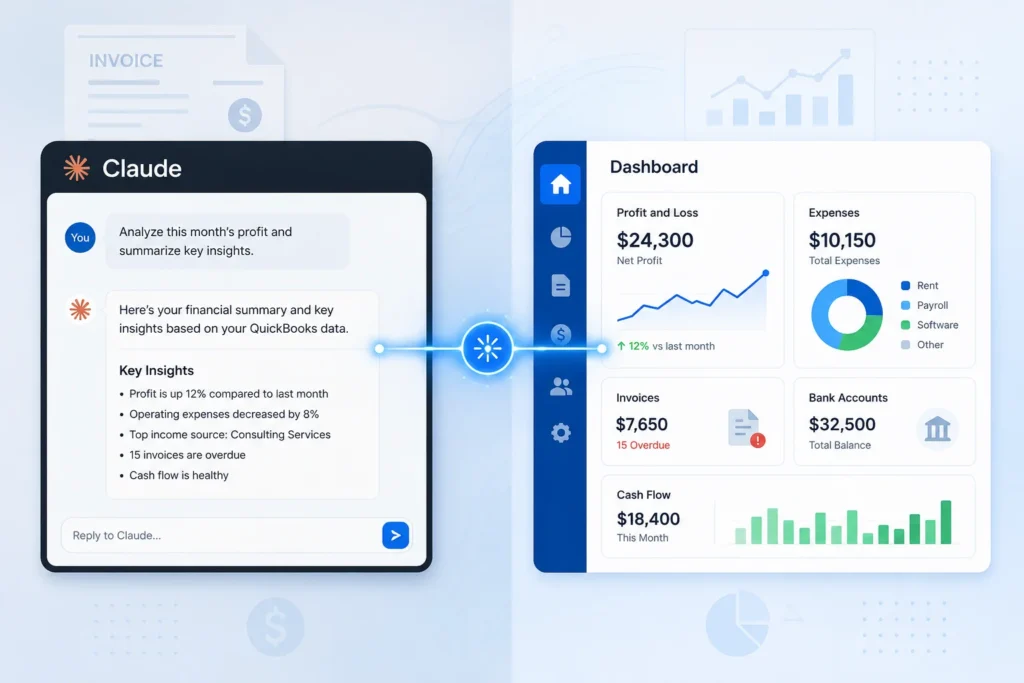
The claude quickbooks integration for accountants is one of the most practical AI developments of the year, and it went live faster than most practices expected. In February 2026, Intuit and Anthropic announced a multi-year partnership that brings QuickBooks data directly into Claude, and the connector is now available to US users inside Claude.ai. This guide explains what the integration actually does, how to connect it step by step, the strongest use cases for accountants and bookkeepers, and the limits you need to understand before you point it at a client file.
If you already use QuickBooks Online and you can type a question into a chat box, you have everything you need to get started. The harder part is knowing which connection method to use, what Claude can and cannot touch, and where a human still has to stay in the loop. That is what this article is built to answer completely.
What Is the Claude QuickBooks Integration?
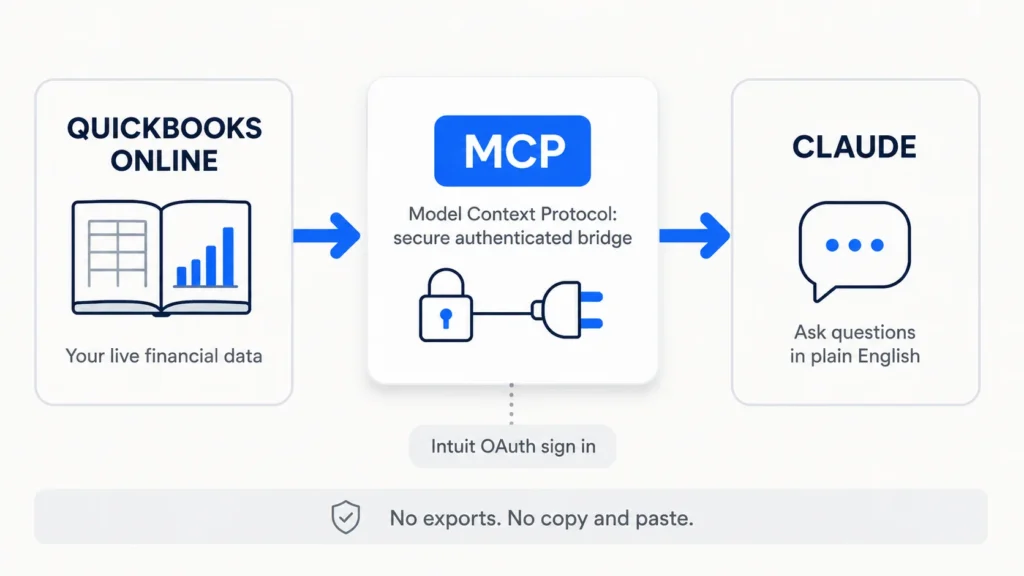
The Claude QuickBooks integration is an official connection, built on Model Context Protocol (MCP), that lets Claude read and work with your QuickBooks Online data inside a normal chat. Instead of exporting reports, you connect your account once through Intuit’s secure sign in and then ask questions about your live books in plain English.
The connection came out of a formal partnership. Intuit and Anthropic agreed to surface Intuit’s tax, finance, accounting, and marketing tools inside Anthropic products, including Claude.ai, Claude for Enterprise, and Cowork, through MCP integrations covering QuickBooks, TurboTax, Credit Karma, and Mailchimp. The companies said these experiences would begin rolling out to customers in spring 2026, and the QuickBooks connector is now the most mature piece of that rollout.
MCP is the technical layer that makes this work, and it is worth understanding in one plain sentence. Model Context Protocol is an open standard, created by Anthropic, that lets an AI assistant connect to outside systems through a common interface, a bit like a universal adapter for software. Rather than pasting numbers into a chat window, you give Claude scoped, authenticated access, and it reasons over the real data. If you want the broader context on why this style of tool matters, our explainer on what AI agents are covers the same building blocks.
One clarification saves a lot of confusion later. Intuit also uses Claude models internally inside its own products, and that is separate plumbing from the user facing connector described here. This guide is about the connection you set up in your own Claude account, not Intuit’s internal model deals.
What Can Claude Do With QuickBooks Data?
Through the official connector, Claude can generate financial reports on demand, benchmark your business against others in your industry, import transactions, create sales documents such as invoices and estimates, and accept payment through payment links. It answers plain English questions about your live records, which removes the export, reformat, and recalculate loop that eats so much reporting time.
According to Intuit’s own connector documentation, the practical surface area breaks down like this:
- Financial reporting. Ask for a profit and loss summary, a cash flow view, or a month over month revenue breakdown, and Claude pulls it from your live data instead of a stale export.
- Industry benchmarking. Compare your margins or expense ratios against businesses in the same sector, using Intuit’s financial intelligence layer.
- Transaction import. Bring transactions into QuickBooks through the conversation rather than manual entry.
- Sales documents. Draft invoices and estimates, and generate pay enabled payment links so clients can settle faster.
For accountants specifically, the value shows up in the work that sits around the numbers rather than the bookkeeping itself. Claude is strong at drafting a client ready commentary on a variance, explaining a tax provision in language a non finance owner understands, summarizing a long financial document, or turning a pile of month end figures into a first draft of a management report. Because Claude is also a capable writer and analyst, you can move from raw figures to a polished narrative in one conversation. That pairing of live data plus drafting is what makes the integration more than a report button, and it complements the spreadsheet workflows we cover in Claude for Excel for accountants.
How Do You Connect Claude to QuickBooks?
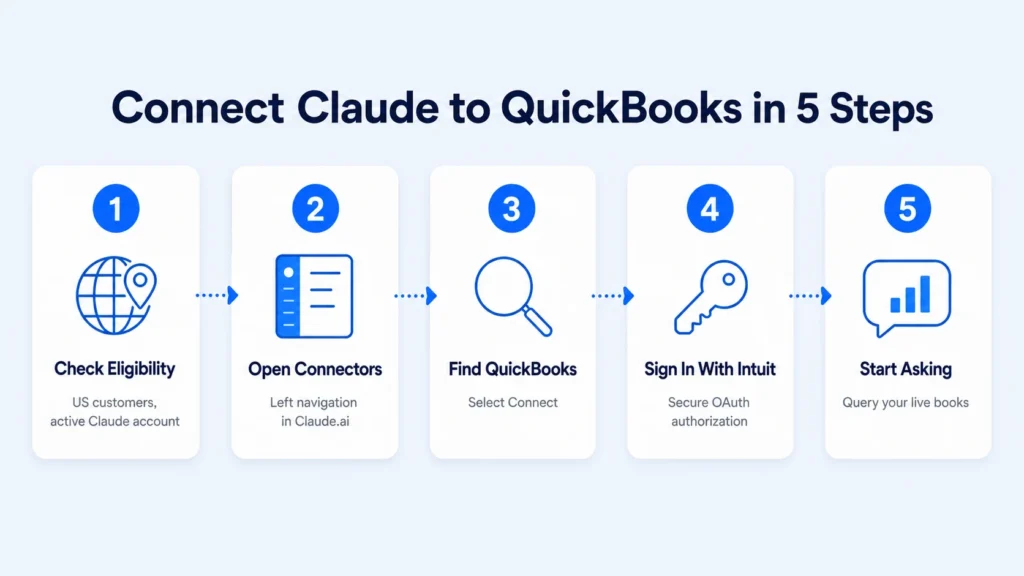
You connect Claude to QuickBooks inside Claude.ai in under a minute. Open Claude, go to Connectors in the left navigation, find QuickBooks, select Connect, and sign in with your Intuit account when prompted. Once authorized, your QuickBooks data is available in your Claude conversations without any exports or third party tools.
Here is the full step by step process, based on Intuit’s official support documentation:
- Confirm you are eligible. You need an active Claude account. The QuickBooks connector for Claude is currently available to US customers only, with other regions planned. You also need either an active QuickBooks or Intuit Enterprise Suite subscription, or you can use the connector without a subscription by supplying business details manually.
- Open Connectors in Claude. In Claude.ai, find Connectors in the left navigation panel.
- Find QuickBooks and select Connect. Locate the QuickBooks connector in the list and click Connect.
- Sign in through Intuit. If you have an Intuit account, sign in when prompted. The connection uses Intuit’s official OAuth flow, so Claude accesses your data through Intuit’s authorized interface rather than storing your login.
- Approve the connection and start asking. Once connected, you can immediately ask Claude questions about your finances, and it will pull answers from your live QuickBooks records.
If you manage multiple client files, connect each company deliberately and confirm which file is active before you run a query. Firms that handle many QuickBooks Online clients often look at the Team plan for centralized access management, which is a sensible operational choice rather than a technical requirement.
What Are the Best Use Cases for Accountants?
The strongest use cases pair Claude’s live data access with its drafting ability: fast reporting, plain English analysis of the numbers, and client ready written output. In practice, accountants get the most value by treating Claude as an analyst they can query, not as an autopilot that runs the books.
A few workflows that work well today:
- Month end reporting. Ask for revenue, expenses, and net profit across the last twelve months, then have Claude draft the commentary that normally takes an hour to write.
- Receivables review. Ask which customers owe more than sixty days and how that has changed, then draft polite follow up wording.
- Expense anomaly checks. Ask Claude to flag unusual spikes over the last ninety days and suggest possible causes for you to verify.
- Client communication. Turn a technical adjustment, such as a tax provision movement, into a short explanation an owner can actually follow.
- Vendor spend analysis. Identify your highest spend vendors and trends, useful during budget and renewal conversations.
Prompts to try once you are connected: “Show a monthly breakdown of revenue, expenses, and net profit for the last twelve months,” “Which customers owe me more than sixty days, and what is the total,” and “Summarize this quarter’s P&L in three sentences a non finance owner would understand.” If you want a deeper prompt library to adapt, our collection of ChatGPT prompts for accountants translates directly to Claude with minor wording changes, and our comparison of ChatGPT vs Claude for accountants helps you decide which model to reach for on a given task.
Is It Safe to Connect Client Data?
Connecting Claude to QuickBooks is reasonably safe by design, but it is a professional decision, not a casual one. The connection uses Intuit’s official OAuth authentication, so Claude reaches your data through Intuit’s authorized API rather than by scraping or storing credentials, and Intuit states that QuickBooks data accessed through the connector is not used to train Claude.
Several safeguards are worth knowing. You control the connection’s lifespan and can revoke access at any time by disconnecting the connector in Claude’s settings. Connecting through a QuickBooks user with limited permissions limits what Claude can reach, which is a sensible default when you are testing. And because the first party connector is oriented toward reading and reporting rather than sweeping changes, the blast radius of a mistake is smaller than an unrestricted API integration.
That said, professional caution still applies to client files. Before connecting data for clients in regulated industries, review Anthropic’s data usage terms and your own engagement letter language, and confirm the client is comfortable with an external AI assistant accessing their records. Treat Claude’s output as a first draft that a qualified professional reviews, never as a filed figure. The convenience is real, but so is your duty of care.
This is also where a properly built reporting layer pays off. At AI Foresight 360, alongside the publication we build financial reporting and CFO dashboards, Power BI models, and AI automation workflows for finance teams, which is often the safer way to give leadership always on visibility without exposing a live accounting file to open ended queries. If you want that kind of controlled reporting environment set up around QuickBooks, you can reach us here.
What Are the Limits of the Claude QuickBooks Integration for Accountants?
The main limitations are that the connector is US only for now, it works only inside a conversation you start, and it is not a substitute for professional judgment. Claude responds when you ask; nothing runs in the background, monitors your books, or fires on an event, so there is no automated “chase overdue invoices” behavior through this connector.
Other limits to plan around:
- No triggers or automation. The connector acts on your instruction in the moment. If you need event driven automation, that requires a different architecture, which we discuss in our overview of AI bookkeeping agents for small business.
- Calculation caution on large datasets. Because Claude reasons over the data rather than running QuickBooks’ own engine on everything, complex or very large queries can produce approximations. Verify anything that feeds a decision.
- Regional availability. As of 2026 the connector is limited to US customers, with other regions planned but not confirmed.
- Not a filing tool. It supports analysis, reporting, and drafting. It does not replace review, sign off, or a qualified accountant’s judgment on decisions with financial or legal implications.
Knowing these limits is not a reason to avoid the tool. It is what separates a firm that uses it well from one that trusts it blindly.
Claude Connector vs QuickBooks MCP Server: Which Should You Use?
There are two distinct ways to connect Claude and QuickBooks, and confusing them is the single biggest mistake in early coverage. The first party QuickBooks connector in Claude.ai is the simple, business friendly route. The developer oriented QuickBooks MCP server is a more technical path aimed at custom setups. Most accountants want the connector; teams building custom tooling look at the MCP server.
| Factor | QuickBooks Connector (Claude.ai) | QuickBooks MCP Server (developer route) |
|---|---|---|
| Best for | Accountants, bookkeepers, business owners | Developers and firms building custom tools |
| Setup effort | One minute, sign in through Intuit | Manual, OAuth setup and custom connector config |
| Technical skill | None required | Developer level |
| Data access | Live QuickBooks Online data (US) | Depends on configuration; official server runs against a sandbox |
| Typical use | Reporting, analysis, invoices, drafting | Prototyping and custom bookkeeping workflows |
| Plan requirement | Active Claude account | Paid Claude plan for custom connectors |
For nearly every practice, the answer is the built in connector. Choose the MCP route only if you are deliberately building a custom internal tool and have the technical capacity to maintain it. If you are weighing Claude’s in product accounting agents against connecting an external assistant, our Intuit AI agents review covers that side of the decision, and you can browse more setup walkthroughs in our AI Guides and Tutorials library.
Frequently Asked Questions
Is the Claude QuickBooks integration free?
The connector itself is included with your Claude account, and usage falls under your Claude plan rather than your QuickBooks subscription tier. You will still need an active QuickBooks Online or Intuit Enterprise Suite subscription for live data, though the connector can also be used without one if you supply business details manually. Custom MCP connectors require a paid Claude plan.
Can Claude edit or change my QuickBooks data?
The first party connector is oriented toward reading, reporting, and creating sales documents such as invoices and estimates. It is not designed to post journal entries or reclassify existing transactions on your behalf. For any change that affects the books, treat Claude’s output as a draft and make the entry through your normal reviewed process.
Is my client data used to train Claude?
No. Intuit states that QuickBooks data accessed through the connector is not used to train Claude, and the connection runs through Intuit’s authenticated OAuth flow. You can revoke access at any time by disconnecting the connector in Claude’s settings.
Is the QuickBooks connector available outside the US?
Not yet. As of 2026 the QuickBooks connector for Claude is available to US customers only, and Intuit has said it is working to bring it to other regions, without a confirmed date.
Do I need to be technical to set it up?
No. The built in connector requires no technical skill. If you can use QuickBooks Online and type a question into a chat, you can connect it and start asking about your finances in minutes. The technical route, the MCP server, is a separate developer focused option.
The Bottom Line for Accountants
The claude quickbooks integration for accountants is a genuine time saver when you understand what it is: an analyst you can query and a drafting partner that works over your live numbers, not an autopilot for your books. Connecting takes about a minute inside Claude.ai, the strongest wins are in reporting and client communication, and the guardrails matter as much as the features, especially the US only availability, the absence of background automation, and the need to verify anything that feeds a decision.
Used with professional judgment, it closes the gap between seeing a number and knowing what it means. If you want a controlled reporting and dashboard layer built around your QuickBooks data, or help designing safe AI workflows for your practice, get in touch with AI Foresight 360 and we will map it to how your team actually works.

Ahmad Hussain
ACCAAhmad builds advanced Excel models, Power BI dashboards, and AI automation for businesses. He writes AI Foresight 360 himself, and every pricing figure and feature claim is verified against official documentation at the source.
Connect on LinkedIn