
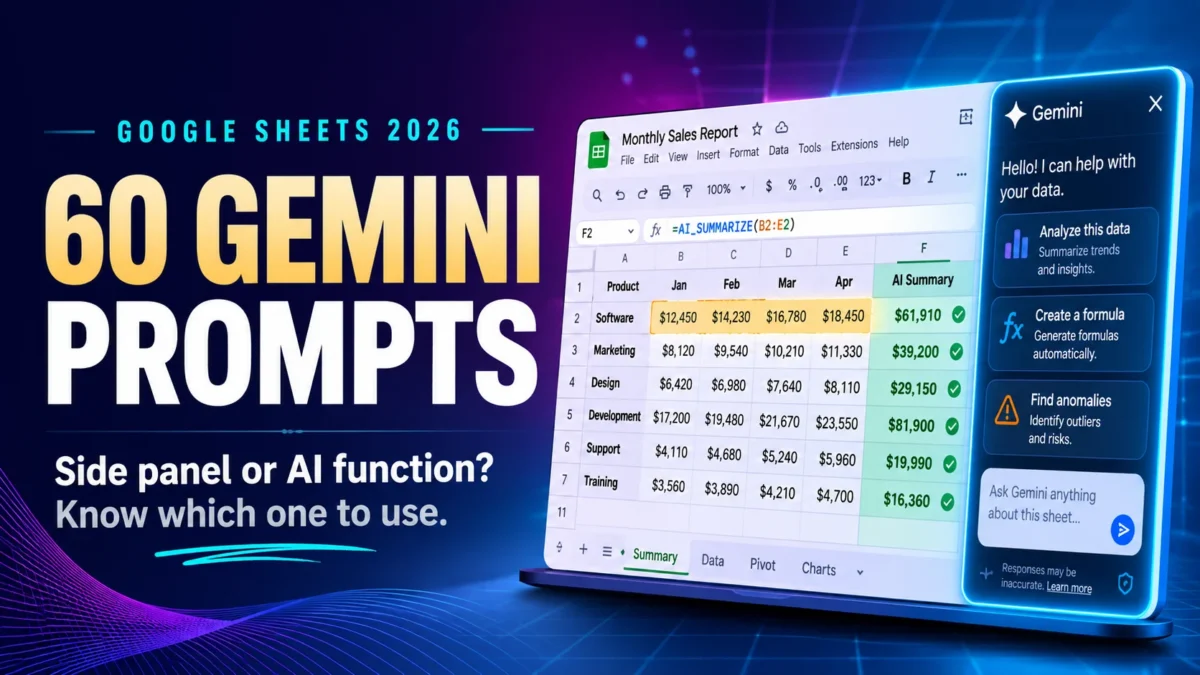
Most people still use Gemini inside Sheets like a chat box, then wonder why the output is vague. The 60 Gemini prompts for Google Sheets below are written the way the tool actually works: each one is matched to the correct surface, and each one tells you what it is designed to return before you paste it.
This collection is part of our wider AI prompts library, where every set is tested inside the real tool before it gets published.
That matters more in 2026 than it did last year. Gemini in Sheets can now build and edit entire spreadsheets from a plain English instruction, and there is a separate =AI() function that runs prompts inside individual cells. They are not interchangeable. A prompt that builds a dashboard in the side panel will fail inside a cell, and a categorization prompt that works beautifully in a cell is a waste of a side panel request. Sorting that out is the whole point of this list.
Every one of these Gemini prompts for Google Sheets is grouped by job to be done, so you can jump to budgets, formulas, data cleanup, or reporting and copy what you need. Where a plan tier or a quota limit changes what a prompt can do, that is flagged in the relevant section.
What Can Gemini in Google Sheets Actually Do in 2026?
Gemini prompts for Google Sheets run on two separate surfaces. The side panel builds, edits, analyzes, and formats whole spreadsheets from a natural language instruction. The =AI() function runs a prompt inside a single cell and returns text, which you can then fill down a column. Both need Gemini enabled on your Workspace or Google AI plan.
The side panel got its major upgrade this year. Google announced the new build and edit capabilities on March 10, 2026, reporting that Gemini in Sheets reached a 70.48% success rate on SpreadsheetBench, a public benchmark that measures how well a model edits real world spreadsheets. General availability followed in the April 2026 Workspace release, which began rolling out to Rapid Release domains on April 22, 2026 and to Scheduled Release domains on May 6, 2026.
The cell level =AI() function is a different animal. Per Google’s documentation for the AI function, it takes a prompt and an optional range, returns plain text, and cannot be undone or redone. You regenerate instead. You also cannot nest AI functions inside each other.
Here is the practical split.
| Capability | Side panel | AI function |
|---|---|---|
| Build a whole sheet or tab | Yes | No |
| Create charts and pivot tables | Yes | No |
| Apply formatting and conditional rules | Yes | No |
| Write or fix a formula | Yes | Indirectly |
| Process one row at a time | No | Yes |
| Fill an entire column with output | No | Yes |
| Classify, tag, or summarize text | Limited | Yes |
Most Gemini prompts for Google Sheets sit cleanly on one side of that table. If you are coming from Excel, the closest comparison point is Copilot, and the tradeoffs look a lot like the ones covered in our review of Claude for Excel for accountants.
Side Panel or AI Function: Where Does Each Prompt Belong?
Sort your Gemini prompts for Google Sheets by what they change. Use the side panel when the answer changes the structure of the sheet, such as building a tab, adding a chart, writing a formula, or reformatting a range. Choose the =AI() function when the answer belongs in one cell and needs to repeat down hundreds of rows, such as categorizing, tagging, summarizing, or drafting short text.
The failure mode is predictable, and it explains most complaints that Gemini prompts for Google Sheets do not work. People paste a build instruction into a cell and get a paragraph of text instead of a dashboard. Or they open the side panel and ask it to categorize 800 rows, which burns a build request on something a fill down handles for free.
One more distinction worth knowing: the side panel presents a plan before it executes, so you can approve or correct it. The cell function just runs. For anything financially sensitive, that approval step is the safer path.
How Do You Use These Gemini Prompts for Google Sheets?
Open a native Google Sheets file, click Ask Gemini at the top right for side panel prompts, or type =AI("your prompt", A2) directly into a cell for function prompts. Smart features must be enabled on your account, and your admin must have Gemini for Sheets turned on. Excel files need converting first.
Three setup notes before you run any of these Gemini prompts for Google Sheets.
Convert .xlsx files to native Sheets format using File, then Save as Google Sheets. Gemini features are unreliable on imported Excel files.
Clean your headers first. Google advises consistent formatting with clear column headers and no missing values, and the difference in output quality is not subtle.
Check your plan. Business Starter has no access to either surface. The Google Workspace AI comparison table confirms which editions include what, and the quota section further down covers the numbers.
Now for the Gemini prompts for Google Sheets themselves. Replace anything in square brackets with your own values.
Gemini Prompts for Google Sheets: The Side Panel
These 35 Gemini prompts for Google Sheets run in the side panel and change the structure of your spreadsheet. Paste them into Ask Gemini, review the plan it proposes, then approve it. Each entry states what the prompt is designed to produce, so you can judge the result before accepting it.
These are also the Gemini prompts for Google Sheets that consume build and edit quota, so use them deliberately rather than experimentally.
Build a Spreadsheet From Scratch
These Gemini prompts for Google Sheets start from an empty tab and return a formatted, working structure in a single step.
1. Monthly budget tracker
Create a monthly budget tracker for 2026 with columns for Category, Budgeted, Actual and Variance, and add a totals row.
Designed to return: a formatted table with twelve month columns and a calculated variance column.
2. Quarterly revenue tracker
Build a quarterly revenue tracker with columns for Quarter, Product Line, Revenue, Target and Achievement percentage.
Designed to return: a structured table with a percentage column already formatted.
3. Cash flow forecast
Build a 12 month cash flow forecast with opening balance, receipts, payments and closing balance, where each closing balance carries into the next month.
Designed to return: a linked forecast with formulas connecting the rows.
4. Invoice register
Create an invoice register with Invoice Number, Client, Issue Date, Due Date, Amount, Status and Days Overdue.
Designed to return: a table with a date driven overdue calculation.
5. Project tracker
Build a project tracker with Task, Owner, Start Date, Due Date, Status and Percent Complete, and highlight overdue tasks.
Designed to return: a table plus conditional formatting on the overdue rows.
6. Inventory reorder sheet
Create an inventory sheet with SKU, Description, On Hand, Reorder Point and a flag showing which items need reordering.
Designed to return: a table with a logical reorder flag column.
7. Payroll summary
Build a payroll summary with Employee, Gross Pay, Deductions, Employer Contributions and Net Pay, plus a department subtotal.
Designed to return: a grouped table with subtotals by department.
8. Expense claim log
Create an expense claim log with Date, Employee, Category, Amount, Receipt Attached and Approval Status.
Designed to return: a clean input table ready for data validation.
Write and Fix Formulas
Formula help is where Gemini prompts for Google Sheets pay off fastest, because you get an explanation alongside the corrected syntax.
9. Explain a broken formula
Explain why the formula in cell [D12] is returning an error and give me a corrected version.
Designed to return: a plain English diagnosis plus the fixed formula.
10. Simplify nested logic
Rewrite the nested IF statement in column [F] as a cleaner IFS formula that does the same thing.
Designed to return: a shorter equivalent formula.
11. Lookup across tabs
Write a formula that pulls the client name from the Clients tab into this sheet by matching on Client ID.
Designed to return: an INDEX and MATCH or VLOOKUP formula referencing the correct ranges.
12. Multi condition sum
Write a formula that sums column [E] where the region is North and the month is March.
Designed to return: a SUMIFS formula with both criteria wired to your actual columns.
13. Fix a reference error
Column [H] is showing #REF errors after I deleted rows. Explain the cause and rebuild the formula so it survives row deletion.
Designed to return: an explanation plus a more resilient formula.
14. Query a range
Write a QUERY formula that returns all rows where Status is Open, sorted by Due Date ascending.
Designed to return: a working QUERY string with the correct column letters.
15. Convert to an array formula
Turn the calculation I dragged down column [G] into a single array formula at the top of the column.
Designed to return: one formula that populates the full range.
Analyze Data and Surface Insights
These Gemini prompts for Google Sheets read your existing data and answer questions about it rather than restructuring the sheet.
16. Summarize the sheet
Summarize what this spreadsheet contains and what the main trends are, in five bullet points.
Designed to return: a short written summary in the side panel rather than a sheet edit.
17. Find anomalies
Identify any values in column [D] that look inconsistent with the rest of the column and explain why each one stands out.
Designed to return: a flagged list with reasoning.
18. Rank performers
Show me the top five and bottom five products by revenue, with each one’s share of total revenue.
Designed to return: a ranked table with percentage share.
19. Period over period change
Calculate month over month change for each category, in both absolute value and percentage, and add it as new columns.
Designed to return: two added columns with the calculations in place.
20. Explain a movement
Total costs rose between Q2 and Q3. Break down which categories drove the increase and by how much.
Designed to return: a contribution breakdown ordered by impact.
21. Find duplicates and gaps
Check this data for duplicate entries and missing values, and list exactly which rows are affected.
Designed to return: a row by row issue list.
22. Forecast from history
Based on the last 24 months of sales in this sheet, project the next quarter and state the assumptions used.
Designed to return: projected figures plus a written assumptions note.
Charts, Pivot Tables and Dashboards
Visualization is a natural fit for Gemini prompts for Google Sheets, since chart setup is mostly repetitive configuration work.
23. Pivot by dimension
Create a pivot table summarizing revenue by region and by month, with regions as rows and months as columns.
Designed to return: a pivot table on a new or specified range.
24. Combo chart
Create a chart showing monthly revenue as bars and cumulative revenue as a line on a secondary axis.
Designed to return: a combo chart with a dual axis.
25. Heat map
Apply a heat map to the results range so higher values shade darker, and add a short legend.
Designed to return: conditional formatting across the range.
26. Add scorecards
Add scorecard tiles above my data showing total revenue, total cost, gross margin and margin percentage.
Designed to return: summary tiles positioned above the data block.
27. Build a dashboard tab
Create a new dashboard tab that pulls from this data with three charts and four KPI tiles, formatted for a monthly management pack.
Designed to return: a separate formatted tab.
28. Conditional formatting rules
Highlight every row where variance is worse than negative 10 percent in red and better than positive 10 percent in green.
Designed to return: two conditional formatting rules on the row range.
29. Presentation ready chart
Reformat this chart for a board pack: clear title, labeled axes, data labels on, and a neutral color scheme.
Designed to return: a restyled chart.
Budgets, Variance and Finance Reporting
These Gemini prompts for Google Sheets target month end reporting, where the structure is standard and the deadline is not.
30. Budget versus actual
Build a budget versus actual report by department with variance in value and percentage, and flag every variance beyond 5 percent.
Designed to return: a variance report with flagged exceptions.
31. Rolling forecast
Convert this annual budget into a 12 month rolling forecast that updates the remaining months when actuals are entered.
Designed to return: a forecast structure with formula linked months.
32. Cost breakdown
Break total operating costs down by department and by cost type, and show each as a percentage of the total.
Designed to return: a two dimensional cost summary.
33. Aged receivables
Create an aged receivables summary bucketing balances into current, 1 to 30, 31 to 60, 61 to 90 and over 90 days.
Designed to return: an aging table with bucket totals.
34. Break even analysis
Build a break even analysis using the fixed costs, variable cost per unit and selling price in this sheet, and show the break even unit volume.
Designed to return: the calculation plus the break even figure.
35. Scenario comparison
Create base case, best case and worst case scenarios for next year’s revenue using growth rates of 3, 8 and negative 2 percent, side by side.
Designed to return: three comparable scenario columns.
If these reporting prompts are getting you 80 percent of the way to a management pack but the last 20 percent keeps eating your month end, that gap is usually a modelling problem rather than a prompting one. We build Power BI and financial reporting dashboards for exactly that handover point.
Gemini Prompts for Google Sheets: The AI Function
These 25 Gemini prompts for Google Sheets run inside a cell using the =AI() function, then fill down a column. Syntax is =AI("your instruction", A2) where the second argument is the cell holding the data. Keep instructions narrow and state the format you want back.
Cell level Gemini prompts for Google Sheets are cheap by comparison, which is why repetitive row work belongs here rather than in the side panel.
Categorize and Tag Rows
Classification is the highest value use of cell level Gemini prompts for Google Sheets, replacing hours of manual tagging with one fill down.
36. Expense category
=AI("Categorize this expense as Travel, Software, Office, Marketing or Other. Return only the category name.", A2)
Designed to return: a single category word per row.
37. Support ticket triage
=AI("Classify this support ticket as Billing, Technical, Feature Request or General. Return only the label.", A2)
Designed to return: one label per ticket.
38. Lead qualification
=AI("Based on this enquiry, rate the lead as Hot, Warm or Cold. Return only the rating.", A2)
Designed to return: a single word rating.
39. Sentiment scoring
=AI("Analyze the sentiment of this feedback as Positive, Neutral or Negative. Return only one word.", A2)
Designed to return: a one word sentiment value you can pivot on.
40. Return reason
=AI("Categorize this return reason as Damaged, Wrong Item, Changed Mind or Late Delivery. Return only the category.", A2)
Designed to return: a consistent reason code.
41. GL account mapping
=AI("Map this invoice line description to one of these accounts: Utilities, Rent, Subscriptions, Professional Fees, Travel. Return only the account name.", A2)
Designed to return: a single account label per line.
42. Priority flag
=AI("Based on this issue description, assign a priority of P1, P2 or P3. Return only the priority code.", A2)
Designed to return: a short priority code.
Clean and Standardize Messy Data
These Gemini prompts for Google Sheets handle the normalization work that regular formulas struggle with, such as inconsistent names and free text entries.
43. Standardize company names
=AI("Return this company name in a clean standard format with correct capitalization and no legal suffix.", A2)
Designed to return: a normalized name string.
44. Fix name casing
=AI("Rewrite this person's name in proper title case with no extra spaces.", A2)
Designed to return: a cleaned name.
45. Normalize job titles
=AI("Map this job title to one of these levels: Executive, Manager, Individual Contributor. Return only the level.", A2)
Designed to return: a consistent seniority label.
46. Country standardization
=AI("Return the standard English country name for this location entry.", A2)
Designed to return: one country name per row.
47. Extract contact details
=AI("Extract the email address from this text. If there is none, return None.", A2)
Designed to return: either an address or the word None.
48. Consistent date wording
=AI("Rewrite this date description in the format Month DD, YYYY.", A2)
Designed to return: a uniformly worded date string.
Summarize and Extract
Long text sitting in a single cell is where Gemini prompts for Google Sheets outperform any formula based approach.
49. One line summary
=AI("Summarize this customer review in one sentence of no more than 15 words.", A2)
Designed to return: a short summary sentence.
50. Pull action items
=AI("Extract the action items from this meeting note as a semicolon separated list. If none, return None.", A2)
Designed to return: a compact list in one cell.
51. Identify the objection
=AI("Identify the main objection raised in this sales note. Return it in five words or fewer.", A2)
Designed to return: a short objection phrase.
52. Plain English translation
=AI("Rewrite this audit comment in plain English for a non finance reader, in one sentence.", A2)
Designed to return: a simplified restatement.
53. Extract the vendor
=AI("Extract only the vendor or supplier name from this transaction description.", A2)
Designed to return: the vendor name alone.
54. Short label
=AI("Reduce this policy note to a label of no more than four words.", A2)
Designed to return: a compact tag suitable for grouping.
Generate Text at Scale
These Gemini prompts for Google Sheets draft short text row by row, which suits outreach, management commentary and product copy.
55. Follow up line
=AI("Write one friendly follow up sentence referencing this client's last order.", A2)
Designed to return: a single personalized sentence per row.
56. Product description
=AI("Write a 20 word product description based on these specifications.", A2)
Designed to return: a short marketing line.
57. Variance commentary
=AI("Write one sentence of management commentary explaining this budget variance.", A2)
Designed to return: a commentary line for a reporting pack.
58. Translate a note
=AI("Translate this note into Spanish. Return only the translation.", A2)
Designed to return: the translated text alone.
59. Client friendly explanation
=AI("Rewrite this technical issue description so a non technical client can understand it, in two sentences.", A2)
Designed to return: a simplified explanation.
60. Subject line
=AI("Write an email subject line of no more than eight words for this enquiry.", A2)
Designed to return: a short subject line.
For a wider set of finance specific prompt patterns that transfer across tools, our library of ChatGPT prompts for accountants covers the same ground from a different angle.
What Prompt Rules Make Gemini in Sheets More Accurate?
Four rules make Gemini prompts for Google Sheets noticeably more accurate: state the output format explicitly, reference your actual columns by name, give the model constraints rather than open questions, and split large builds into stages. Vague prompts produce vague spreadsheets, and the fix is almost always specificity rather than length.
Name the output format. “Return only the category name” is the difference between a clean column and a column full of sentences. This matters far more in the cell function than in the side panel.
Reference real column headers. “Sum column E” is weaker than “sum the Net Amount column”. Gemini reads your headers, so use them.
Constrain the answer. Word limits, fixed category lists, and explicit fallbacks such as “if none, return None” all reduce the cleanup work afterward.
Break big builds into stages. Ask for the table first, then the charts, then the formatting. One giant instruction is more likely to produce a plan you have to reject.
Check the plan before approving. The side panel shows you what it intends to do. Reading that plan takes ten seconds and catches most of the mistakes before they touch your data.
The habits behind effective Gemini prompts for Google Sheets transfer to every other assistant you use. The reasoning behind it is the same reasoning we cover in our guide to what generative AI actually is.
What Are the Usage Limits and the Mistakes to Avoid?
Both surfaces that run Gemini prompts for Google Sheets are metered. According to Google’s Workspace admin comparison table, Business Standard and Plus and Enterprise Standard and Plus get 5,000 AI function uses per month and 100 build and edit actions per month. The AI Expanded Access add on raises those to 25,000 and 500 respectively. Business Starter has no access to either feature.
Those numbers are worth internalizing before you plan a workflow around this. A 100 action monthly ceiling on build and edit sounds generous until you realize each rejected plan and each revision counts. The =AI() allowance is far larger, which reinforces the earlier point: push repetitive row level work into the cell function and save the side panel for structural work.
Google ran a promotional period with higher limits through July 15, 2026, and that window has now closed, so anyone who tested this in May and found it effectively unlimited is working from outdated experience. The Fill with Gemini update published in July 2026 confirms the enforcement date for the AI function limits.
The other mistakes worth naming when you run Gemini prompts for Google Sheets:
Running =AI() across thousands of rows without testing on five first. Every row consumes quota, and a badly worded instruction burns all of it.
Expecting the AI function to calculate. It handles text tasks well and simple arithmetic inconsistently. Use real formulas for real math.
Leaving AI output live in a reporting file. The function cannot be undone, and results should be reviewed and often pasted as values before anything gets circulated.
Trusting output on financial data without checking it. Gemini’s SpreadsheetBench result is strong, but a roughly 70% success rate on complex tasks means roughly three in ten need correction.
When Should You Not Use Gemini in Google Sheets?
Skip Gemini prompts for Google Sheets for audited financial statements, anything requiring a reproducible audit trail, highly complex multi tab models, and any dataset containing client confidential information your organization has not cleared for AI processing. The tool is a strong accelerator for drafting and analysis, and a poor fit for work where every cell must be independently defensible.
Complex multi sheet models are where Gemini prompts for Google Sheets disappoint most often. The further a task sits from a single clean table, the more the accuracy drops off, which is consistent with a benchmark score in the seventies rather than the nineties.
Confidentiality is the other genuine constraint. Even with Workspace data protections in place, many finance teams operate under client agreements that require explicit consent before third party processing. Check before you paste.
And if your real need is a repeatable monthly reporting process rather than one off analysis, a spreadsheet assistant is the wrong tool category entirely. That is a dashboard problem. Teams weighing assistants across platforms may also find our comparison of ChatGPT versus Claude for accountants useful before committing to one ecosystem.
Frequently Asked Questions
Are these Gemini prompts for Google Sheets free to use?
The prompts themselves are free, but the features they run on are not available on every plan. Google’s Workspace comparison table shows that Business Starter has no access to either the AI function or build and edit with Gemini. You need Business Standard or higher, an equivalent Enterprise edition, or a consumer Google AI Pro or Ultra subscription.
What is the difference between the Gemini side panel and the AI function in Sheets?
The side panel builds and edits entire spreadsheets, including tables, charts, pivot tables and formatting, and it shows you a plan before executing. The =AI() function runs a prompt inside a single cell and returns plain text, which you fill down a column. Side panel changes structure, the AI function processes rows, and most Gemini prompts for Google Sheets belong clearly to one or the other.
Can the AI function in Google Sheets do calculations?
It handles simple arithmetic inconsistently and is not designed as a calculation engine. Google’s documentation positions it around text tasks such as generating, summarizing, categorizing and extracting. For anything numeric that has to be correct, use standard Sheets formulas and reserve =AI() for the text columns beside them.
How many Gemini requests do I get per month in Google Sheets?
Both surfaces are metered separately. Google’s admin comparison table lists 5,000 AI function uses and 100 build and edit actions per month for Business Standard and Plus and Enterprise Standard and Plus. The AI Expanded Access add on raises those to 25,000 and 500. Limits reset monthly at 12 AM Pacific Time on the first of the month, do not roll over, and apply to all Gemini prompts for Google Sheets you run in that period.
Does Gemini work in Google Sheets on an imported Excel file?
Not reliably. Gemini features are built for native Google Sheets files, and Google recommends converting Excel files first using File, then Save as Google Sheets. Working directly in an .xlsx file typically means the side panel and the AI function either fail or return degraded results.
Can I undo the output from the AI function?
No. Google’s documentation states that the AI function output cannot be undone or redone, and the intended workaround is to regenerate the result instead. This is a good reason to test a prompt on a few rows first and to paste outputs as values once you are satisfied with them.
The Takeaway
The 60 Gemini prompts for Google Sheets in this guide are organized around one decision that most tutorials skip entirely: which surface the prompt belongs in. Get that right and the tool feels genuinely fast. Get it wrong and you burn quota on requests that were never going to work.
Start with the five or six Gemini prompts for Google Sheets closest to the work you already do this week, whether that is a budget variance report, an expense categorization column, or a first pass dashboard. Test on a small range, check the plan before approving, and paste as values before anything goes into a report. Accuracy in the seventies is a real productivity gain and a real reason to review the output.
More prompt collections like these Gemini prompts for Google Sheets are gathered in our AI Prompts Library, and every guide we publish is indexed in the AI Insights Hub.

Ahmad Hussain
ACCAAhmad builds advanced Excel models, Power BI dashboards, and AI automation for businesses. He writes AI Foresight 360 himself, and every pricing figure and feature claim is verified against official documentation at the source.
Connect on LinkedIn