Most guides that explain how to run AI models locally tell you to install Ollama, type one command, and celebrate. Then you discover the model does not fit, your GPU runs out of memory halfway through a long document, and the tokens crawl out at reading speed.
The gap is almost always the same. Published memory figures are wrong. While researching this guide, four separate 2026 tutorials listed the memory requirement for Google’s smallest Gemma 4 model as 1.8GB, 3GB, 5.5GB, and 6GB. The official Ollama library page lists the download at 7.2GB. Every one of them was wrong, and the smallest claim was off by a factor of four.
This guide takes a different approach to the question of how to run AI models locally. Every size, context window, and memory figure below comes from an official model card, an official vendor library page, or a vendor engineering blog. Nothing here comes from a third party roundup. Where official sources disagree with each other, and for Meta’s new Muse Glimmer they disagree substantially, you get every figure side by side rather than one number presented as settled fact.
A note on methodology before you read further. This guide is compiled from official vendor documentation, published model cards, and vendor benchmark disclosures. It is not based on hands on benchmarking in our own lab. Where speed figures appear, they are attributed to the organization that measured them along with the hardware they used. No number in this article is presented as our own test result.
What Does It Mean to Run AI Models Locally?
To run AI models locally means downloading an open weight model to your own computer and generating responses entirely on your hardware, with no API call, no subscription, and no internet connection required after the initial download. Your prompts and documents never leave the machine.
The practical trade when you run AI models locally is straightforward. You give up access to the largest frontier models, which are far too big for consumer hardware, and you gain privacy, zero per token cost, and the ability to work offline. For anyone handling client files, medical records, unpublished financials, or legal documents, that privacy property is often the entire reason to bother.
The software that lets you run AI models locally is called an inference runtime. It loads the model weights into memory, manages the conversation, and produces tokens. The three names you will encounter most are Ollama, LM Studio, and llama.cpp. Ollama and LM Studio are what most people should use. The first is a command line tool with a local API, the second is a desktop application with a chat window.
If the underlying concepts are new to you, our explanation of what generative AI actually is covers the fundamentals that this guide assumes.
What Hardware Do You Need to Run AI Models Locally?
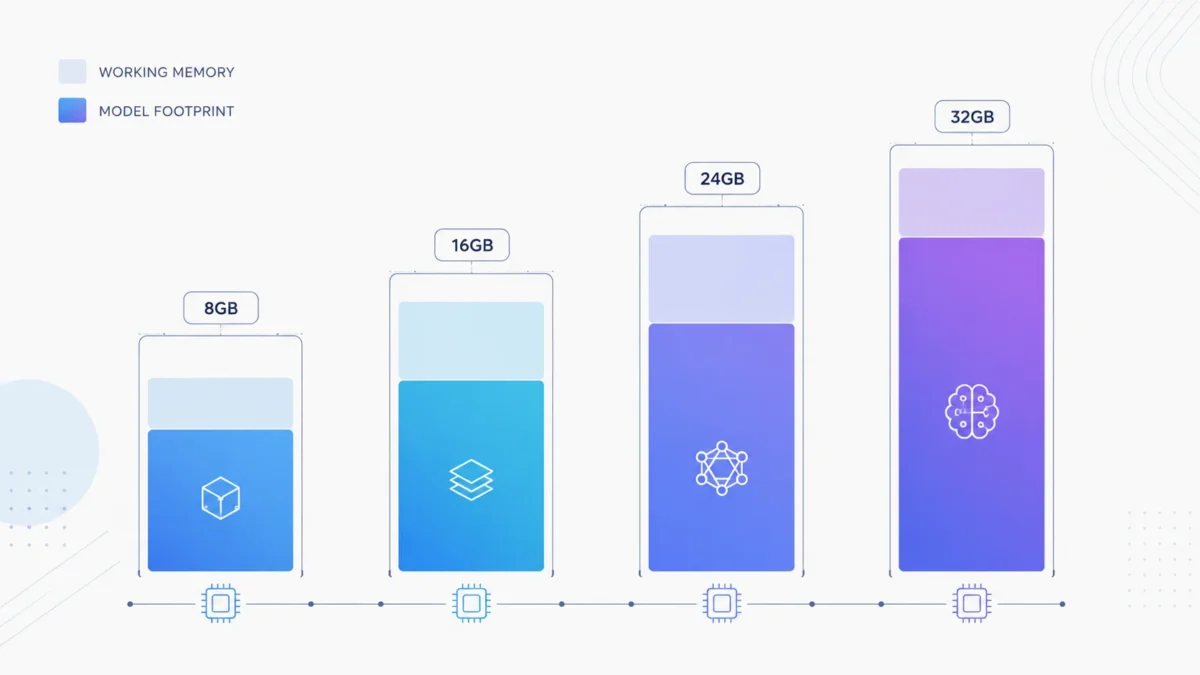
Memory is the binding constraint, not raw processing speed. To run AI models locally at a usable pace you need enough VRAM on a dedicated GPU, or enough unified memory on an Apple Silicon Mac, to hold the entire model plus its working memory at once. A fast GPU with too little memory will be slower than a modest GPU with enough.
Here is what each hardware class realistically supports if you want to run AI models locally in 2026.
8GB VRAM. Entry level territory. Cards like the RTX 3060 Ti, RTX 4060, and RTX 5060 land here, along with many gaming laptops. You can run small models comfortably and mid sized models badly.
16GB VRAM. The RTX 4080, RTX 5080, RTX 3090, and AMD RX 9070 XT sit in this class. This is where local AI stops being a toy for most workloads.
24GB VRAM. RTX 4090, RTX 5090, and the AMD Radeon AI PRO R9700. This is the tier that changed most in August 2026, for reasons covered below.
32GB and above. Workstation cards, Apple Silicon Macs with large unified memory pools, and AMD Ryzen AI Max systems where system memory can be assigned to the GPU.
Apple Silicon deserves a separate note. Because M series chips share one memory pool between CPU and GPU, a Mac with 32GB of unified memory can load models that would require a dedicated 32GB graphics card on a Windows or Linux machine. That architecture is why so many 2026 announcements about how to run AI models locally lead with Mac support.
Download Size Is Not the Same as VRAM Requirement
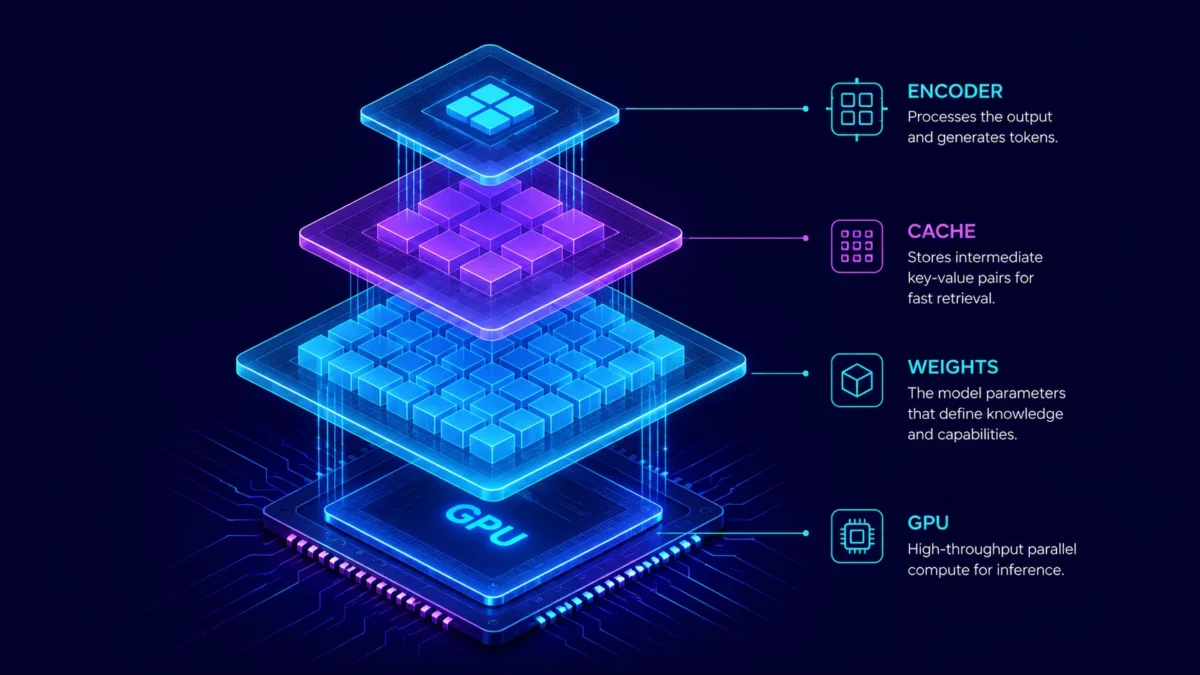
This is the single most common mistake in guides that explain how to run AI models locally, and it is the reason people follow instructions carefully and still hit an out of memory error. The download size shown on a model page is the size of the compressed weights on disk. Actual memory use is the weights plus the KV cache plus the vision encoder plus runtime overhead.
The KV cache is the part people forget. It stores the conversation as the model works, and it grows with context length. A model advertising a 256K context window will not use anything close to that by default, and pushing toward it can add several gigabytes on top of the weights.
Consider OpenAI’s gpt-oss:20b. The official Ollama library lists it at a 14GB download with a 128K context window. Dozens of roundups describe it as the right pick for a 16GB card. On paper that fits. In practice, 14GB of weights on a 16GB card leaves roughly 2GB for everything else, which means short contexts, no room for anything else on the GPU, and disappointment the moment you paste in a long document.
The working rule when you run AI models locally: treat the published download size as a floor and budget at least 25 to 30 percent headroom on top of it. If a model downloads at 18GB, plan for a 24GB card rather than a 20GB one.
Which Models Fit Your Machine in 2026
If you want to run AI models locally without guesswork, start from the vendor’s own numbers. The table below lists official download sizes and context windows taken directly from vendor library pages. Remember that these are download sizes, not memory requirements, and apply the headroom rule above.
| Tier | Model | Download | Context | Input | Notes |
|---|---|---|---|---|---|
| 8GB | qwen3:4b | 2.5GB | 256K | Text | Comfortable with room for real context |
| 8GB | gemma4:e2b | 7.2GB | 128K | Text, image, audio | Fills the card, very tight |
| 16GB | gemma4:12b | 7.6GB | 256K | Text, image | Best value in the current lineup |
| 16GB | gemma4:e4b | 9.6GB | 128K | Text, image, audio | Adds audio input |
| 16GB | gpt-oss:20b | 14GB | 128K | Text | Fits on paper, cramped in practice |
| 24GB | qwen3.6:27b | 17GB | 256K | Text, image | Strong all round pick |
| 24GB | muse-glimmer | 18GB | 128K | Text, image | Agent focused, Apache 2.0 |
| 24GB | gemma4:26b | 18GB | 256K | Text, image | MoE, 25.2B total, 3.8B active |
| 32GB | gemma4:31b | 20GB | 256K | Text, image | Dense 30.7B |
| 32GB | qwen3.6:35b | 24GB | 256K | Text, image | Largest comfortable local pick |
Two findings in this table contradict most published advice.
First, gemma4:12b downloads at 7.6GB with a 256K context window, while gemma4:e4b downloads at 9.6GB with a 128K context window. The model labelled 12B is smaller on disk and carries double the context of the model labelled effective 4B. Google’s naming does not track download size, because the E in E2B and E4B refers to effective parameters for edge deployment rather than total footprint. The smaller labels also carry a 262K vocabulary and an audio encoder, which the workstation models drop.
Second, Gemma 4’s 26B variant is a mixture of experts model with 25.2B total parameters and only 3.8B active per token. It generates text at close to small model speed, but the runtime still loads all 25.2B parameters into memory before inference begins. You get the speed of a small model and the memory requirement of a large one. Anyone budgeting hardware on the active parameter count will come up short.
Full specifications for every variant are published on the official Gemma 4 library page.
Meta Muse Glimmer and the New 24GB Tier
On August 10, 2026, Meta Superintelligence Labs released Muse Glimmer, a 30 billion parameter dense multimodal model distilled from the larger Muse Spark and published under an unmodified Apache 2.0 license. It is built specifically for agent workloads that run on your own machine rather than in a data center.
The license matters more than the benchmarks. Previous Meta open weight releases shipped under bespoke Llama terms with usage restrictions attached. Muse Glimmer ships under the standard Apache 2.0 license with no geographic or commercial limitations, which means small firms can deploy it commercially without a legal review. For anyone who wants to run AI models locally for paid client work, that license change matters more than any benchmark row.
Architecturally it combines a 28B parameter text decoder with a 2B Perception Encoder for vision, giving it native understanding of screenshots, charts, receipts, and scanned documents. It also ships with an optional speculative decoding component called DFlash, which drafts several tokens ahead to speed up generation. Ollama reports that DFlash makes the model run 1.5 to 1.8 times faster on Apple Silicon.
What makes Glimmer genuinely different from a general chat model is that it was trained around the agent loop: planning multi step tasks, calling tools with correct schemas, and recovering when a tool call fails rather than stopping. If the idea of a model that executes tasks rather than just answering questions is new, our guide to how AI agents actually work explains the pattern in detail.
One detail the launch coverage largely skipped: support was not universal on day one. The picture at release looked like this.
| Runtime | Status at launch |
|---|---|
| transformers | Day zero |
| llama.cpp | Day zero, with DFlash support |
| vLLM | Day zero, but through the transformers backend rather than a native implementation |
| LM Studio | Day zero in LM Studio Bionic |
| Unsloth | Day zero quants, built in collaboration with Meta |
| Ollama | Apple Silicon only at first, through the MLX engine |
| MLX, ExecuTorch, SGLang | Listed by Meta as coming in the following days |
Ollama’s release notes for version 0.32.7 stated plainly that Muse Glimmer was initially available through the MLX engine on Apple Silicon, with NVIDIA, AMD, and other platform support arriving later. Anyone who followed a launch day tutorial on a Windows machine with an NVIDIA card would have hit a wall. The general tag has since shipped, and the official Ollama listing now pulls an 18GB build with a 128K context window, alongside a separate 21GB MLX build for Mac.
How Much Memory Does Muse Glimmer Actually Need?
There is no single answer, and that is the honest finding. This is the clearest example in 2026 of why you cannot trust a single published figure when deciding whether you can run AI models locally with a given model. Five official or vendor sources published five different minimums for the same model within days of each other. Here they are side by side.
| Source | Stated requirement |
|---|---|
| Unsloth documentation | Runs on 18GB of RAM or VRAM |
| Ollama library listing | 18GB download for the default tag |
| Meta model card | 4 bit weights under 20GB, sized for a 24GB or 32GB envelope |
| LM Studio model page | At least 26GB of RAM for the smallest build |
| AMD engineering blog | Recommends systems with more than 32GB of VRAM or Variable Graphics Memory |
These figures are not contradictory so much as they answer different questions. Meta’s own model card on Hugging Face explains the reasoning clearly: 4 bit quantization compresses the language model to under 20GB, and the remaining space in a 24GB or 32GB envelope is what allows the KV cache, the perception encoder, and the DFlash drafter to run at the same time. Meta also states that this compression introduced minimal to no degradation on agentic tasks.
So 18GB is the number at which the weights load. 24GB is the number at which the model works as designed with vision and speculative decoding active. 32GB is the number at which you have room for long documents as well. Unsloth’s documentation adds a useful upper bound: full precision BF16 weights come to roughly 58GB, which is firmly out of consumer range.
If you plan to run AI models locally with this model, treat 24GB as the real entry point and 32GB as comfortable. If you only have 18GB, the model will load and then disappoint you.
How to Install Ollama and Run Your First Model
Ollama is the fastest route for most people who want to run AI models locally. Installation takes a few minutes on every major platform, and it gives you both a command line interface and a local API on port 11434 that other applications can talk to.
Windows with an NVIDIA GPU. Download the installer from the official Ollama download page and run it like any other Windows application. You do not need to install the CUDA toolkit separately, because Ollama bundles what it needs, but you should update to current NVIDIA drivers first. Verify with ollama --version in PowerShell.
Apple Silicon Mac. Download the macOS installer from the same page. Metal acceleration works without configuration. Because unified memory is shared between CPU and GPU, check your total system memory rather than looking for a VRAM figure. On Apple Silicon, prefer the MLX tagged builds where they exist, since they are compiled for M series chips.
Windows or Linux with an AMD GPU. AMD support runs through ROCm. On Linux this is the more reliable path, and on Windows it remains less mature as of 2026. AMD’s own guidance recommends its Ryzen AI Max Plus processor systems and the Radeon AI PRO R9700 32GB card for running larger models through LM Studio.
Linux with an NVIDIA GPU. One command handles it:
curl -fsSL https://ollama.com/install.sh | sh
The script detects your system, installs the binary, and creates a systemd service that starts automatically. Install official NVIDIA drivers separately if you have not already.
Once installed, you can run AI models locally with a single command:
ollama run gemma4:12b
Then set your context window explicitly. This is the step almost every tutorial omits, and it is the reason people report that their local model “forgot” a document they just pasted in. Ollama does not automatically allocate the model’s full advertised context window, because doing so would exhaust memory on most machines. Set it deliberately based on what your hardware can hold:
OLLAMA_CONTEXT_LENGTH=32768 ollama serve
For anything agentic, use a model tagged for tool support and give it a real context budget. Tool calling fails silently on a short context far more often than it fails for any interesting reason.
LM Studio if You Prefer a Visual Interface
LM Studio is the better starting point for anyone who wants to run AI models locally without living in a terminal. It provides a searchable model catalog, a download manager that warns you when a model will not fit your hardware, a chat interface, and a local server that exposes an OpenAI compatible endpoint.
The current generation of the application is called LM Studio Bionic, and it added an agent layer on top of the chat window. It received launch day support for Muse Glimmer, and LM Studio published its own comparison from that testing: under the same local test setup, Muse Glimmer completed 83.3 percent of tasks, ahead of both Gemma 4 31B and Qwen 3.6 27B at 77.7 percent each. That figure is LM Studio’s measurement on its own harness, not an independent benchmark, and it should be read as directional.
The workflow is simple. Install the application, open the discovery panel, search for a model, and check the compatibility indicator before downloading. Once the download completes, the model becomes available in any chat session. To connect it to other tools, start the local server and point them at the OpenAI compatible endpoint.
For power users, LM Studio’s server can be exposed over a local network, which lets a laptop query a model running on a desktop with a larger GPU. AMD documents this pattern specifically for connecting agent frameworks to a machine with more memory.
What Local AI Still Will Not Do Well
Balanced coverage of what happens when you run AI models locally is rare, so here is the honest list. If any of the following matters to your work, plan around it rather than discovering it later.
It will not match frontier models on hard reasoning. A 30B model running on your desk is competing against models hundreds of times larger. On Meta’s own published table, Muse Glimmer loses to Qwen 3.6 27B on terminal coding, on OSWorld, and on several multimodal rows. The gap against actual frontier models is far wider.
Local execution does not make an agent safe. This is the most important caveat in this guide, and Meta says it directly. Keeping data on your device reduces exposure to cloud infrastructure, but it does not solve prompt injection, excessive permissions, or an agent taking an action you did not intend. Meta’s own release documentation recommends deploying the model as part of a wider system with guardrails, including human confirmation before any irreversible action. A local agent with write access to your accounting folder is a risk regardless of where the inference happens.
Setup is not one command. The idea that you can run AI models locally with a single line of copy and paste is the most persistent myth in this space. Driver versions, runtime versions, context settings, and quantization choices all have to line up. The Muse Glimmer launch is a clean example: the same tutorial worked on a Mac and failed on a Windows NVIDIA machine for several days.
Speed degrades badly at long context. A model that feels responsive on a short question can slow to a crawl on a 50 page document, because the KV cache grows and eventually forces work onto the CPU.
Audio and video support is inconsistent. Muse Glimmer accepts images and video frames but explicitly does not support audio in either direction. Gemma 4’s edge variants accept audio, but its workstation variants do not.
Running AI Locally for Confidential Client Work
For accounting, legal, and finance teams, the reason to run AI models locally is privacy, and that single property is the whole argument. When a client’s trial balance, payroll register, or draft accounts never leave the machine, an entire category of data handling question simply does not arise. When you run AI models locally, there is no vendor processing agreement to negotiate, no cross border transfer to document, and no retention policy to reconcile with a professional body’s requirements.
This is where the vision capability becomes genuinely useful rather than a specification bullet. A model with a perception encoder can read a scanned invoice, a photographed receipt, or a chart in a PDF without that document being uploaded anywhere. Meta lists document analysis as a primary target for Muse Glimmer, and Gemma 4’s larger variants post strong scores on OmniDocBench, a document understanding benchmark.
Two cautions from professional experience. First, offline does not mean unsupervised. Everything in the safety section above applies with more force when the documents are client property. Any local agent that touches client files should have read only access by default and human review before it writes anything.
Second, local models make mistakes that look confident. A model that misreads a figure on a scanned invoice will present the wrong number in a well formatted sentence. Every extracted figure needs the same verification you would apply to manual data entry, which means local AI is a speed improvement on review work rather than a replacement for it.
If your work is more spreadsheet driven than document driven, our comparison of Claude for Excel in an accounting workflow covers the cloud side of the same problem, and our assessment of ChatGPT and Claude for accountants covers where each fits.
If you are weighing whether a local setup, a cloud tool, or a custom reporting workflow fits your firm, that decision usually comes down to data sensitivity and volume rather than model quality. We work with finance teams on exactly this question, and you can get in touch if you want a second opinion on the architecture before you buy hardware.
Local Versus Cloud: When Each One Makes Sense
The decision to run AI models locally rather than call a cloud API is rarely about which model is better. It is about which constraint binds hardest for your specific work.
| Factor | Local | Cloud |
|---|---|---|
| Data privacy | Nothing leaves the machine | Governed by vendor terms |
| Cost model | Hardware upfront, then zero per use | No hardware, ongoing per token cost |
| Peak capability | Roughly 30B parameters on consumer hardware | Frontier models |
| Offline use | Works with no connection | Requires connectivity |
| Setup effort | Meaningful, ongoing | Minimal |
| Rate limits | None | Plan dependent |
| Latency | Depends on your hardware | Depends on the network |
Choose local when the data cannot leave your control, when volume is high enough that per token pricing hurts, when you need to work without a connection, or when you want a model that will not change underneath you on a vendor’s release schedule.
Choose cloud when you need the strongest available reasoning, when your workload is occasional, when you do not want to maintain a runtime, or when the task genuinely requires frontier capability.
Most teams that adopt local AI seriously end up running both. Routine, high volume, sensitive work runs locally. The hard problems go to a frontier model with the sensitive details stripped out.
Frequently Asked Questions
How much VRAM do I need to run AI models locally?
Eight gigabytes is the practical minimum for small models, 16GB makes local AI genuinely useful, and 24GB unlocks the 30B class models released in 2026. Always budget 25 to 30 percent above the published download size, because the KV cache and vision components need memory alongside the weights.
Can I run AI models locally without a graphics card?
Yes, but slowly. You can run AI models locally on a CPU alone, and Ollama and LM Studio both fall back to CPU inference, and small models remain usable for experimentation at that speed. Expect single digit to low double digit tokens per second on a modern CPU, which is workable for occasional queries but uncomfortable for daily use.
Is Muse Glimmer free to use commercially?
Yes. Muse Glimmer is published under an unmodified Apache 2.0 license, which permits commercial use, modification, and redistribution with no geographic restriction. This is a change from previous Meta open weight releases, which carried bespoke license terms. Note that Meta publishes the weights but not the full training dataset, so it is an open weight model rather than a fully open source project.
What is the best model to run locally on 16GB?
On a 16GB card, gemma4:12b is the strongest balance in the current lineup at a 7.6GB download with a 256K context window and image input. Its smaller download compared to gemma4:e4b also leaves more room for context, which matters more in practice than parameter count when you run AI models locally.
Do local AI models need an internet connection?
Only for the initial download. Once the model weights are on disk, inference runs entirely on your hardware with no network access required. This is what makes it practical to run AI models locally on confidential documents and in environments where outbound connections are restricted.
Why does my local model forget long documents?
Almost always because the context window is set far below the model’s advertised maximum. Runtimes do not allocate the full context by default, since that would exhaust memory on most machines. Set the context length explicitly and reduce it if you run out of memory.
The Bottom Line
The reason to run AI models locally in 2026 is no longer curiosity. Apache 2.0 licensed models in the 30B class now fit on a single consumer GPU, and for confidential work the privacy property is worth more than the capability gap.
Start with the honest version of the hardware question before you try to run AI models locally. Check your actual VRAM or unified memory, take the official download size from the vendor’s own library page, add 25 to 30 percent for working memory, and pick from what genuinely fits. Install Ollama or LM Studio, set your context window deliberately, and run a small model before you commit to a large one.
Then be realistic about the ceiling. Local models will not out reason frontier models, and running an agent on your own hardware does not make that agent safe. Treat the ability to run AI models locally as the right tool for private, repetitive, high volume work, keep a human in the loop on anything irreversible, and send the genuinely hard problems elsewhere.
For more on the tools and workflows behind this shift, browse our AI guides and tutorials or explore the full AI Insights Hub.

Ahmad Hussain
ACCAAhmad builds advanced Excel models, Power BI dashboards, and AI automation for businesses. He writes AI Foresight 360 himself, and every pricing figure and feature claim is verified against official documentation at the source.
Connect on LinkedIn