Finding the best AI for Excel VBA macros sounds like a contest between models, but for accountants it comes down to a more practical question: which tool gives you code that runs on the first attempt, against a workbook that looks like yours? We gave Claude, ChatGPT and Microsoft Copilot the same four finance tasks on their free plans and checked every result inside Excel.
This guide is for accountants, bookkeepers and finance teams who live in Excel but do not write VBA for a living. You will see what each tool produced, where it went wrong, what the official documentation says about Claude for Excel and Copilot inside Excel, and a checklist for running AI written code safely.
The short version: 11 of the 12 runs worked first time, and the twelfth worked after one follow up. That makes the best AI for Excel VBA macros a question of workflow and checking rather than a clear winner, and the rest of this article shows why.
Which is the best AI for Excel VBA macros?
None of the three free tools clearly won our four tests. Claude Sonnet 5, ChatGPT and Microsoft Copilot all produced macros that ran, and 11 of 12 runs worked on the first attempt. The differences were smaller: how tidy the output was, how carefully the code handled files, and one incomplete Copilot reply that needed a follow up.
| Task | Claude Sonnet 5 | ChatGPT | Microsoft Copilot |
|---|---|---|---|
| 1. Combine three monthly sheets | Worked first time, kept date and number formats | Worked first time, formats did not carry over | Worked first time, formats did not carry over |
| 2. Match bank lines to ledger entries | Worked first time | Worked first time | Reply cut off, compile error, worked after one follow up |
| 3. Split a master sheet by cost center | Worked first time | Worked first time | Worked first time, columns left too narrow |
| 4. Fix a broken macro (error 1004) | Worked first time | Worked first time | Worked first time |
| First attempt passes | 4 of 4 | 4 of 4 | 3 of 4 |
A first time pass here means the macro ran and produced the result we had worked out in advance. Every run ended with the expected result on the sheets we checked, but that does not make the three tools identical. The gaps sit in the details covered below.
If you need a starting point today, treat the choice as a workflow decision. Use the assistant your firm already allows, put your formatting requirements in the prompt, and keep the checks from the last section between the code and your live workbook.
How did we test the three tools?
We built four small workbooks with made up accounting data and wrote one plain English prompt per task. Each prompt went unchanged into a new chat in each tool. We pasted the code into a module, compiled it, saved the file as macro enabled, ran it, and compared the output with answers worked out in advance.
| Detail | What we used |
|---|---|
| Date tested | September 2026 |
| Excel | Microsoft 365 desktop app on Windows |
| Claude | Claude Sonnet 5, free plan |
| ChatGPT | Free plan, default model at the time (exact model name not recorded) |
| Microsoft Copilot | Standalone Copilot app on the free plan, mode set to Auto. This is not Copilot inside Excel |
| Data | Four dummy workbooks with made up figures, no client data |
| Rules | Same prompt in a new chat, fresh copy of the workbook for each test, up to three follow ups allowed |
The four tasks mirror routine finance work: combining monthly ledgers, reconciling a bank statement, splitting a report by cost center and repairing a report macro that suddenly fails. For each one we knew in advance what a correct result looked like.
| Task | Correct result |
|---|---|
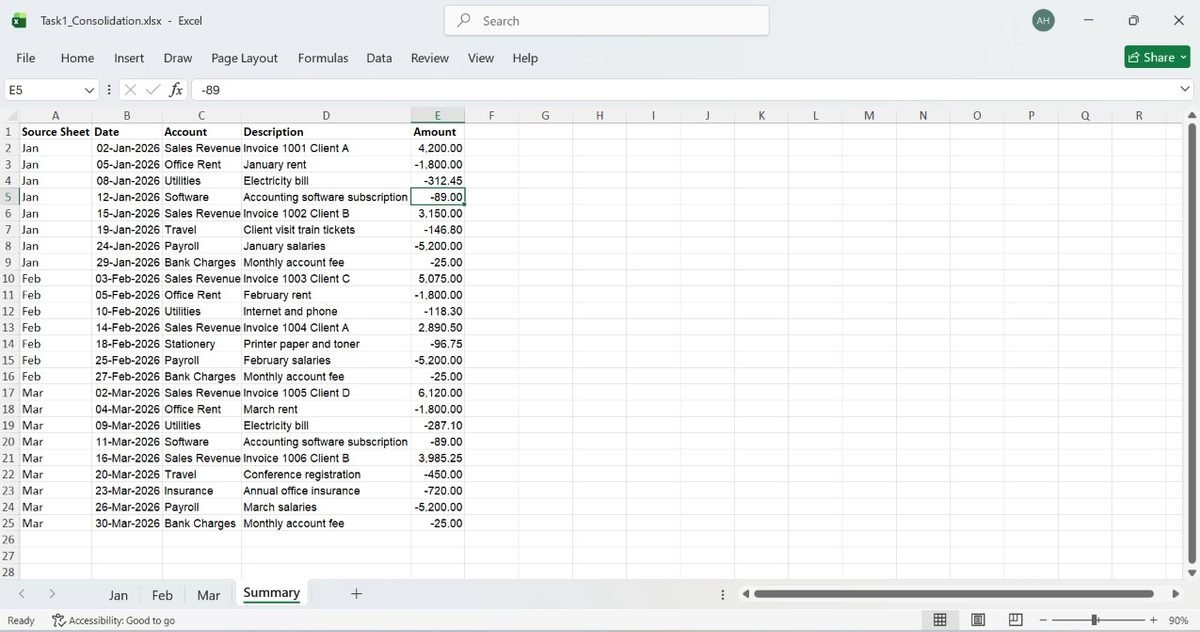
| 1. Consolidation | A Summary sheet with 25 rows (one header, 24 data rows) and Source Sheet as the first column |
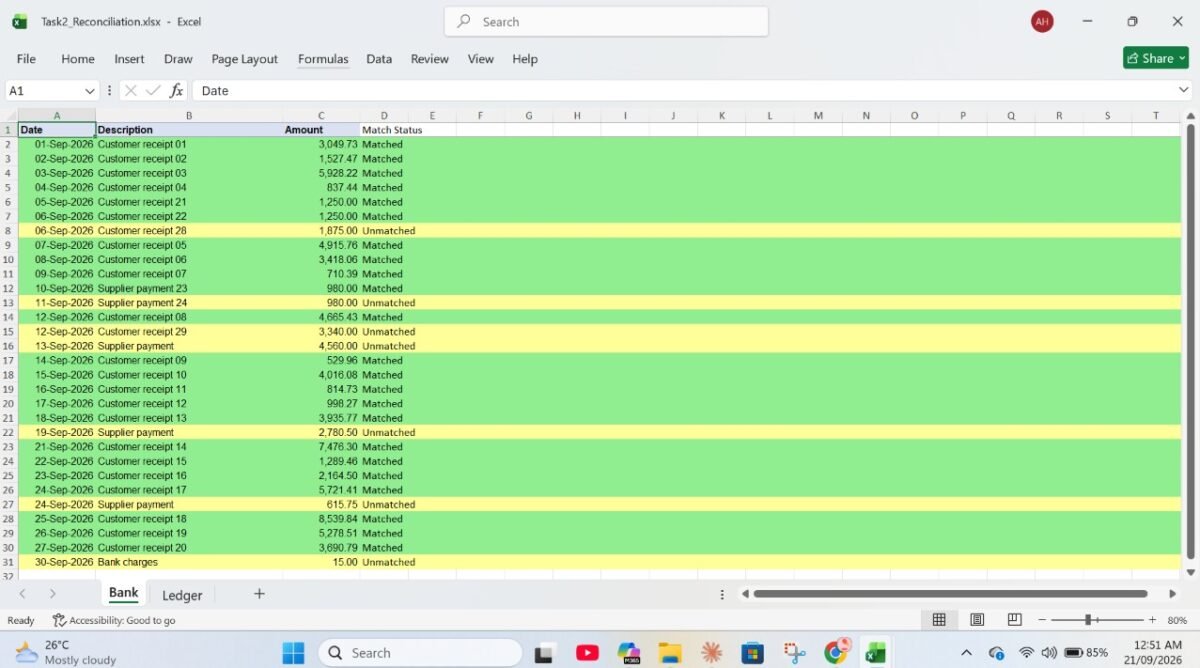
| 2. Reconciliation | 23 Bank rows matched and 7 unmatched, including specific trap rows described below |
| 3. Split by cost center | Three new files with 12, 9 and 9 data rows, and the Master sheet unchanged |
| 4. Debugging | The Report sheet filled from A1 to D21 |
One disclosure on Task 4: our prompt described the error as “Application-defined or object-defined error”, but the Excel on our test machine displayed “Method ‘Range’ of object ‘_Worksheet’ failed”. Both belong to run-time error 1004.
What happened in each of the four tests?
All three tools handled the four tasks, but each test exposed a different difference. Task 1 showed formatting choices, Task 2 showed one incomplete reply, Task 3 showed how cautiously the code treats files, and Task 4 showed that all three can find a classic unqualified Cells reference.
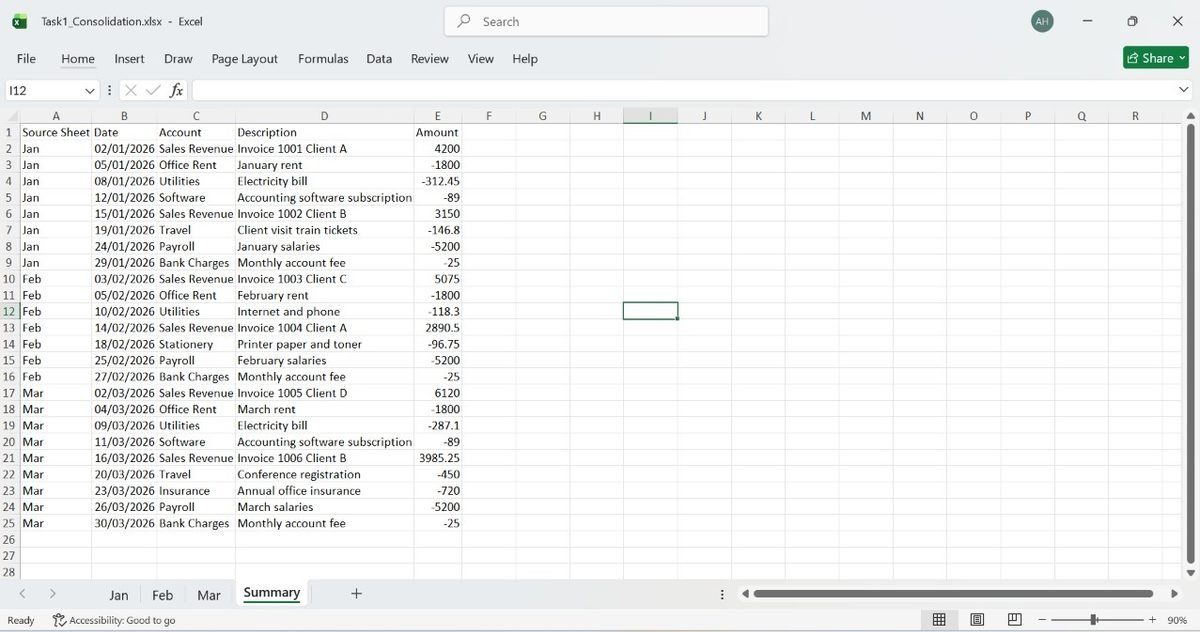
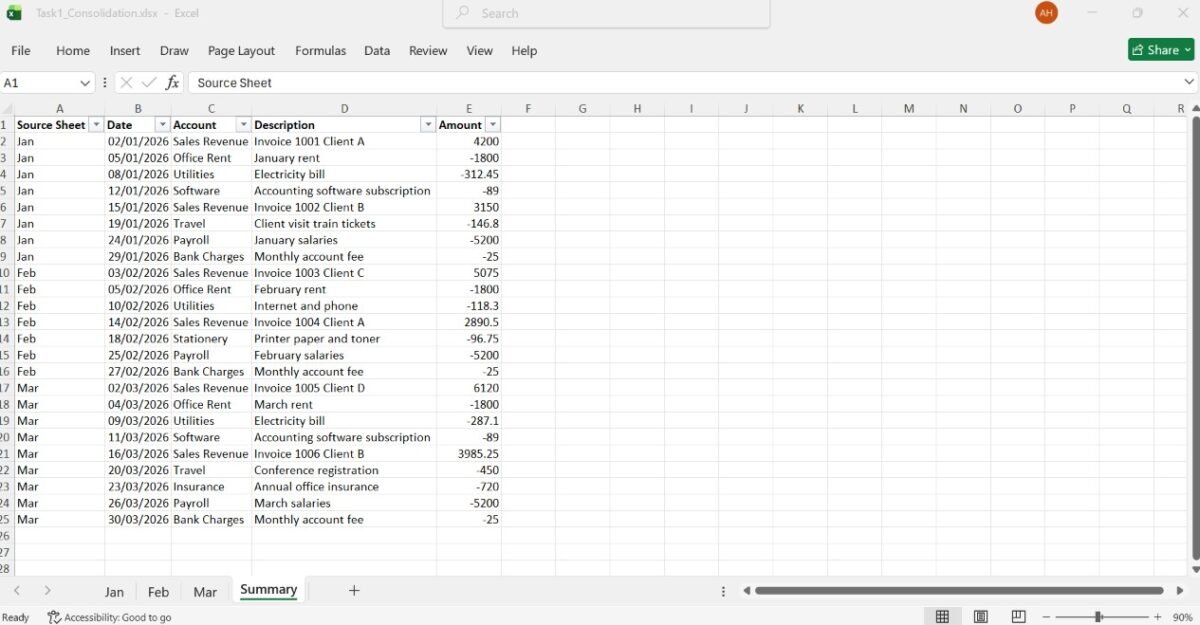
Task 1: Combining three monthly sheets into one Summary sheet
I use Excel for Microsoft 365 on Windows. My workbook has three sheets named Jan, Feb and Mar. Each has headers in row 1: Date, Account, Description, Amount. Write a VBA macro that creates a new sheet called Summary, copies all data rows from every other sheet into it one after another, adds a first column called Source Sheet with the sheet name for each row, and keeps a single header row. If Summary already exists, clear it first. Tell me where to paste the code and how to run it.
All three macros produced a Summary sheet with 25 rows: one header and 24 data rows, with Source Sheet as the first column. The difference was presentation. Claude’s version kept the original date and number formats (02-Jan-2026 and 4,200.00), resized the columns and finished with a message box reporting the row count. The ChatGPT and Copilot versions showed dates in a day, month, year format and amounts without thousands separators, so the original number formats did not carry over. ChatGPT also switched on filter buttons in the header row.
For a one off check this hardly matters. If the Summary feeds a pivot table, a board pack or a client report, missing formats mean extra cleanup, so it is worth stating your formatting requirements in the prompt. We did not test that follow up.
Task 2: Matching bank lines to ledger entries
My workbook has two sheets: Bank (columns Date, Description, Amount) and Ledger (columns Date, Reference, Amount), headers in row 1. Write a VBA macro that matches each Bank row to a Ledger row with exactly the same Amount and a Date within 3 days. Each Ledger row can be matched only once. Highlight matched rows green and unmatched rows yellow on both sheets, add a Match Status column with Matched or Unmatched, and show a message box with the count of matched and unmatched Bank rows.
We built the data with deliberate traps:
- Two Bank lines of 1,250.00, each with its own Ledger partner, which should both match.
- Two Bank lines of 980.00 but only one Ledger entry of 980.00, so one must stay unmatched.
- A pair exactly three days apart, which should match, and pairs four and six days apart, which should not.
- Amounts with swapped digits, such as 4,560.00 in the Bank and 4,650.00 in the Ledger.
On the Bank sheet all three tools finished with 23 rows matched and 7 unmatched, and the seven unmatched rows were exactly the ones we expected. Claude and ChatGPT got there on the first attempt.
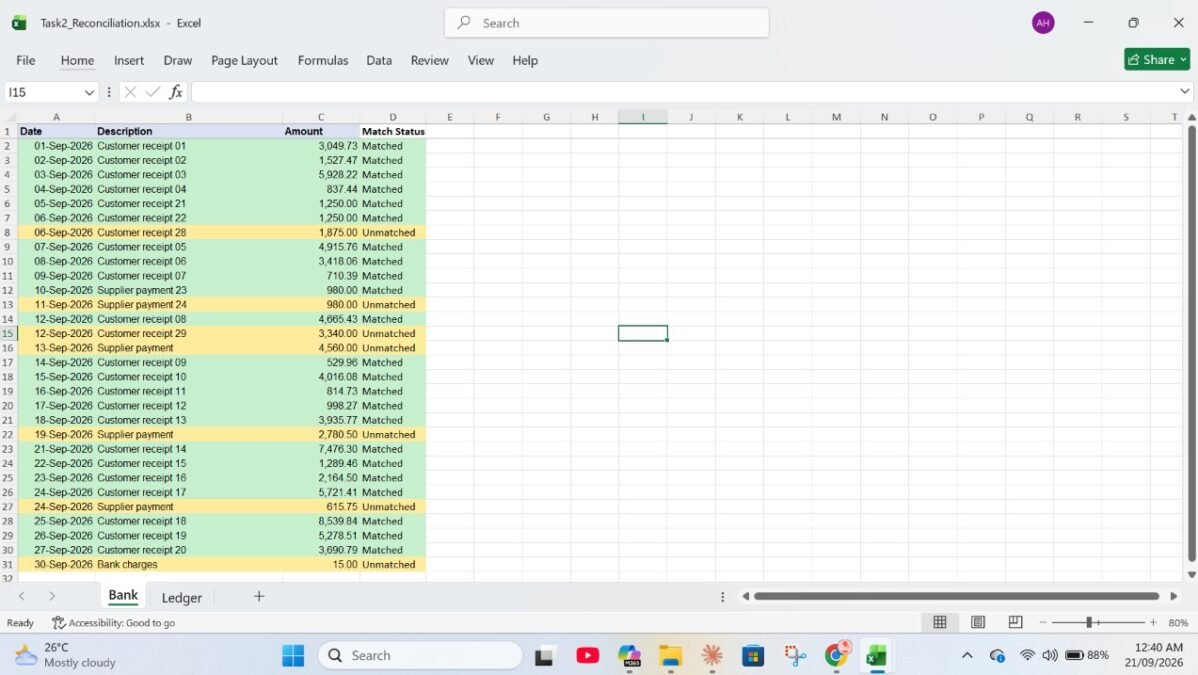
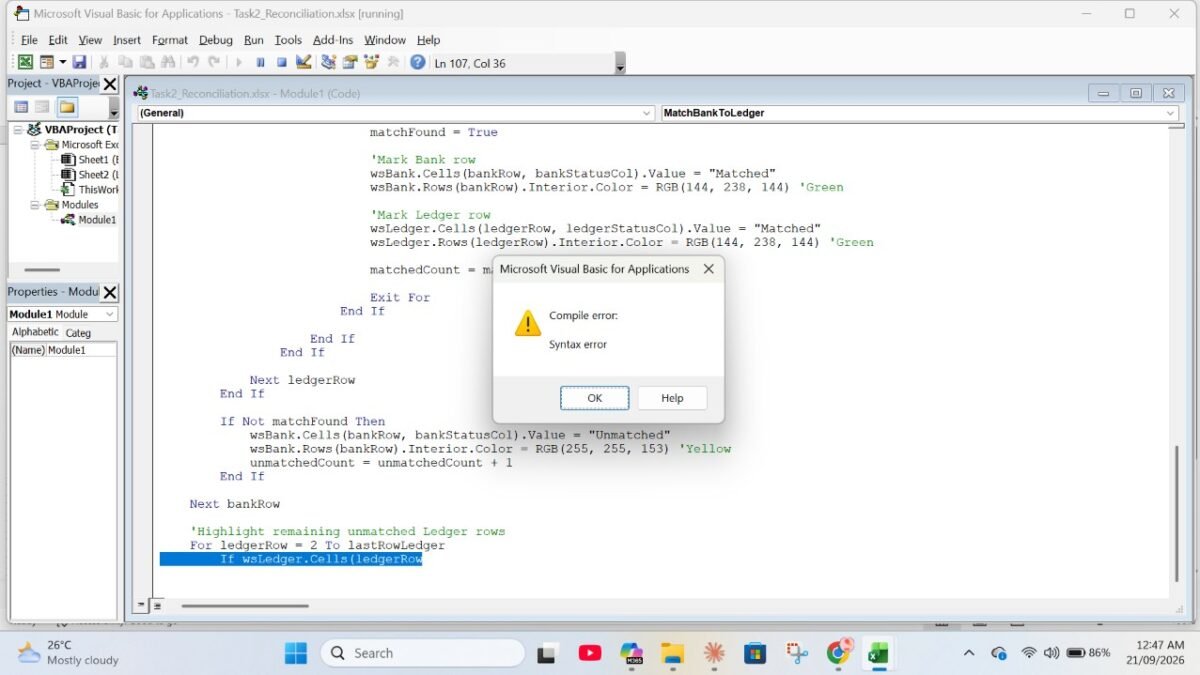
Copilot’s first reply stopped in the middle of a line, so the code would not compile and Excel reported a syntax error. When we reported the problem, Copilot identified that its earlier reply had been incomplete and sent the full macro, which produced the same correct result. It is a small failure, but a useful one: an incomplete answer looks like normal code until you try to run it.
There was also a style difference. Claude and ChatGPT shaded columns A to D of each row, while Copilot shaded the entire row across the sheet. Neither is wrong, so say which one you want in the prompt.
Task 3: Splitting a master sheet by cost center
My workbook has a sheet called Master with headers in row 1: Date, Cost Center, Vendor, Amount. Write a VBA macro that creates one new .xlsx file per unique Cost Center, containing the header row and only that cost center’s rows, and saves each file in the same folder as this workbook, named after the cost center. The macro must not change the Master sheet, must handle cost center names that contain characters not allowed in file names, and must close each new file after saving.
This task looks simple but hides a trap. Names such as Admin/HR and Ops: North contain characters Windows does not allow in file names, so a macro that saves files by name can fail on the very first one. All three tools handled it and produced the same three files: Sales (12 data rows), Admin_HR (9) and Ops_ North (9). The Master sheet was unchanged.
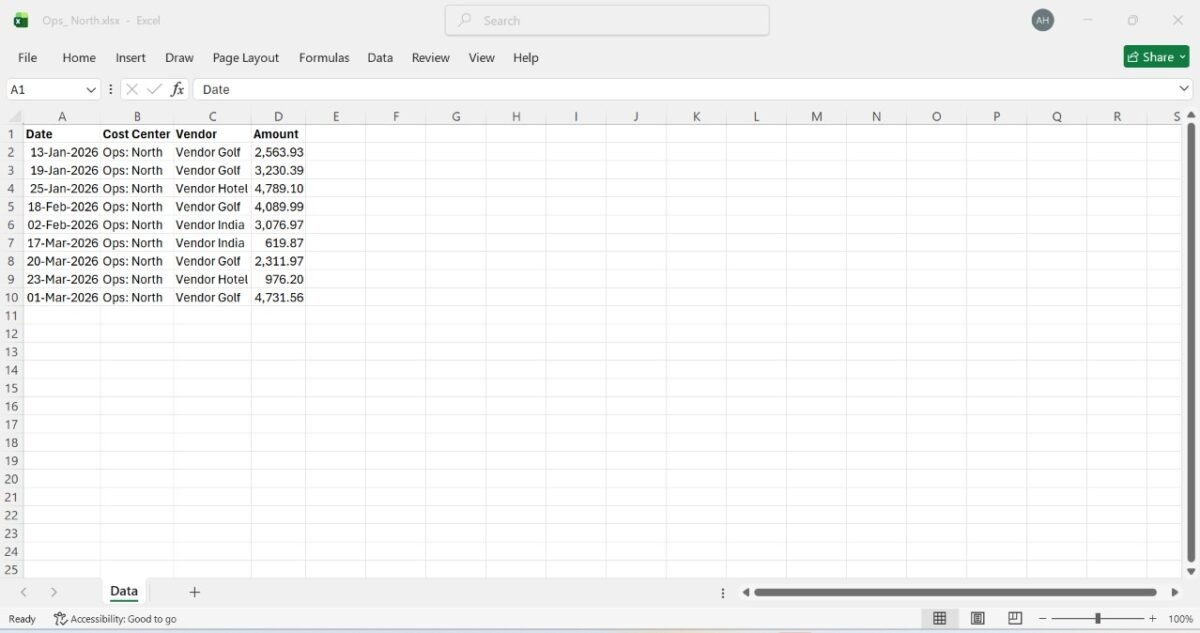
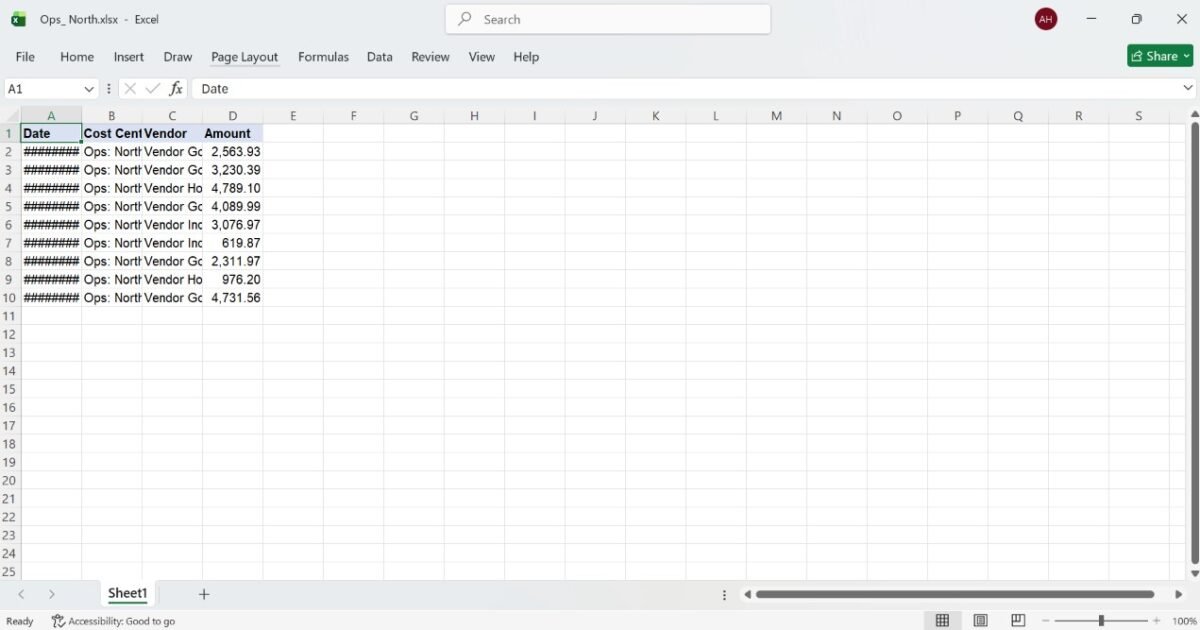
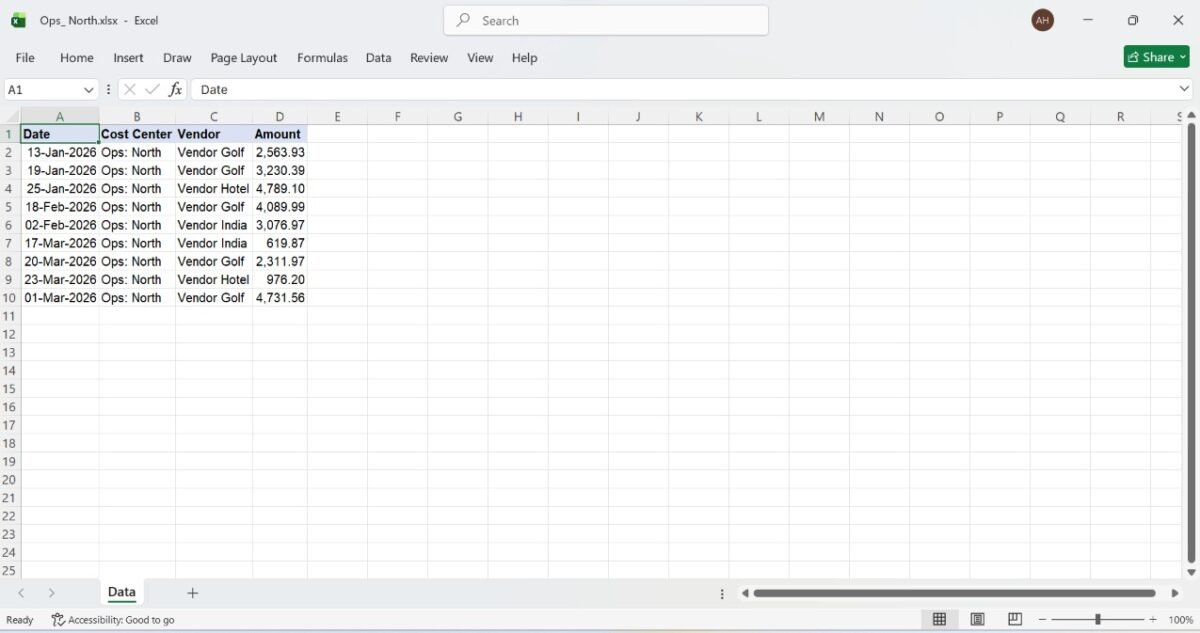
Copilot’s files opened with columns left at their default width, so dates showed as hash marks until we widened the column, and its new sheet was named Sheet1 rather than Data.
The parts of each macro visible in our screenshots differ in how cautious they are. Claude’s includes a separate function that cleans file names: it replaces control characters, trims trailing dots and spaces, handles empty names, caps the length at 100 characters and prefixes Windows reserved names such as CON and PRN. ChatGPT’s stops with a message if the workbook has not been saved, and finds the Cost Center column by its header. Copilot’s fixes the Cost Center column as column B and switches off Excel’s alerts while it runs, which normally means Excel will not warn you before overwriting a file with the same name.
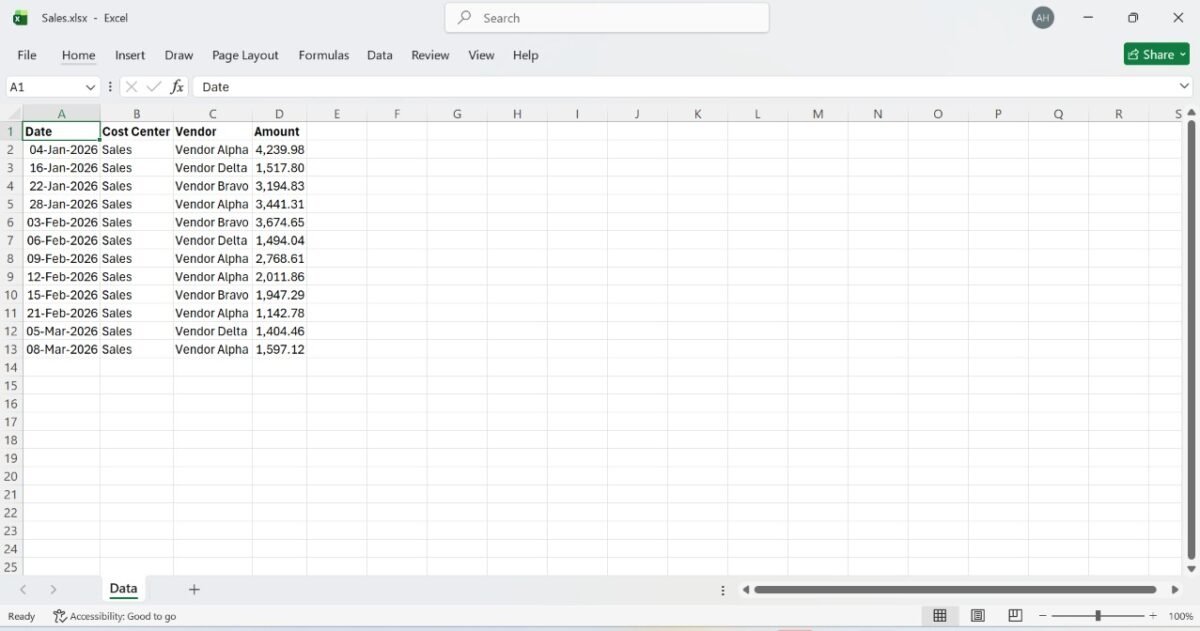
We tested only two problem characters and did not test what happens when the macro runs twice, so treat these code differences as things to check against your own data, not as proven advantages.
Task 4: Fixing a macro that stops with error 1004
I use Excel for Microsoft 365 on Windows. This macro copies data from the Data sheet to the Report sheet, but it stops with Run-time error ‘1004’: Application-defined or object-defined error. Please find the cause, explain it in plain English, and give me the corrected macro.
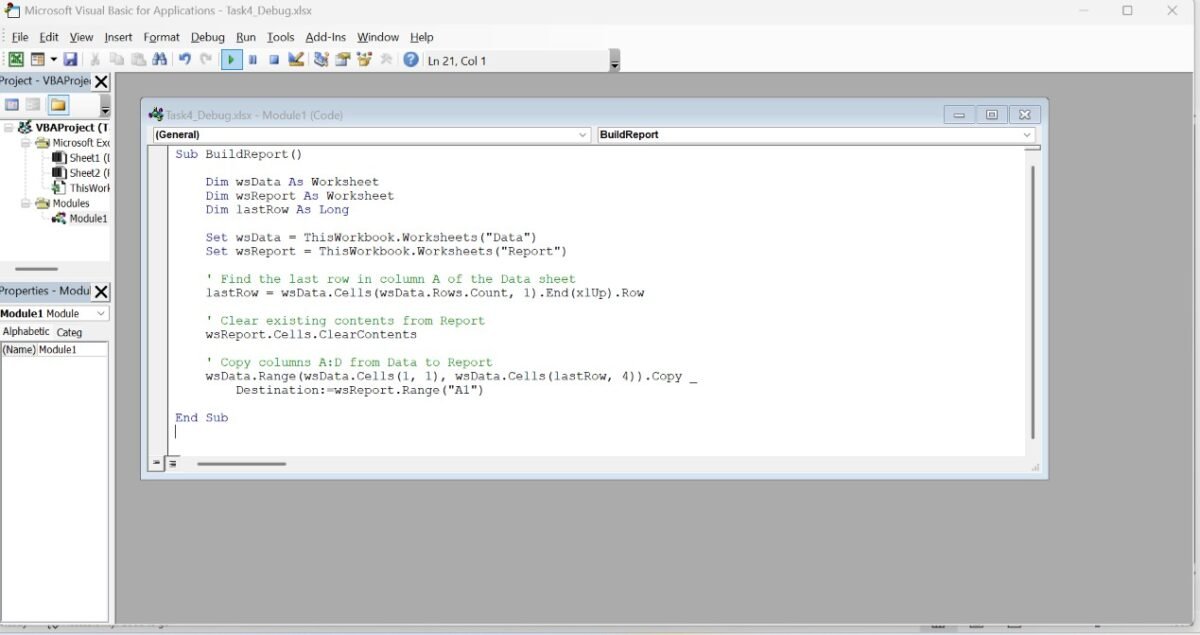
We pasted this broken macro after the prompt:
Sub BuildReport()
    Dim wsData As Worksheet
    Dim wsReport As Worksheet
    Dim lastRow As Long

    Set wsData = ThisWorkbook.Worksheets("Data")
    Set wsReport = ThisWorkbook.Worksheets("Report")

    lastRow = wsData.Cells(wsData.Rows.Count, 1).End(xlUp).Row

    wsReport.Cells.ClearContents
    wsReport.Activate

    wsData.Range(Cells(1, 1), Cells(lastRow, 4)).Copy wsReport.Range("A1")
End Sub
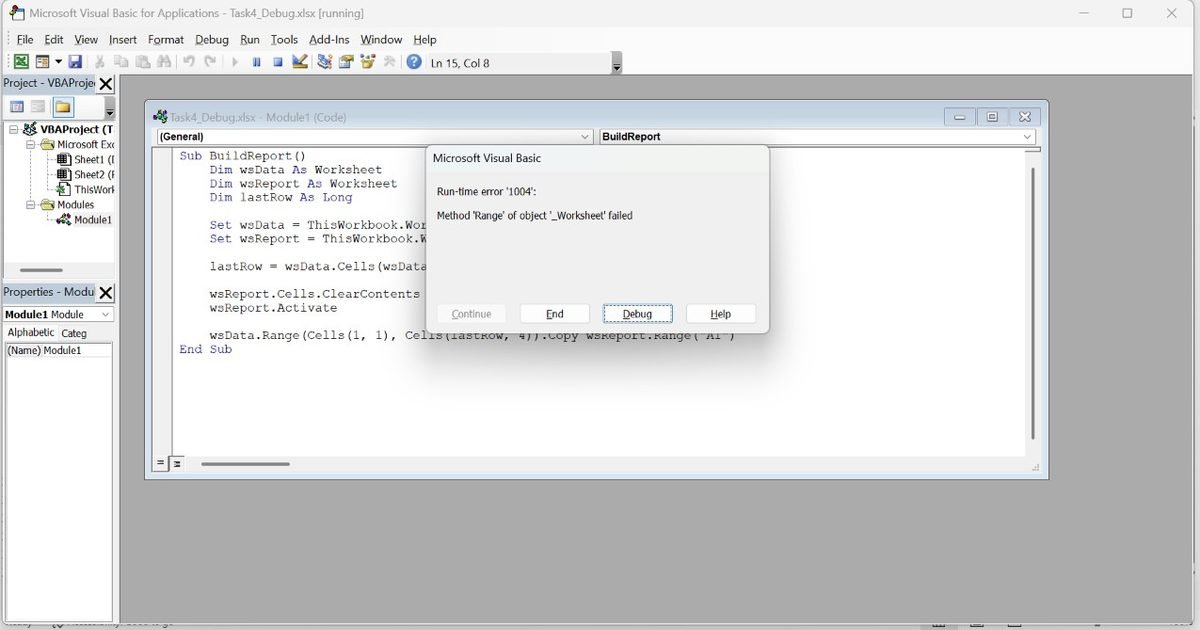
The bug is a classic. Inside wsData.Range(…), the two Cells references have no sheet in front of them, so VBA reads them from whichever sheet is active. If Data is active, the macro works. If any other sheet is active, Excel raises error 1004. Our first version of the broken macro did not fail at all because Data happened to be the active sheet, so we added a line that activates Report first. That is why this kind of bug is hard to catch in real workbooks: it works until someone runs it from a different tab.
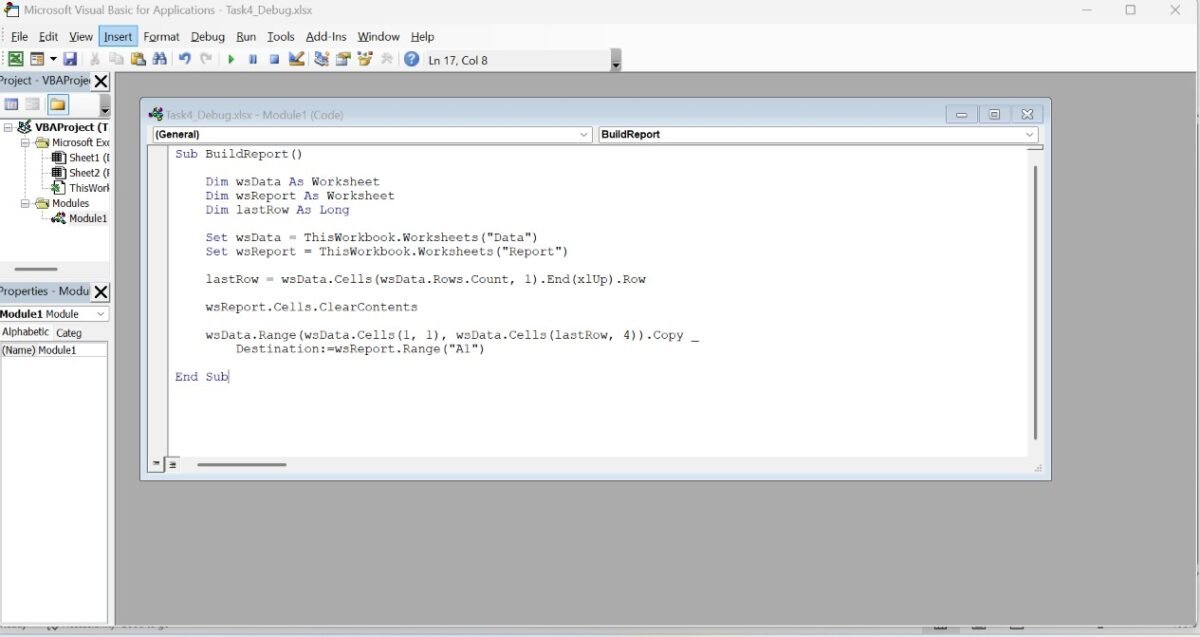
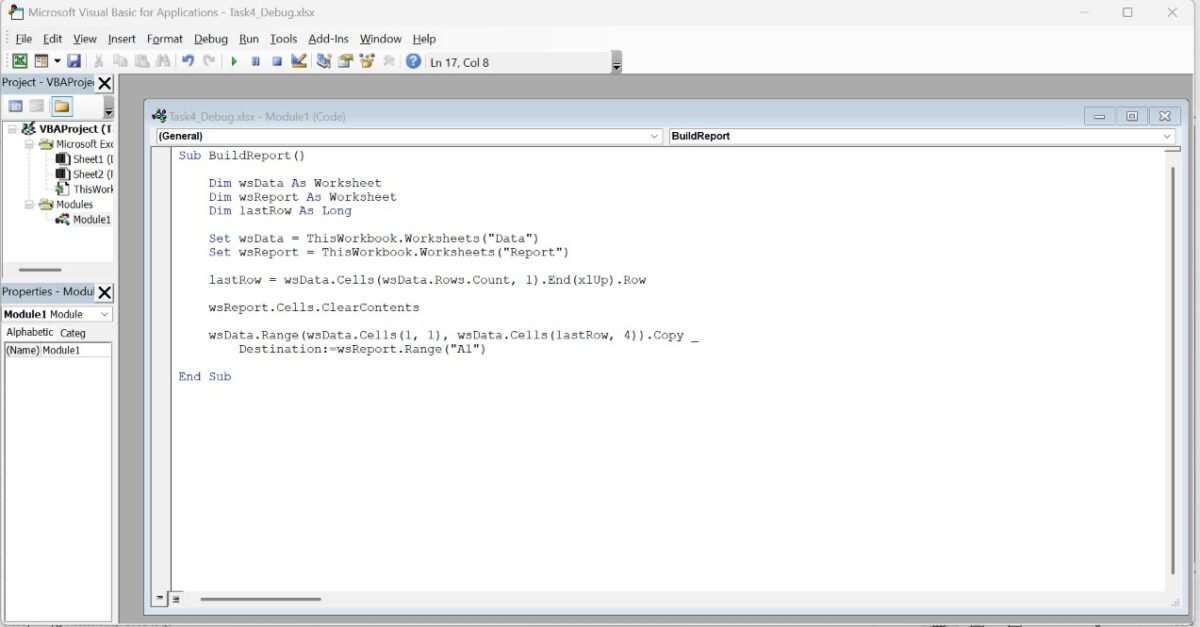
All three tools returned the same fix: qualify both Cells references with wsData and drop the Activate line. The macros from Claude and Copilot were identical line for line in what we saw, and ChatGPT’s added comments. Each filled the Report sheet with 21 rows across four columns. In all three, the Date column showed hash marks because copying a range does not copy column widths, which is Excel behavior rather than a tool error. We judged the corrected code, not the quality of each tool’s explanation.
Does Claude for Excel or Copilot inside Excel write VBA?
Not directly. Anthropic’s documentation lists macros and VBA operations as unsupported in the Claude for Excel add-in, so VBA still runs through a normal chat: you ask for code, paste it into the editor and run it yourself. For Copilot inside Excel, we found no official Microsoft statement about VBA either way.
What Anthropic’s documentation says about Claude for Excel
Anthropic’s Claude for Excel documentation lists macros and VBA operations under unsupported capabilities. The add-in is built for reading workbooks, adjusting assumptions, tracing errors and building models, and it is offered on Pro, Max, Team and Enterprise plans, so free accounts are not included. That is why our tests used Claude in a normal chat window.
The same page warns that the add-in should only be used with trusted spreadsheets, because files from outside sources can carry hidden instructions. That matters if you regularly open vendor files. For a fuller look at what the add-in does well, see our guide to Claude for Excel for accountants.
What Microsoft and ICAEW say about Copilot and VBA
Microsoft’s support page on Copilot in Excel says it supports Claude models from Anthropic and GPT models from OpenAI for editing workbooks, and that switching models needs a commercial Copilot subscription or a Microsoft 365 Premium subscription. In practice, Copilot inside Excel may run the same model families as the chat tools through a different interface.
ICAEW’s April 2026 article on building macros in Copilot for Excel says generative AI tools, Copilot in particular, are quite good at generating VBA. It also notes that Microsoft Office is moving away from the language while accountancy still uses it widely despite security flaws, and it passes on a caveat from a Copilot trainer: in a complex web of existing macros, the tool may miss dependencies and generate code that breaks. An Excel trainer’s 2025 walkthrough on Stringfest Analytics found that Copilot could write the macro but could not run it, so you add and run it yourself.
Where the sources disagree
Community replies on Microsoft’s Q&A site point in different directions. One thread says Copilot does not work in workbooks that use VBA because it needs AutoSave. Another says only that macros need the desktop app, because Excel for the web uses Office Scripts instead. These are user forum replies, and some carry a warning that AI generated content may be incorrect, so we do not treat them as settled.
We did not test Copilot inside Excel. We tested the standalone Copilot chat app only. If you work inside Excel with Copilot, try it on a copy of your workbook before you rely on it.
Which AI should accountants use for which VBA job?
Choose by workflow first. Use the assistant your firm already allows, then add checks. In our small test, Claude kept formatting and cleaned file names most thoroughly, ChatGPT added useful guard clauses, and Copilot suits people who already work in Microsoft apps if they confirm each reply is complete.
| Job | Sensible first choice | Why, from our tests | Caveat |
|---|---|---|---|
| Combining sheets and keeping formats | Claude | Kept date and number formats and resized columns in our run | One run only |
| Splitting files with messy names | Claude or ChatGPT | Claude’s name cleaner covered reserved names; ChatGPT checked the workbook was saved | We tested only two problem characters |
| Quick fix for a broken macro | Any of the three | All three found the same fix | We did not compare explanations |
| Working inside Microsoft 365 apps | Copilot, tested on your own setup | Sits inside your existing Microsoft environment | We tested the chat app, not Copilot inside Excel |
For the wider comparison of the two assistants on finance work, see ChatGPT vs Claude for accountants, and for bookkeeping specifically, Claude vs ChatGPT for bookkeeping. If you are weighing a paid ChatGPT plan, our ChatGPT review 2026 covers what it adds. To improve the wording of your VBA requests, the patterns in our ChatGPT prompts for accountants carry over well.
What should you check before running AI written VBA?
Treat AI written VBA like code from a stranger who is usually right. Work on a copy, use dummy data, compile before you run and compare results with control totals you trust. Never enable macros in files you did not expect, because VBA is also a common route for malware.
Even a mainstream book, Microsoft 365 Excel VBA Programming For Dummies, notes that Copilot can write code that simply does not work, unlike the macro recorder, which always produces code that runs. A short routine catches most problems:
- Work on a copy saved as a macro enabled file, and keep the original untouched.
- Build with dummy or anonymized data. The macro runs on your computer, and the AI only needs the layout.
- Check that the reply is complete. The last line should be End Sub.
- In the VBA editor, choose Debug, then Compile VBAProject, before you run anything.
- Read the code for anything that deletes files, saves over existing ones or sends data out.
- Reconcile the result: compare row counts and totals before and after, as you would with a control account.
- If it fails, paste the exact error message and the full macro back into the same chat.
- Do not enable macros in files from unknown senders. Microsoft now blocks macros in internet files by default because VBA macros are a common way to deploy malware and ransomware.
Data location matters too. Microsoft’s documentation says that when Anthropic models are used in Copilot in Word, Excel or PowerPoint, processing happens outside the Microsoft EU Data Boundary, which is worth raising with your IT lead if you serve EU or UK clients. For a wider view of handling client information around AI tools, read our guide to AI agent security for small business.
What are the limits of our test?
This was a small, honest test, not a benchmark. We ran one prompt per task per tool, once, on free plans, in one Excel setup, with dummy data. A different day, model version or wording could change any result, so read the findings as observations rather than rankings.
- Each tool got one run per task, so a repeat could differ.
- We tested free plans only, and did not record the exact ChatGPT and Copilot model names.
- We tested the standalone Copilot chat app, not Copilot inside Excel.
- For the reconciliation we checked the Bank sheet row by row, but did not audit the Ledger sheet or record the message box counts in detail.
- We did not test running the Task 1 or Task 3 macros twice.
- We did not compare the quality of each tool’s written explanation for the debugging task.
- Our workbooks were small and clean. Large, legacy macro files are a different and harder problem.
Frequently asked questions about AI and Excel VBA macros
The questions below are the ones accountants ask most when they start using AI for macros. Each answer stands alone, and where we did not test something directly we say so, so you can separate what we saw in Excel from what comes from official documentation.
What is the best AI for Excel VBA macros?
In our four tests, Claude Sonnet 5, ChatGPT and Microsoft Copilot were close: 11 of 12 runs worked on the first attempt and the twelfth worked after one follow up. None was clearly best, so choose the one your firm allows, ask for the output format you want, and verify every macro before using it on live data.
Can Claude for Excel write VBA macros?
According to Anthropic’s documentation, macros and VBA operations are unsupported in the Claude for Excel add-in, which is also limited to paid plans. To get VBA from Claude, ask for the code in a normal chat, paste it into the VBA editor with Alt and F11, and run it yourself.
Are the free versions enough for writing VBA?
For our four tasks, yes: all three tools worked on free plans. We did not measure usage limits or test paid plans, which may offer higher limits or stronger models. Check the current limits before depending on a free plan during a busy month end.
Is it safe to paste client data into an AI chat to build a macro?
You do not need to. The macro runs on your own computer, and the AI only needs the layout: sheet names, column headers and a few made up rows. Build and test with dummy data first, and follow your firm’s data policy before any real client figures leave your machine.
What should I do when AI written VBA shows an error?
Note the exact error message and the line Excel highlights when you press Debug, then paste the full macro and the message back into the same chat. Also check that the code ends with End Sub. In our test, Copilot’s first reply was cut off, and asking again produced complete code.
Do I need to know VBA to use AI for macros?
Not to start, but you must be able to check the result. Know how to open the editor, compile the project, run the macro and compare row counts and totals with figures you trust. Reading the code for anything that deletes, overwrites or sends data is enough for most finance tasks.
So what is the verdict?
The best AI for Excel VBA macros is the one you can verify, not the one with the biggest reputation. Across four finance tasks, Claude Sonnet 5, ChatGPT and Microsoft Copilot were close, and the meaningful differences were in formatting, defensive coding and one cut off reply.
Our read of the evidence is a judgment, not a measurement. For macros that touch files, a plain chat with Claude or ChatGPT looked slightly more careful in the code we could see. For people who already work inside Microsoft 365, Copilot is worth testing on a copy. In every case, the checklist above matters more than the brand.
If a macro will touch payroll, audit workpapers or client ledgers, have it reviewed before it goes live. AI Foresight 360 also builds Excel models and automation for finance teams, and you can tell us what you need on our contact page. To see how other tools compare, browse more hands on write ups in AI Tools Review.

Ahmad Hussain
ACCAAhmad builds advanced Excel models, Power BI dashboards, and AI automation for businesses. He writes AI Foresight 360 himself, and every pricing figure and feature claim is verified against official documentation at the source.
Connect on LinkedIn