

The Claude QuickBooks integration is Intuit's official connector that lets Claude read your QuickBooks Online books and act on them from a chat. It can run reports, list overdue invoices, draft payment reminders and create invoices, and it asks for your approval before it creates or sends anything. We connected it to a practice company full of planted errors and ran five real workflows to see how far you can trust it.
The short version: every receivables and payables figure matched our answer key, and Claude flagged both duplicate records without being asked. It missed every error hidden inside individual bills, because the standard connector cannot open bill details, and Claude said so itself.
This guide covers what the connector does, why people use it, how to connect it, whether it works outside the US, our full test results with screenshots, the limits, safety settings, and the exact prompts we used.
Key takeaways
- It is Intuit's own connector. You add it from Claude's Connectors menu and sign in with your Intuit account. No code or API keys.
- Intuit says it is for US customers only. What counts is the QuickBooks company's country: we connected from Pakistan to a US practice company and it worked.
- In our test, every A/R and A/P figure matched the answer key, and Claude flagged a duplicate invoice and a duplicate bill on its own.
- It missed four errors that sat inside bill details: a wrong total, a missing bill number, lost discount terms and an unrecorded vendor credit.
- Nothing was created or sent without a preview and our approval. But when we asked it to create a duplicate invoice, it did so with no warning.
- Intuit's newer QuickBooks Labs (Beta) connector adds bills, bank feeds, reconciliation and journal entries, according to its listing.
What is the Claude QuickBooks integration?
The Claude QuickBooks integration is a connector built by Intuit that links Claude to a QuickBooks Online company. Once connected, Claude can pull live reports, look up customers and invoices, and take actions such as creating an invoice or sending a reminder. Results often appear as QuickBooks cards inside the chat, with an Open in QuickBooks button.
Technically, it is an MCP connector. MCP (Model Context Protocol) is the standard Claude uses to talk to outside apps, so you never handle an API or write code. You see a list of tools, and Claude decides which ones to call based on your question.
When we connected it, the connector page listed 98 tools in three groups: 31 interactive tools (the ones that show cards), 44 read-only tools and 23 write or delete tools. Each group has its own permission setting.

According to Intuit's help article for the connector, it covers:
- Reports and analysis: profit and loss, cash flow, industry benchmarking, transaction import and your business profile.
- Invoices and estimates: create, update, send, duplicate and delete, plus payment reminders.
- Payments: reusable payment links and one-time payment links.
- Customers and products: add customers and add products or services.
Intuit's July 2026 announcement added recurring invoices, payroll lookups (employees, payslips, deductions, payroll readiness) and QuickBooks Capital loan benchmarking. In our connector we also saw A/R and A/P aging, balance sheet and sales reports.
A profit and loss report usually shows every line you need for EBITDA: net income, interest, taxes, depreciation and amortization. Copy those figures into our free EBITDA calculator to get EBITDA and the EBITDA margin, with every step shown.
Which QuickBooks option in Claude is the official one?
Search "QuickBooks" in Claude's directory and you will see several entries. When we checked, the list included Intuit's Intuit QuickBooks connector (the one we tested), Intuit QuickBooks Labs marked Beta, two Intuit plugins, and the Meridian Connector for QuickBooks by Pilot.com, a third party.
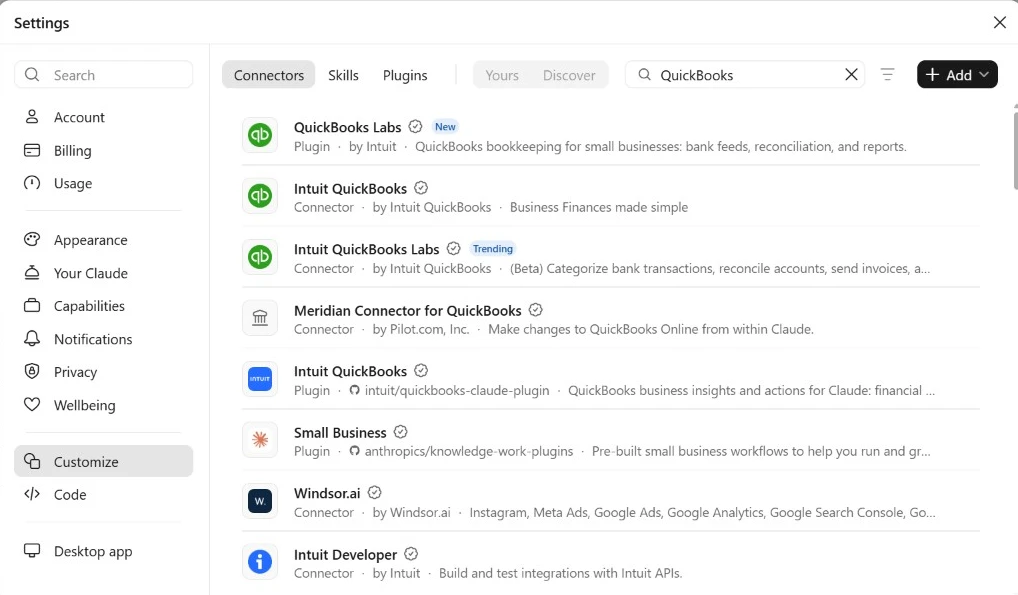
The two Intuit connectors are the official ones. We cover how they differ, and where the third-party option fits, in the comparison further down.
Why do people connect Claude to QuickBooks Online?
People connect Claude to QuickBooks Online to get answers instead of reports. Rather than opening the A/R aging, then the unpaid bills report, then the balance sheet, you ask one question and Claude reads all three. It also handles routine sales work, like reminders and invoices, from the same chat.
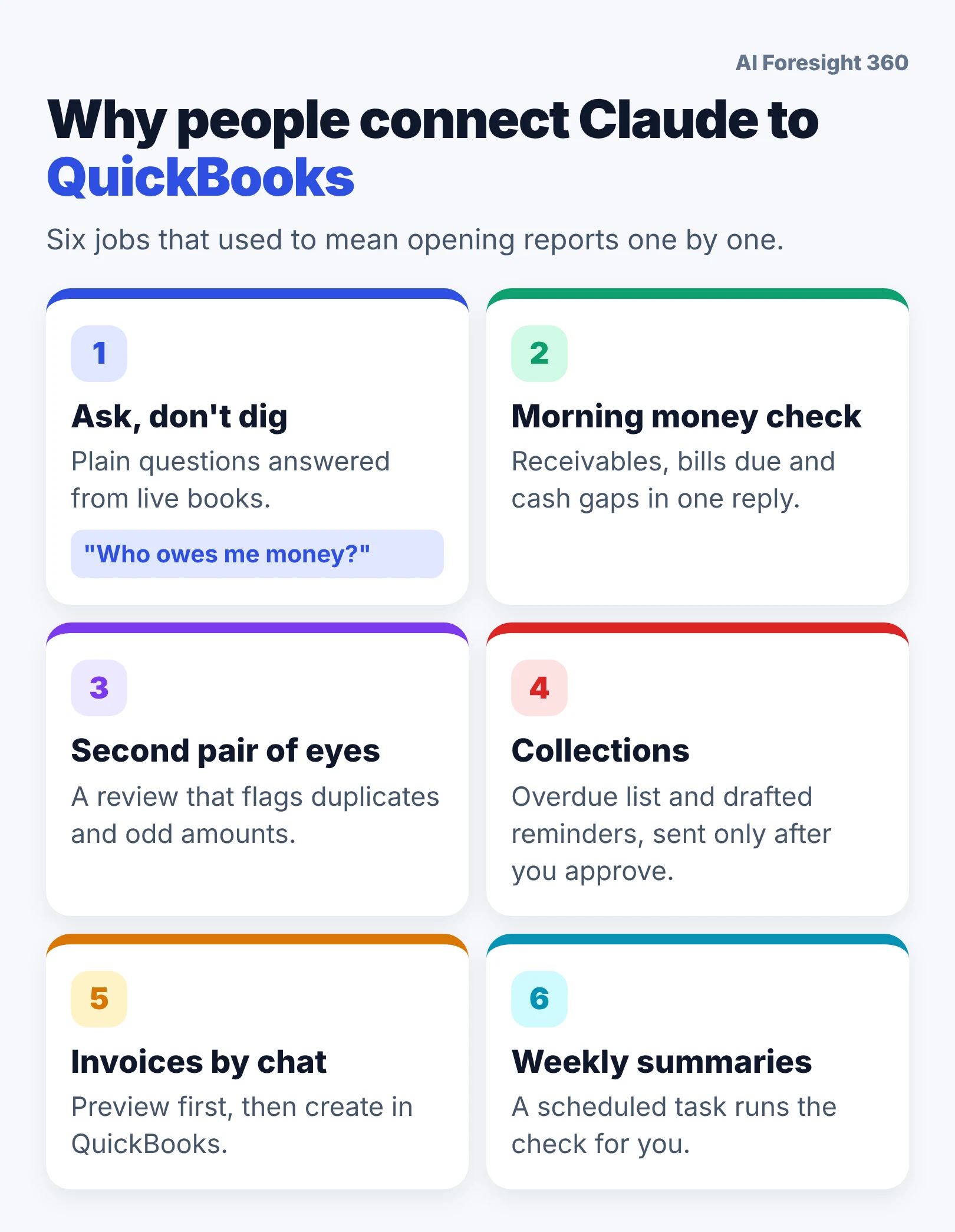
Here is what each of those jobs looked like in practice:
- Ask, don't dig. "Who owes me money?" returns live aging by customer and bucket, not a report you have to read yourself.
- A morning money check. One prompt covered receivables, overdue invoices, bills due and the cash gap in our test.
- A second pair of eyes. Asked to review the books like a bookkeeper, Claude flagged duplicates and unusual amounts.
- Collections. It listed overdue invoices and drafted a reminder per customer, then sent one only after we approved it.
- Invoices by chat. It looked up our prices, showed a preview and created the invoice once we confirmed.
- Weekly summaries. A scheduled task can run the same check every Monday without you opening anything.
For small business owners, this is the appeal: QuickBooks already holds the answers, and Claude removes the clicking between reports. For bookkeepers, the review step is the interesting part, as long as you know what it can and cannot see.
How do you connect Claude to QuickBooks?
You connect Claude to QuickBooks from Claude's Connectors settings: find Intuit's QuickBooks connector, click Connect, sign in with your Intuit account, choose the company and approve the permissions. It takes a few clicks on the web or desktop app. You need an active QuickBooks subscription and a US QuickBooks company.
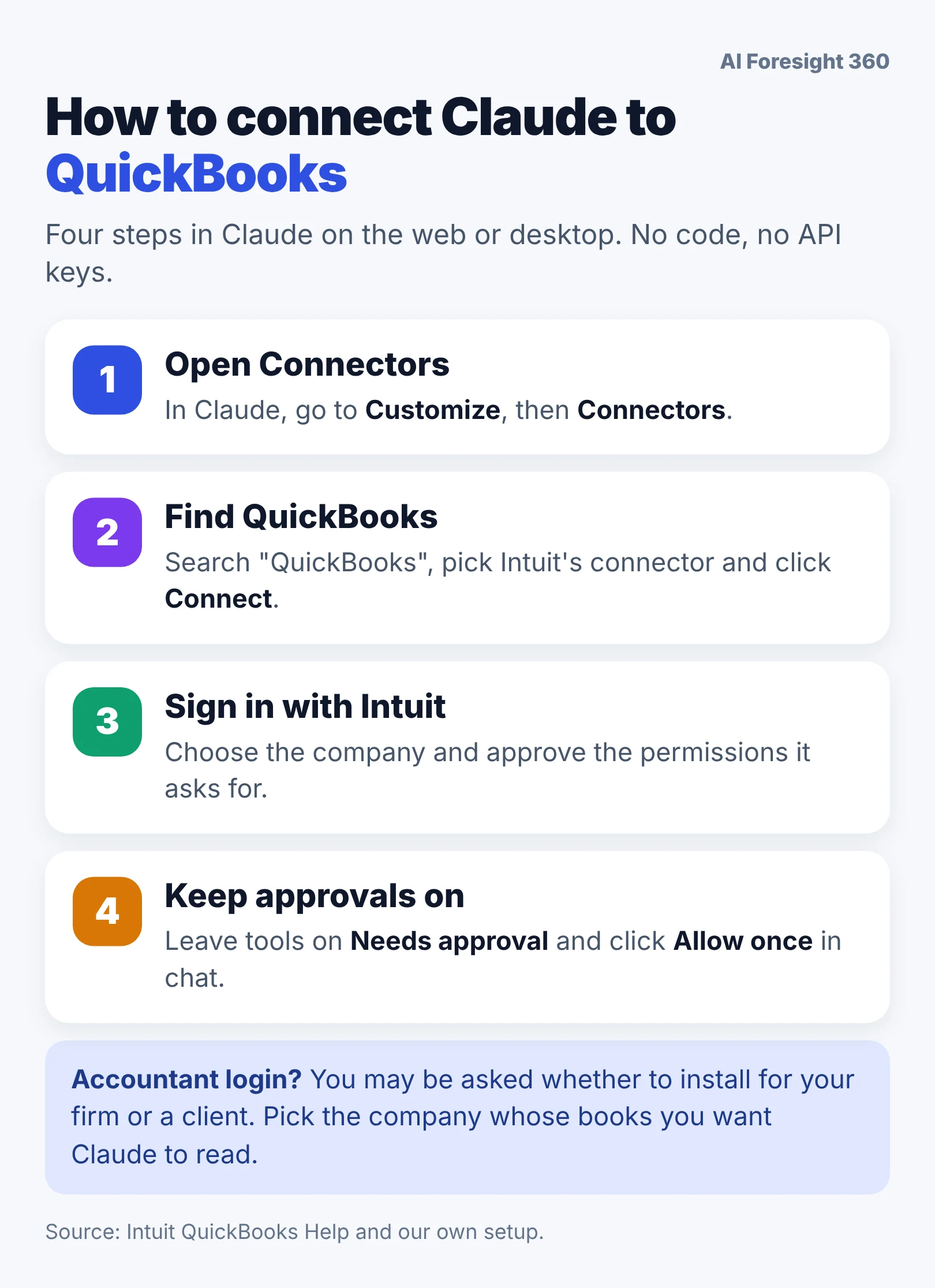
- In Claude, open Customize, then Connectors.
- Search for QuickBooks, choose Intuit's connector and click Connect.
- Sign in with Intuit, pick the company, and approve the permissions it lists.
- Check that the connector shows as connected, then start a new chat.
What happened in our setup:
- Signing in with an accountant account showed a choice to install the connector for the firm or for a client company. Pick the company whose books you want Claude to read.
- The first QuickBooks question in a chat showed an "Authorization required" prompt, and Claude only worked after we completed the Intuit sign-in.
- Each tool call asked for approval because we left every group on "Needs approval". We chose "Allow once" every time.
Which Claude plan do you need? Claude's help center says pre-built connectors are available to all users, while its connectors FAQ says connectors are on Pro, Max, Team and Enterprise plans. We used a paid plan. On Team and Enterprise plans, an Owner must enable connectors for the organization first, and each person still signs in separately.
Does it work on mobile? Connectors you add on the web or desktop app also appear in Claude's iOS and Android apps, according to the same help article.
If it will not connect, Intuit's advice is to disconnect fully from the Connectors menu, wait a moment, and reconnect once. Reconnecting several times in a row can cause problems.
Does the Claude QuickBooks integration work outside the US?
Intuit says the connector is currently available to US customers only. In our experience, what matters is the QuickBooks company, not where you are sitting. Our tester is in Pakistan, the practice company is set up as a US QuickBooks Online company, and the connector worked in every workflow we ran.
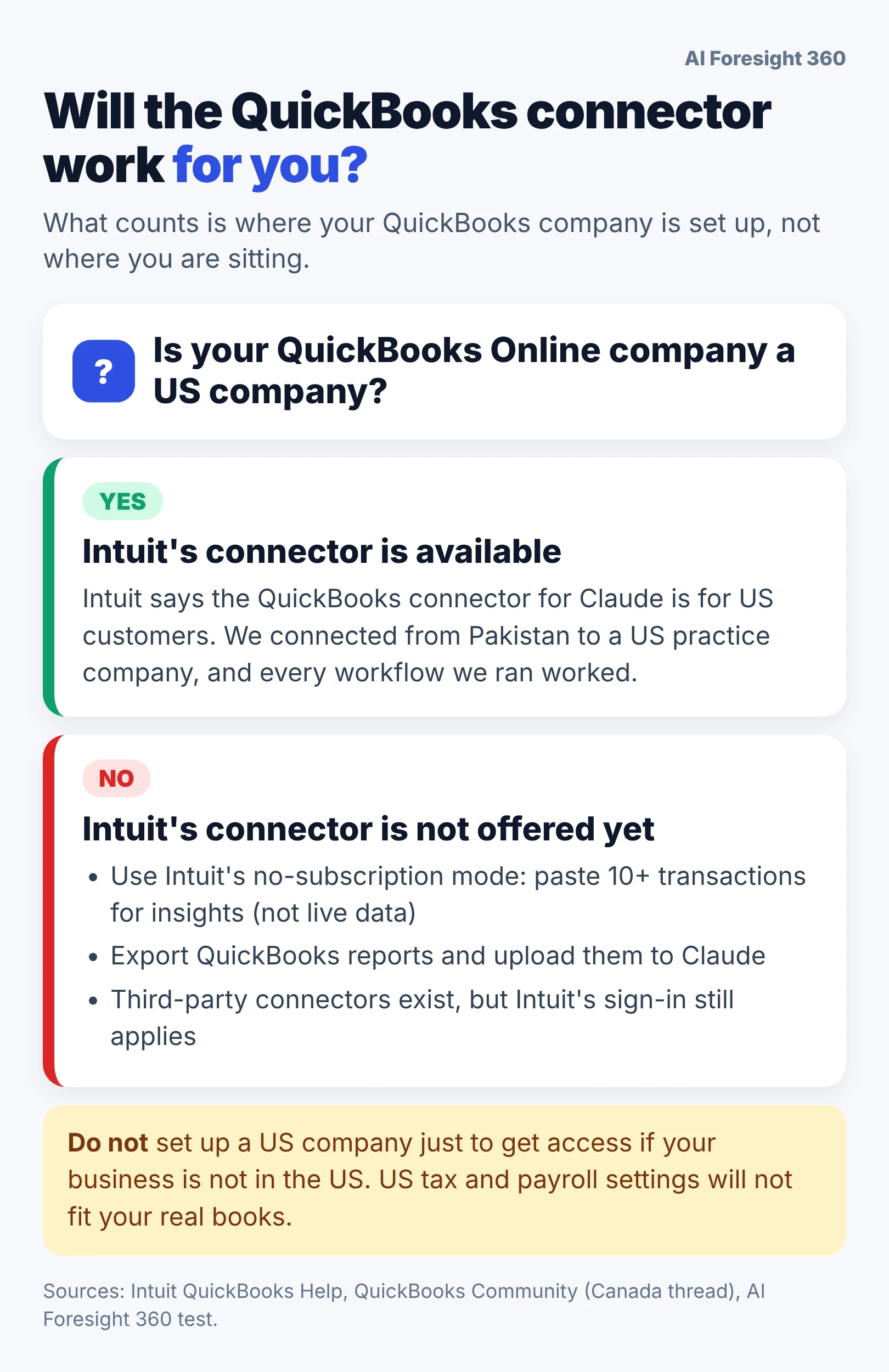
Intuit does not publish exactly which setting it checks, so treat this as what we observed rather than a rule. Other countries are clearly blocked for now: in June 2026 a QuickBooks team member confirmed in the QuickBooks Community that the integration was unavailable in the Canada region.
Do not create a US company just to get access if your business is somewhere else. Your books would carry US tax and payroll settings that do not fit your real business. Payment features are also US only: Intuit says QuickBooks Payments features are not available outside the US.
If your company is outside the US, you still have options:
- Intuit's no-subscription mode. Intuit's help article says you can use the connector by giving your business type, your country or region, and at least 10 transactions covering one month, uploaded or pasted into the chat. The results depend on what you provide, not on live QuickBooks data.
- Export and upload. Export reports from QuickBooks as Excel or CSV and upload them to Claude. Our Claude for Excel guide shows what Claude can do with spreadsheet data.
- Third-party connectors. Several companies offer QuickBooks connectors for Claude. Composio, one of them, points out that Intuit still controls the final sign-in step, so a third party cannot override a block on Intuit's side.
We tested it: 5 real workflows on a practice company
We ran five workflows on November 8 and 9, 2026, using the standard Intuit QuickBooks connector, Claude Opus 5.5 on a paid plan, and every tool set to need approval. Claude got every receivables and payables number right and caught both duplicates. It missed four planted errors that sat inside bill details it cannot open.
How we set up the test
We built a practice QuickBooks Online company with fictional customers and vendors, then wrote an answer key before running a single prompt.
- Customers and invoices: 5 customers, 5 services and 8 invoices totaling 6,480.00, dated from August to October so they fell into different aging buckets. Invoice 1008 was an exact copy of invoice 1004.
- Vendor bills: 9 bills totaling 21,432.44, saved exactly as QuickBooks' own AI bill capture read them in our automated invoice processing test. That left real errors in the books: a duplicate bill saved under a misread number, a bill with the wrong total, a bill with "Not found" as its number, and lost early payment discount terms.
- A missing credit: QuickBooks refused to save a vendor credit memo as a bill, so that credit was never recorded.
- No bank account: the books had no bank or cash account, so cash could not be known from QuickBooks.
- Rules: a new chat for each workflow, and every action approved with "Allow once".
We let Claude create the customers, products and invoices through the connector itself. It saved every date and amount exactly as asked, including backdated invoices. It also created the duplicate invoice we asked for without any warning.
The company's home currency is Pakistani rupees, which is why the screenshots show PKR. All amounts are fictional.
| Workflow | What we asked | Result |
|---|---|---|
| 1. Morning money check | Receivables by age, overdue invoices, bills due, cash and three priorities | Pass: every figure matched, both duplicates flagged, honest about cash |
| 2. Bookkeeper review | Find anything wrong and change nothing | Strong: caught duplicates and a concentration risk, missed 4 bill-level errors |
| 3. Collections | Draft reminders, then send one to our own email | Pass: left the duplicate out, sent only after approval, placeholder name slipped through |
| 4. Invoice by chat | New customer, two lines, preview first | Pass: 490.00 correct, but the terms label said Net 30 on a 15 day invoice |
| 5. Weekly summary | A read-only check every Monday | Set up correctly, with a clear warning about automatic approvals |

Workflow 1: the morning money check
This is the most common use, so we tested it first.
Give me my morning money check from QuickBooks: how much customers owe me by aging bucket, which invoices are overdue, which bills I owe and when they are due, and my cash position. Keep it short and tell me the three things I should do first.Claude called the company info tool, then the A/R aging summary, A/R aging detail, unpaid bills and balance sheet. Every number matched the answer key:
- Receivables of 6,480.00: 2,780.00 current, 1,910.00 at 1 to 30 days, 1,140.00 at 31 to 60 days and 650.00 at 61 to 90 days. Overdue 3,700.00, or 57%.
- Payables of 21,432.44, with seven bills overdue totaling 12,741.13 and the two upcoming bills listed with the right due dates.
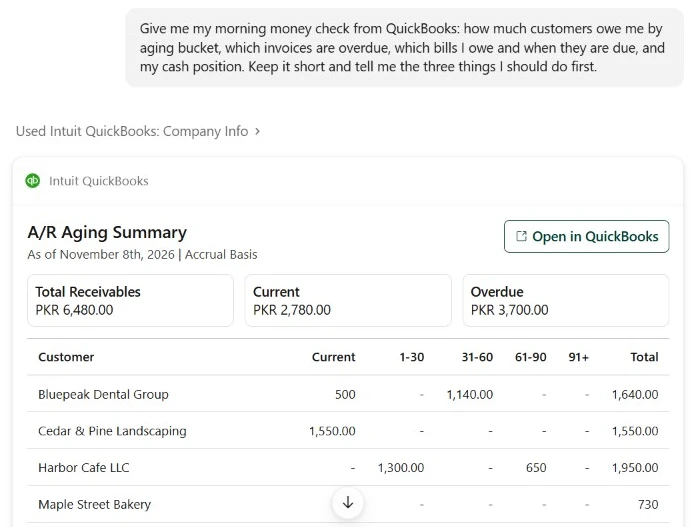
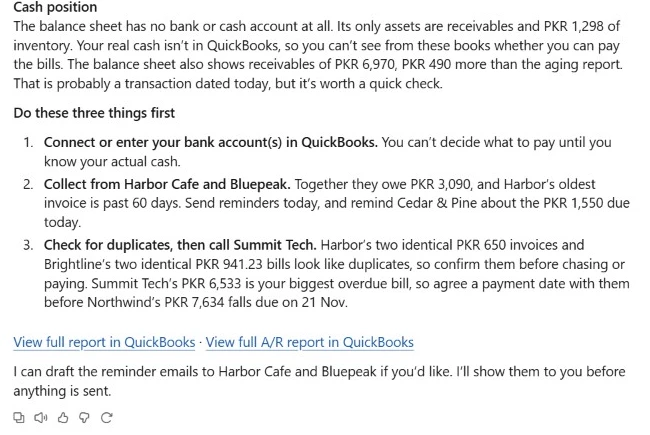
Three things impressed us. First, Claude said plainly that the balance sheet had no bank or cash account, so it could not know the real cash position. Many tools would have presented receivables minus payables as "cash".
Second, it noticed the balance sheet showed receivables 490.00 higher than the aging report and suggested a transaction dated today. That was correct: the invoice from workflow 4 was dated that day, while the aging report ran to the day before.
Third, its top three actions made sense: connect the bank account, chase the two largest overdue customers, and confirm both duplicates before chasing or paying them.

One catch came from Intuit's own card, not Claude. The A/R Aging Detail card labeled the full 6,480.00 as "Total Overdue", including invoices that were not yet due. Claude's written answer used the correct 3,700.00. Read Claude's text, and treat card headlines with care.
Workflow 2: the bookkeeper review
Next, we asked Claude to hunt for problems without touching anything.
Review my receivables and payables in QuickBooks like an experienced bookkeeper. Look for anything that seems wrong: duplicate invoices or bills, negative bills, amounts that look off, or anything I should fix before month end. Do not change anything, just list what you find.What Claude caught:
- The duplicate invoice. Same customer, date, amount and lines. It also noticed invoice 1008 sat out of sequence after 1007, and that the customer had no September invoice, so 1008 might be a September invoice with the wrong date. That is exactly how an experienced bookkeeper reasons before voiding anything.
- The duplicate bill. Two bills from the same vendor for 941.23 with the same due date. It told us to compare vendor invoice numbers before paying. The duplicate had been saved under a misread number, so a check on bill numbers alone would have missed it.
- A concentration risk. Two bills made up about 66% of payables, and it questioned whether a large freight bill made sense for this type of business.
- The misleading overdue label. Only 3,700.00 was past due, or 3,050.00 if the duplicate was removed.
- Housekeeping. Missing customer email addresses, a missing November invoice for a regular customer, and payables more than three times receivables.
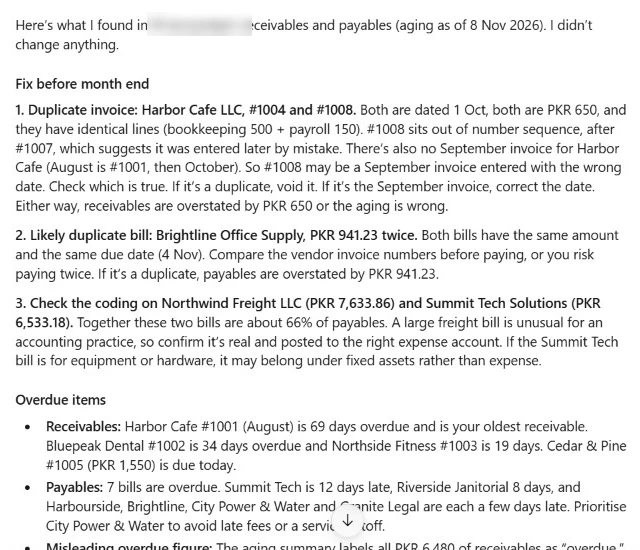
What it missed: the bill with the wrong total, the bill numbered "Not found", the lost discount terms and the unrecorded vendor credit. None of those show up in aging reports, and the standard connector has no tool to open a bill's lines. Claude was upfront about it: it said it could not see individual bill lines and told us to open the vendor bills and the vendor credit list ourselves.

The lesson: the standard connector reviews what reports show. For bill-level checks, you still need a person, a tool with bill access, or a register like our free AP Excel template, which flags duplicates, totals and discount deadlines.
Workflow 3: collections reminders
We split collections into two steps: drafts first, then one real send to our own inbox so no real customer was contacted.
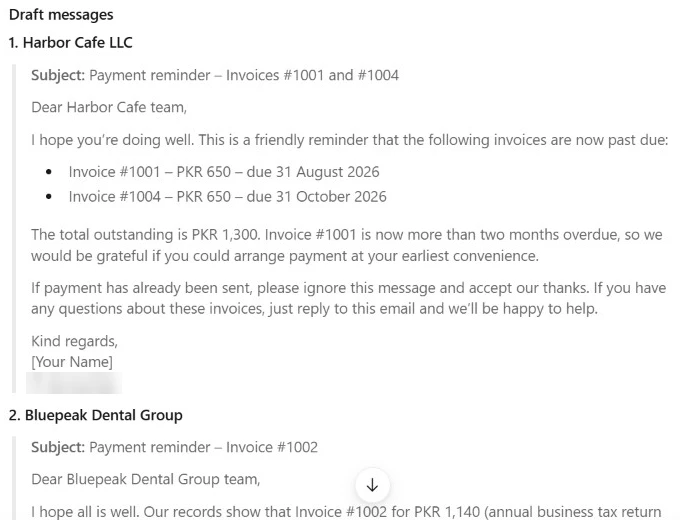
Find every overdue invoice and draft a polite payment reminder for each customer. Show me the list and the exact message first. Do not send anything yet.Claude listed the five overdue invoices totaling 3,700.00 and wrote one reminder per customer with the right invoice numbers, amounts and due dates. It marked invoice 1008 as a likely duplicate and left it out of that customer's reminder, asking us to confirm first. That one decision saves an awkward email asking a client to pay twice.
Send the reminder for invoice 1001 only, and send it to YOUR-EMAIL instead of the customer's email.The first send attempt failed. Claude read the error, retried in the format the tool asked for, and the second attempt worked. The reminder arrived in our inbox, and Claude confirmed nothing else was sent.
One slip was ours, and it is worth copying our mistake into your checklist. The drafts ended with a "[Your Name]" placeholder. Claude asked for a name, we approved without giving one, and the reminder went out with the placeholder. Always give your name and signature before you approve an email.
Workflow 4: creating an invoice by chat
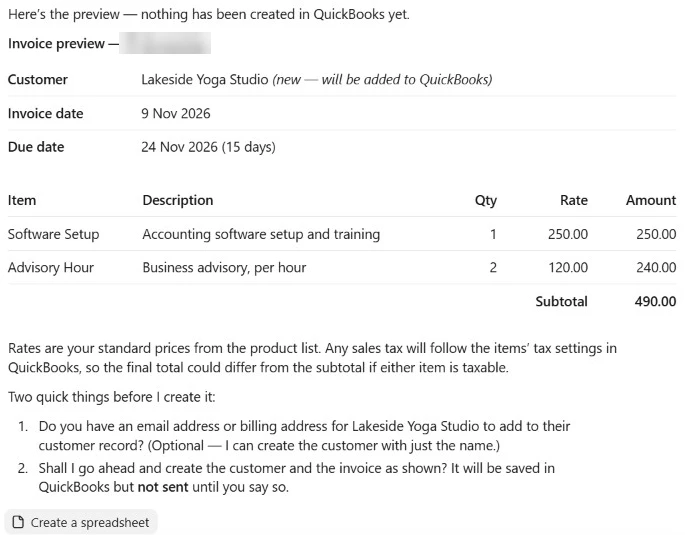
Create an invoice for a new customer, Lakeside Yoga Studio: 1 Software Setup and 2 Advisory Hours at our normal prices, invoice date today, due in 15 days. Show me a preview before creating it.Claude looked up our prices in the product list, then showed a preview and said nothing had been created yet: Software Setup 250.00, two Advisory Hours at 120.00, subtotal 490.00, due in 15 days. It also asked for an optional email and for clear confirmation.
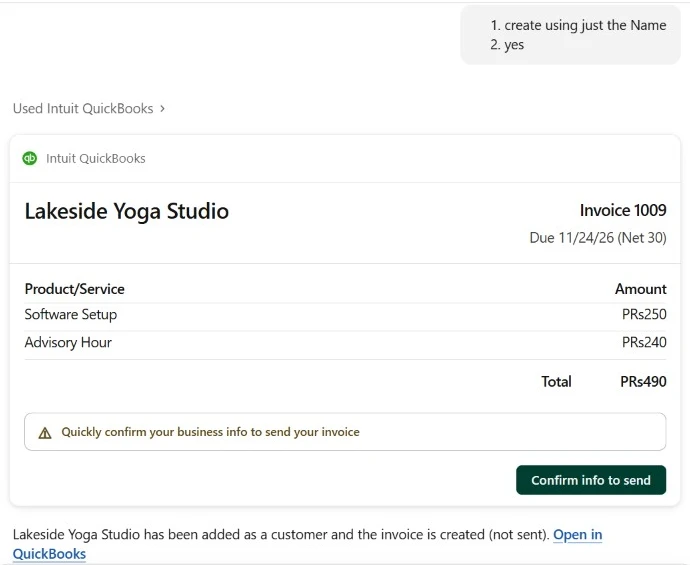
After we confirmed, it created the customer and invoice 1009 for 490.00, and did not send it. QuickBooks' total unpaid rose from 6,480.00 to 6,970.00, as expected.
One data quality quirk: the invoice card showed the right due date but labeled the terms "Net 30". If your team relies on the terms field, fix it in QuickBooks. Sending was also blocked until we confirmed our business information in QuickBooks, which is a QuickBooks setup step, not a Claude limit.
Workflow 5: a weekly summary on autopilot
Finally, we turned the morning check into a scheduled task.
Every Monday at 9:00 AM Pakistan time, check my QuickBooks and send me a short money summary: overdue invoices, bills due in the next 7 days, my cash position, and anything that looks like a duplicate. Do not send, create or change anything in QuickBooks.Before creating anything, Claude checked for existing scheduled tasks to avoid duplicates and confirmed it could reach QuickBooks. It then showed an approval card: every Monday at 8:31 AM Pakistan time, a push notification when it finishes, and permission mode set to Auto. It explained that it moved the time slightly before 9:00 because tasks set exactly on the hour can be delayed by server traffic, and offered to change it back.

The most useful part was a warning we had not asked for. Because nobody is there to approve a scheduled run, its actions approve themselves. Claude pointed out that the QuickBooks connection includes tools that can send and edit, so "read-only" depended on the task's instructions, not on a hard block. For a real guarantee, it suggested switching the task to ask before acting.

Claude's help center says scheduled tasks can run in the cloud, so they keep going when your computer is off, and that recurring tasks are a paid plan feature with hourly, daily, weekly and weekday options. For month-end versions of this check, our Claude prompts for month-end close are a good next step.
What can't Claude do in QuickBooks?
The standard connector cannot work with vendor bills, record customer payments, post journal entries, categorize bank transactions or reconcile accounts. Intuit says its use cases are limited to the ones it lists. In our test, it also could not open bill lines, so errors inside bills stayed invisible.
Here is what that means in practice:
- Bills and expenses: the tool list we saw had no tools to create, edit, pay or delete bills. Every bill in our test had to be saved in QuickBooks by hand.
- Customer payments: it can send payment links and reminders, but we saw no tool to record a payment against an invoice.
- Journal entries, bank feeds and reconciliation: none of these appear in the standard connector.
- Payments features: Intuit says these need a QuickBooks Payments account and are not available outside the US.
- QuickBooks Desktop: Intuit's connector is for QuickBooks Online products. Desktop users rely on third-party tools, such as CData's MCP server for QuickBooks.
Most of these gaps are what Intuit's newer Labs connector is built to fill, according to its listing.
Standard connector vs QuickBooks Labs vs third-party options
The standard Intuit QuickBooks connector is best for answers and sales work. Intuit's QuickBooks Labs (Beta) connector adds hands-on bookkeeping such as bills, bank feeds and reconciliation. Third-party connectors suit accountants with many companies or needs Intuit does not cover. Exporting reports works anywhere, including outside the US.
| Option | What it covers | Best for |
|---|---|---|
| Intuit QuickBooks, by Intuit (tested here) | Reports, A/R and A/P aging, invoices, estimates, reminders, payment links, customers, products, payroll lookups | Owners and bookkeepers who want answers and invoicing |
| Intuit QuickBooks Labs (Beta), by Intuit | Everything in the standard connector plus bank feeds, reconciliation, bills and expenses, journal entries and switching between companies | Hands-on bookkeeping, if you accept beta software |
| Meridian Connector for QuickBooks, by Pilot.com | Investigating transactions, reconciling, categorizing, invoices and journals, with read-only or read-write access per company | Accountants managing several companies |
| Export and upload, by you | Any report you export as Excel or CSV | Companies outside the US and one-off analysis |
Intuit's QuickBooks Labs listing in Claude's directory says it was added in October 2026, exposes 120 tools, and includes everything in the standard connector. It recommends using the Labs connector alone and removing the older one. The listing also notes that Anthropic does not control which tools a developer provides. Meridian's site says individual use is free and team sharing is paid.
Whichever you choose, the same rule applies: the more write access a connector has, the more your approval settings matter.
Is it safe to connect QuickBooks to Claude?
It can be, if you keep approvals on. Intuit says QuickBooks data is not used to train Claude, you choose permissions when you sign in, and Claude asks for confirmation before deleting anything. Our test showed the real risks are human ones: approving too quickly, and duplicates the connector will not warn you about.
What protects you:
- Data use. Intuit's help article says "QuickBooks data is not used to train Claude", and Intuit's announcement says your data stays within Intuit systems.
- Permissions. You approve permissions at sign-in, and each tool group can stay on "Needs approval". The connector page notes that in Auto mode, Claude checks each action for risks and pauses on risky ones, so approvals may not always be asked for.
- Previews. In our test, Claude previewed every invoice and reminder before acting.
What to watch:
- Duplicates. The connector created an exact duplicate invoice on request with no warning.
- Placeholders. An approved email can still contain "[Your Name]".
- Scheduled tasks. Unattended runs approve their own actions unless you change the setting.
- Client data. If you handle client books, check your obligations first. Our AI agent security guide and free AI client data risk checker help you decide what is safe to connect.
Copy the 5 prompts we used
These are the exact prompts from our test. Start each one in a new chat with the QuickBooks connector on, and keep approvals set to "Needs approval".
1. Morning money check
Give me my morning money check from QuickBooks: how much customers owe me by aging bucket, which invoices are overdue, which bills I owe and when they are due, and my cash position. Keep it short and tell me the three things I should do first.2. Bookkeeper review
Review my receivables and payables in QuickBooks like an experienced bookkeeper. Look for anything that seems wrong: duplicate invoices or bills, negative bills, amounts that look off, or anything I should fix before month end. Do not change anything, just list what you find.3. Collections reminders (drafts only)
Find every overdue invoice and draft a polite payment reminder for each customer. Show me the list and the exact message first. Do not send anything yet.4. Invoice by chat
Create an invoice for a new customer, [CUSTOMER NAME]: [QUANTITY] [PRODUCT] and [QUANTITY] [PRODUCT] at our normal prices, invoice date today, due in [NUMBER] days. Show me a preview before creating it.5. Weekly summary
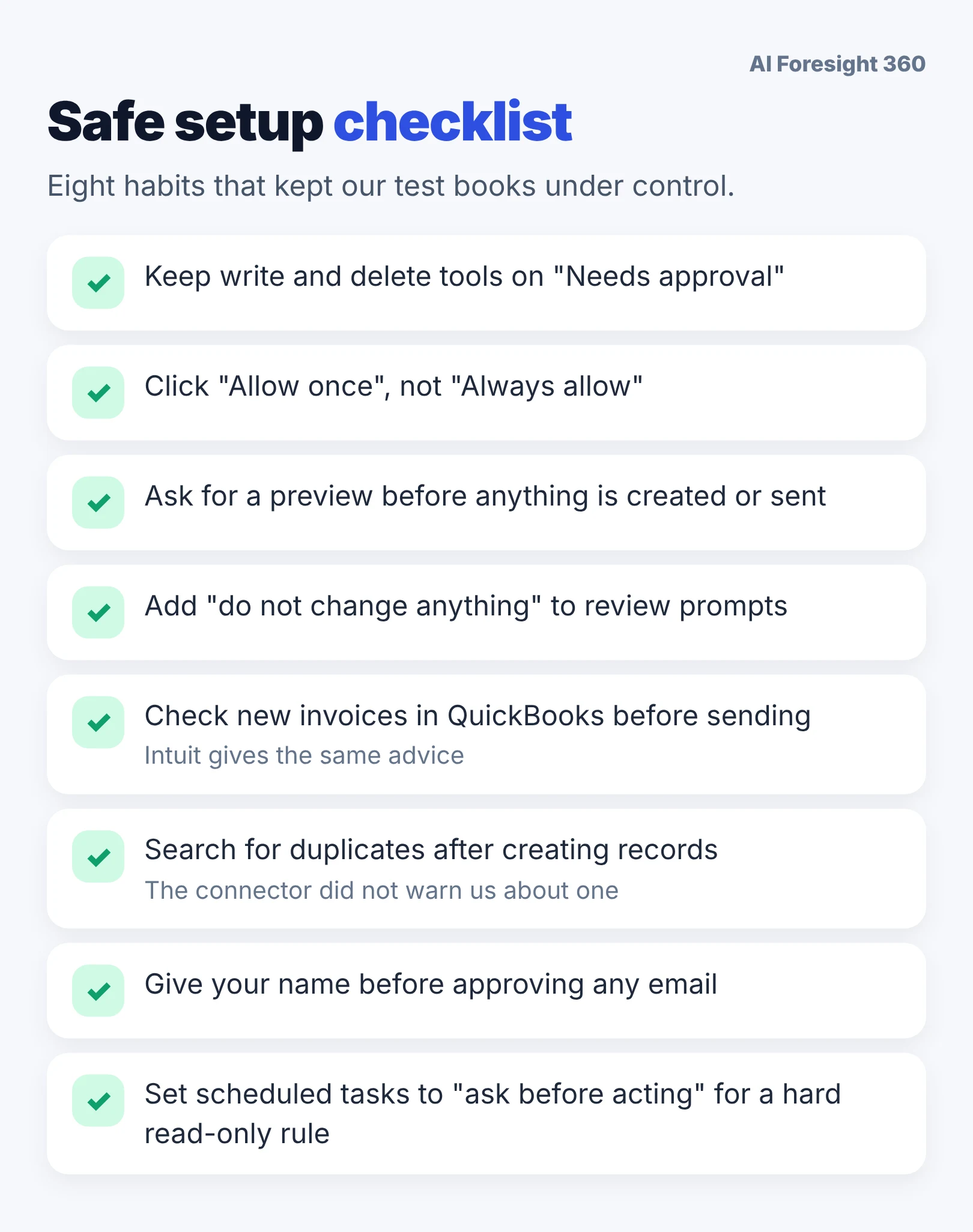
Every Monday at 9:00 AM [YOUR TIME ZONE], check my QuickBooks and send me a short money summary: overdue invoices, bills due in the next 7 days, my cash position, and anything that looks like a duplicate. Do not send, create or change anything in QuickBooks.Tips from the test: add "do not change anything" to any review, ask for a preview before any create or send, and give your name before approving an email. For more finance prompts, see our 100 ChatGPT prompts for accountants, which work in Claude too.
Claude vs ChatGPT and QuickBooks' own AI
QuickBooks now reaches you three ways: Intuit's connector in Claude, Intuit's QuickBooks plugin in ChatGPT, and the AI agents built into QuickBooks itself. Claude's strength in our test was judgement across reports, such as linking a duplicate to a missing September invoice. QuickBooks' own agents work inside the product's screens.
We tested the Claude connector here, not the ChatGPT plugin. For a head-to-head on bookkeeping tasks, read our Claude vs ChatGPT for bookkeeping comparison and our wider ChatGPT vs Claude for accountants guide. For QuickBooks' built-in agents, see our Intuit AI agents review, and for the wider market, our list of the best AI bookkeeping agents for small business.
Frequently asked questions
Does Claude have an official QuickBooks integration?
Yes. Intuit builds and maintains the Intuit QuickBooks connector, which you add from Claude's Connectors menu. Intuit also offers QuickBooks Labs (Beta), a newer connector with bookkeeping tools such as bills, bank feeds and reconciliation. Other QuickBooks options in Claude's directory, such as the Meridian Connector by Pilot.com, come from third parties rather than Intuit.
Is the Claude QuickBooks connector free?
Intuit's help article lists no separate fee for the connector. You need a Claude account and an active QuickBooks subscription, and Claude's own pages differ on whether the Free plan includes connectors, so a paid plan is the safe choice. We used a paid plan. Payment features also need a QuickBooks Payments account, which is subject to Intuit's eligibility checks.
Does the QuickBooks connector work outside the US?
Intuit says it is available to US customers only, and QuickBooks staff confirmed it was unavailable in Canada in June 2026. In our test, the company's country mattered, not the user's location: it worked from Pakistan on a US QuickBooks company. Do not set up a US company just for access. Exporting reports to Claude works from any country.
Can Claude change or delete my QuickBooks data?
Yes, the standard connector can create, update, send and delete invoices and estimates, and add customers and products. Intuit says Claude asks for confirmation before deleting anything. Keep the write and delete tool group on "Needs approval" and click "Allow once" so nothing changes without you seeing it first. Scheduled tasks need extra care.
Can Claude categorize bank transactions or reconcile accounts?
Not with the standard Intuit QuickBooks connector, which has no bank feed or reconciliation tools. According to its listing in Claude's directory, Intuit's QuickBooks Labs (Beta) connector adds bank feed categorization, matching and reconciliation, along with bills, expenses and journal entries. Because it is a beta, check every result in QuickBooks before relying on it.
Does Claude work with QuickBooks Desktop?
Intuit's official connector is built for QuickBooks Online products, such as Simple Start, Essentials, Plus and Advanced, according to Intuit's help article. QuickBooks Desktop users need a third-party option, such as CData's MCP server for QuickBooks, or can export Desktop reports to Excel or CSV and upload them to Claude for analysis.
Is my QuickBooks data used to train Claude?
Intuit's help article says QuickBooks data is not used to train Claude, and Intuit's July 2026 announcement says customer data stays within Intuit systems and is never used to train foundation models. You still choose which permissions to grant when you connect, and you can disconnect at any time from Claude's Connectors settings.
Can I connect several QuickBooks companies to Claude?
With the standard connector, you pick one company when you sign in. Our accountant login offered a choice between the firm and a client company. Intuit's QuickBooks Labs (Beta) listing says it can switch between companies, including client books, within one conversation. Third-party connectors such as Meridian also support multiple companies.
Can Claude send QuickBooks invoices and reminders automatically?
It can send them, but in our test it always showed a preview and waited for our approval first. Invoice sending may also need QuickBooks setup, such as confirming your business information. A scheduled task can run checks automatically, but avoid giving it sending jobs unless you set it to ask before acting.
Why is my QuickBooks connector not connecting to Claude?
Intuit recommends disconnecting fully from Claude's Connectors menu, waiting a moment, and reconnecting once, because repeated reconnects can cause problems. Also check that your QuickBooks company is a US company and that your subscription is active. On Team or Enterprise plans, an Owner must enable connectors for the organization first.
Final thoughts
The Claude QuickBooks integration is genuinely useful for the jobs that eat time: the morning check, the review before month end, collections and quick invoices. In our test, its numbers were right, its judgement on duplicates was better than a simple rule, and it was honest about what it could not see.
Its limits are just as clear. The standard connector reads reports, not bill details, so errors inside bills still need a human or a tool with bill access. It will also create exactly what you ask for, duplicates included. Keep approvals on, read previews before you click, and treat it as a fast, careful assistant rather than a replacement for your review.
If your company is in the US, start with the morning money check prompt today. If it is not, export your reports and use the same prompts on the files.
Sources we checked
- Intuit QuickBooks Help: Use the QuickBooks connector in Claude
- Intuit: QuickBooks expands its connector in Claude with invoicing, payroll and lending features
- Claude directory: Intuit QuickBooks Labs (Beta)
- QuickBooks Community: Claude integration in Canada
- Claude Help Center: Pre-built connectors
- Claude connectors FAQ
- Claude Help Center: Schedule recurring tasks