
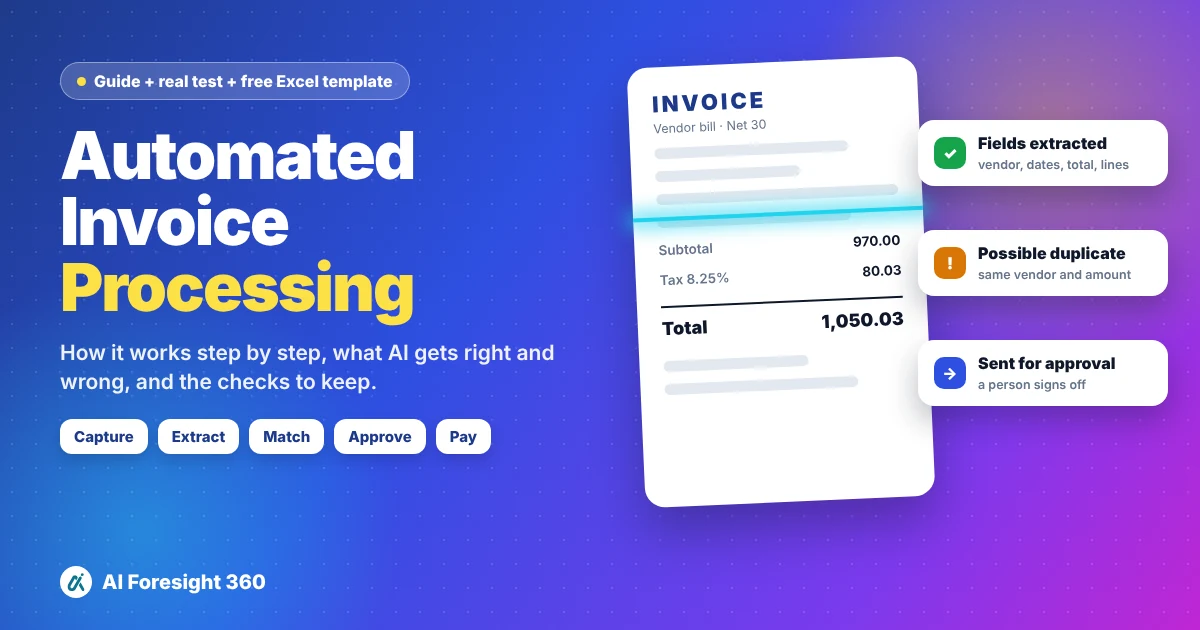
Automated invoice processing is the use of software to capture vendor bills, read the data on them, check that data, route each bill for approval and record it for payment, with little or no retyping by a person. Modern tools use OCR and AI to read the bill, then rules to catch duplicates, math errors and bills that do not match a purchase order.
To see how well it works in practice, we ran the same 10 tricky test invoices through QuickBooks Online's bill upload and through ChatGPT Free. Both read most of the data correctly. Both also missed things that would have cost real money if nobody checked. This guide explains how automated invoice processing works step by step, shows exactly what each tool got right and wrong, and gives you a free Excel template to catch the mistakes we found.
Key takeaways
- Automated invoice processing has seven steps: capture, extract, validate, match, code, approve, and pay and archive. Software is very good at the first three. Matching and coding need setup. Approval should stay with a person.
- In our test, QuickBooks read 48 of 50 key fields correctly and ChatGPT read 45 of 50. Reading the data was the easy part.
- The expensive mistakes were judgement calls: a duplicate that could still be saved, a total that did not add up, a credit memo entered as a bill, a lost early payment discount and laptops coded as office supplies.
- Clean vendor and account setup made the biggest difference. In our first round, QuickBooks put 7 of 10 bills into an inventory account. After we added vendors and accounts, it chose a sensible category for 9 of 10.
- Use AI to do the typing and the first review, then keep a short human checklist before any money leaves your account.
What is automated invoice processing?
Automated invoice processing is the part of accounts payable (AP) that handles the bills your business receives from vendors. Instead of someone opening each email, typing the details into accounting software and chasing an approver, software does most of that work and a person reviews the exceptions.
It is worth clearing up one common confusion. "Invoice processing" here means bills you receive and have to pay. Sending invoices to your own customers is a different job, usually called invoicing or accounts receivable. Some software does both, but the risks are different: on the AP side, a mistake means you pay too much, pay twice or pay a fraudster.
You will also see related terms:
- AP automation is the wider process, including vendor management, payment runs and reporting. Invoice processing sits inside it.
- Invoice data capture or invoice extraction is just the reading step, where OCR or AI pulls the data off the document.
- Touchless or straight-through processing means a bill goes from arrival to approval without anyone touching it, because every check passed.
- E-invoicing means the vendor sends structured data instead of a PDF, so nothing needs to be read at all.
How automated invoice processing works, step by step
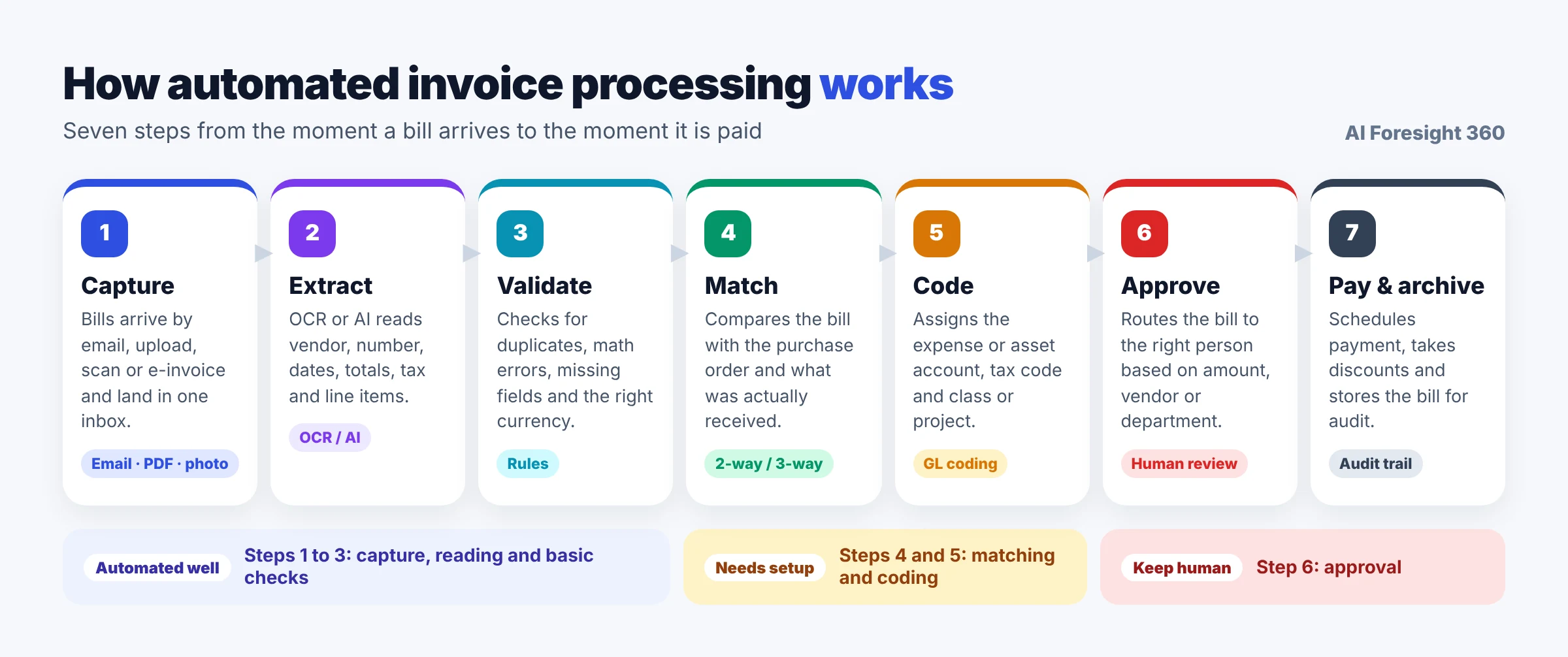
Every automated invoice processing system, from a spreadsheet with formulas to enterprise AP software, follows the same seven steps. What changes is how much of each step the software does for you.
1. Capture
Bills arrive in many ways: email attachments, PDFs downloaded from vendor portals, paper scanned on a phone, and e-invoices. The first job is to get all of them into one place. Most tools give you a dedicated email address to forward bills to, plus a bulk upload option. QuickBooks Online, for example, shows a forwarding address on the Bills page, and in our test a bill we emailed there appeared in the list within minutes.
2. Extract
The software reads the bill and pulls out the vendor name, invoice number, invoice date, due date, payment terms, line items, tax and total. Older systems use OCR (optical character recognition) to turn the image into text and templates to find the fields. Newer systems use AI models that understand the layout without a template. We cover the difference in detail below.
3. Validate
Next, the system checks the data. Is the invoice number already in the system? Do the lines add up to the subtotal? Is the tax rate right? Is anything missing? Is it in the right currency? This is where many errors are caught, and also where, as our test showed, some tools are weaker than you might expect.
4. Match
For businesses that use purchase orders, the bill is compared with the purchase order (a 2-way match) and with the record of what was actually received (a 3-way match). A bill for six monitors when only four arrived should be held, not paid.
5. Code
Each line is assigned to an expense or asset account, a tax code and, if you use them, a class, location or project. Good tools learn from your past bills and suggest the right account. This step depends heavily on how well your vendors and chart of accounts are set up.
6. Approve
The bill is routed to the person who can approve it, based on rules such as the amount, the vendor or the department. This is the most important control in the whole process, and it is the one step we recommend you never fully automate.
7. Pay and archive
Approved bills are scheduled for payment, ideally in time to take any early payment discount, and the original document is stored with the accounting entry so you have an audit trail.
Manual vs automated invoice processing
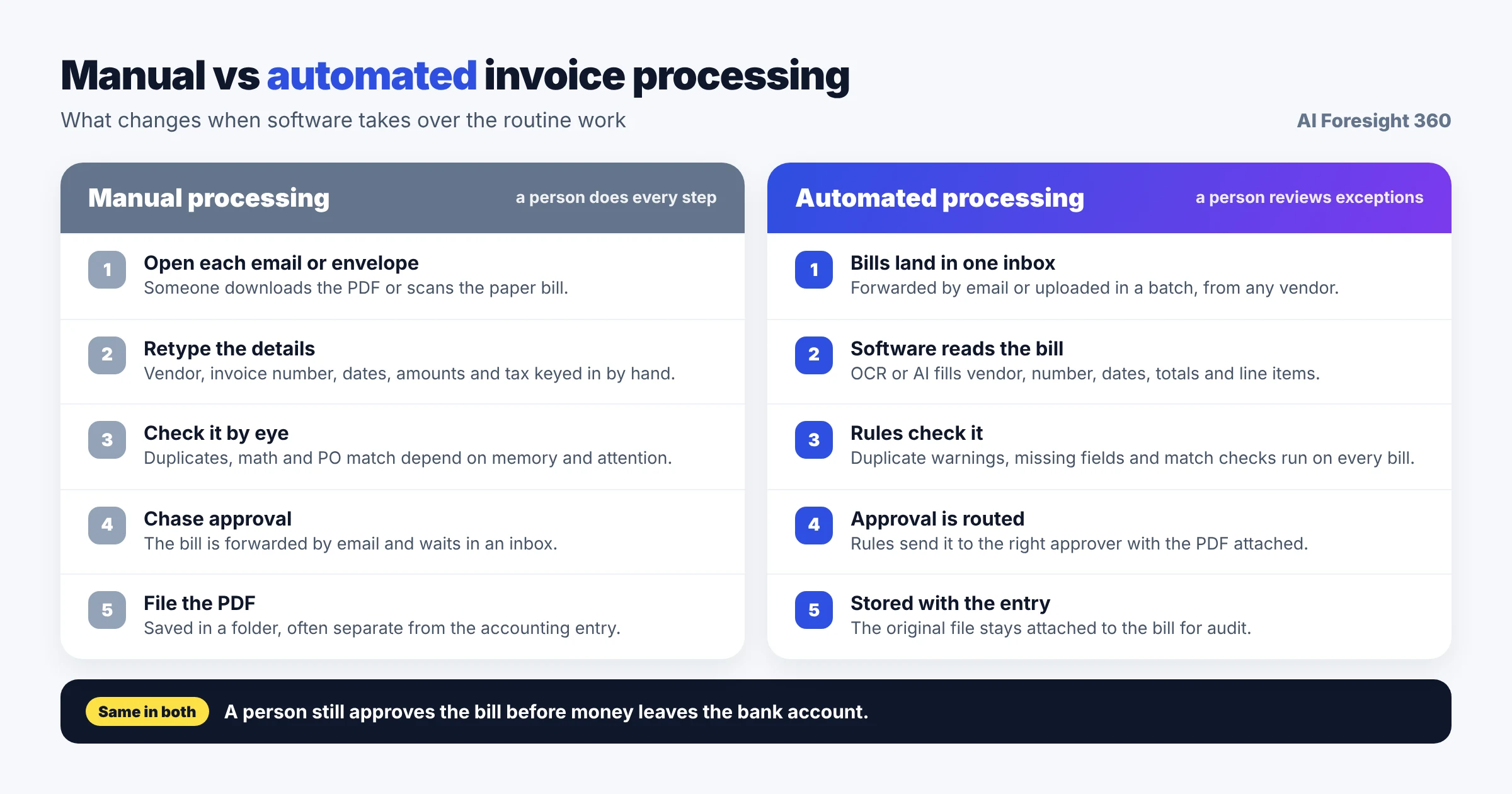
The difference is not that a person disappears. It is that the person stops typing and starts reviewing.
The gap between well-run and average AP teams is large. Ardent Partners, which publishes an annual study of accounts payable performance, reported in its 2024 analysis of best-in-class AP teams that the top 20% of teams had per-invoice processing costs 78% lower than their peers and processing times 82% faster. Only 9% of their invoices were flagged for exceptions, less than half the rate of their peers. That study looks at enterprise AP teams, so treat it as a sign of what good process plus automation can achieve, not a promise for your business.
For a small business, the more practical benefits are easier to feel:
- Less typing and fewer keying errors, because the software reads the bill.
- One place for every bill, so nothing sits forgotten in someone's inbox.
- Duplicate warnings, so the same bill is less likely to be paid twice.
- An audit trail, because the original file stays attached to the entry.
- Faster month-end, because bills are entered as they arrive, not in a pile at the end of the month.
How software reads an invoice: OCR vs templates vs AI
"Automated" can mean three quite different technologies, and the one your tool uses decides how much setup you need and what kind of mistakes it makes.

Basic OCR turns a picture of a bill into text. On its own it does not know which number is the total and which is the account number. It is useful for making scans searchable, but it is not invoice processing.
Template capture adds rules on top of OCR: "on this vendor's bill, the invoice number is in the top right box." It works well if you have a few vendors whose layouts never change, and it breaks the moment a vendor redesigns its invoice.
AI extraction uses machine learning and, increasingly, large language models that understand what a document is saying. They can read a vendor they have never seen before with no template. The trade-off is a new kind of mistake: the AI can be confidently wrong, or make a judgement call you would not make. Both of the AI tools we tested did exactly that, in different places.
Most current products combine all three: OCR to read the characters, AI to understand the layout, and rules to check the result.
Where AI fits in automated invoice processing
AI now shows up in three places in the invoice process, and it helps to keep them separate.
AI built into your accounting software. Intuit describes its AI bill entry as "built to capture line-item detail, not just the header, catch duplicates, and suggest categories." The same page makes the key point clearly: "a person still reviews and approves before anything gets paid." Intuit's help article on accounts payable automation says the feature is included with Simple Start, Essentials, Plus and Advanced, accepts PDF, JPEG, JPG, GIF and PNG files, and "may not be available in all accounts yet." The big advantage of this kind of AI is that the result lands straight in your books.
General AI assistants such as ChatGPT. You can upload a batch of bills and ask for a table and a review. As our test shows, a general assistant can be a sharp reviewer. But it does not post anything to your books, it has no memory of last month's bills unless you give it them, and it cannot stop a payment.
AI agents. These go a step further and take actions, such as entering a bill or chasing an approver, inside your systems. We tested what this looks like in practice in our Intuit AI agents review and compared options in our guide to the best AI bookkeeping agents for small business. If you are new to the idea, start with what AI agents are and how they work.
We tested it: 10 bills in QuickBooks and ChatGPT
Most guides to automated invoice processing are written by software vendors and show only perfect demos. We wanted to see what happens with the messy bills that real businesses receive, so we built a test pack and ran it through two tools.
The test pack
We created 10 fictional vendor documents, each designed to test one thing that goes wrong in real AP work. Every vendor, amount and address is made up. We wrote the correct answer for every field before either tool saw the files.
| # | Document | What it tests |
|---|---|---|
| 1 | Brightline Office Supply, INV-24817 | A clean PDF with a PO number |
| 2 | Summit Tech Solutions, 5530 | 8 lines, some taxed and some not, including laptops |
| 3 | Riverside Janitorial, 1093 | A blurry, tilted phone scan |
| 4 | Brightline INV-24817, second notice | An exact duplicate of bill 1 |
| 5 | Coastal Print & Signs, 7781 | A printed subtotal that does not match the lines |
| 6 | Harbourside Consulting, HC-2026-044 | A UK date format (day first) |
| 7 | Brightline CM-0912 | A credit memo, not a bill |
| 8 | Granite Legal Services, 3316 | 2/10 Net 30 early payment terms |
| 9 | City Power & Water | A utility bill showing an already paid previous balance |
| 10 | Northwind Freight, NF-90021 | A 2-page bill with the total on page 2 |
How we ran it. In QuickBooks Online, we used a separate test company and the Bills page's "Upload multiple bills" option to upload all 10 files at once, then opened every bill on the review screen. We ran it twice: first with no vendors and only the default accounts, then again after adding 8 vendors and 8 expense and asset accounts. We also forwarded one bill to the QuickBooks email address. In ChatGPT Free, we combined the 10 documents into one 11-page PDF, uploaded it to a new chat and used one prompt, shown below. We ran the tests in November 2026. Both tools change often, so treat the results as a snapshot.
We scored five header fields per bill (vendor, bill number, bill date, due date and total), which gives 50 points per tool. We marked everything else as a pass, a partial or a miss.
QuickBooks results: strong reading, weak judgement
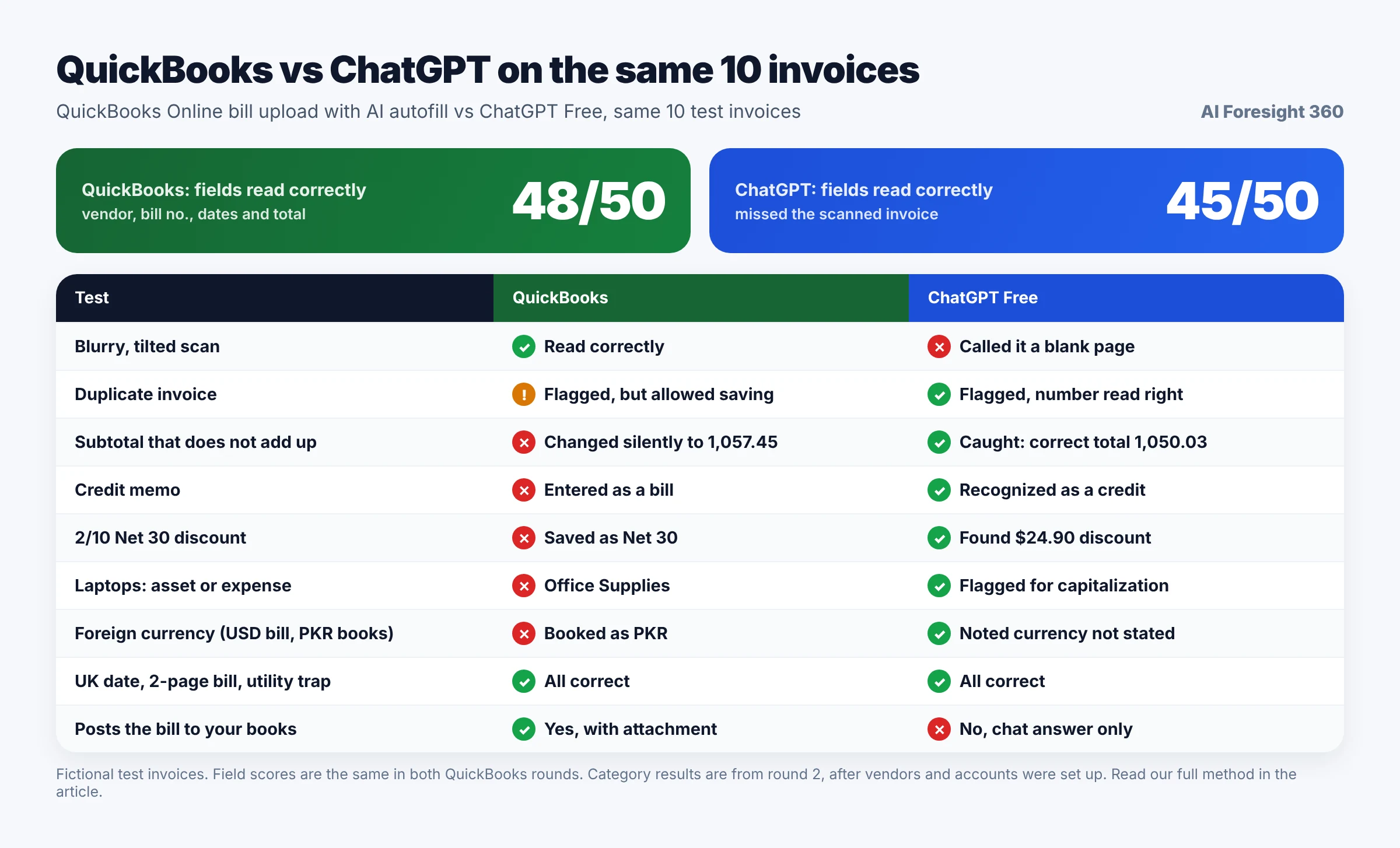
QuickBooks read the data very well. It got 48 of 50 header fields right, and every one of the 14 line amounts we checked on the review screens was correct. It handled the three traps that catch people out most often:
- The blurry scan. It read the tilted Riverside scan correctly, including both lines and the 770.00 total.
- The UK date. It read 04/10/2026 on the Harbourside bill as 4 October, not 10 April.
- The 2-page bill and the utility trap. It found the Northwind total of 7,633.86 on page 2, and it booked only the current City Power charges of 510.49, not the previous balance that had already been paid.
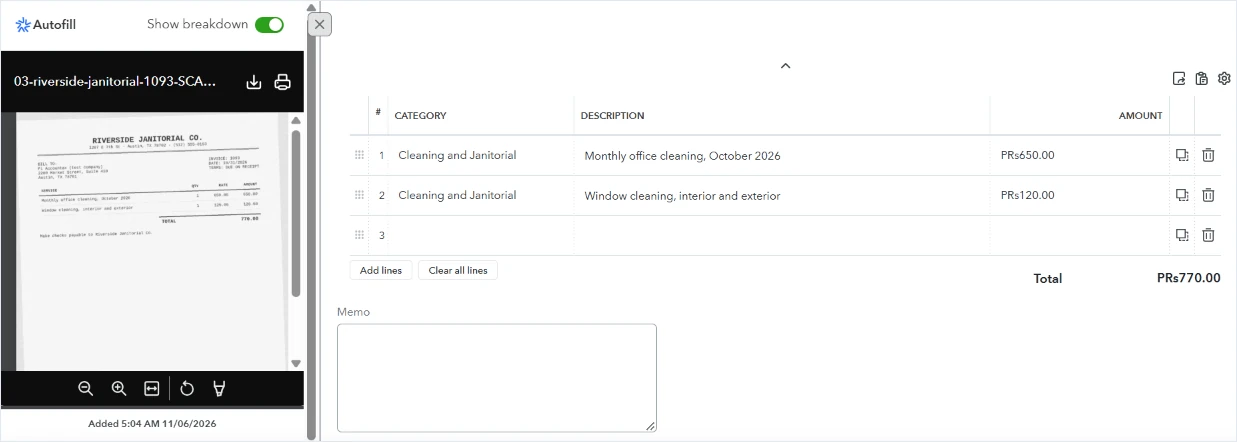
The first round showed how much setup matters. With no vendors set up, the vendor field on the review screens was empty, and QuickBooks put 7 of the 10 bills into "Inventory Asset", including janitorial, legal, consulting, freight and utility bills that are clearly expenses. The three Brightline documents went to the generic "Purchases" account.

In round two, after we added the vendors and the right accounts, QuickBooks linked the bills we opened to their vendor records and chose a sensible category for 9 of the 10 bills: Printing and Advertising for Coastal, Legal and Professional Fees for Granite, Cleaning and Janitorial for Riverside, and so on. The tenth, Summit, was split across several accounts.

Reading the data was not the problem. The problems were the decisions a good AP clerk makes without thinking.
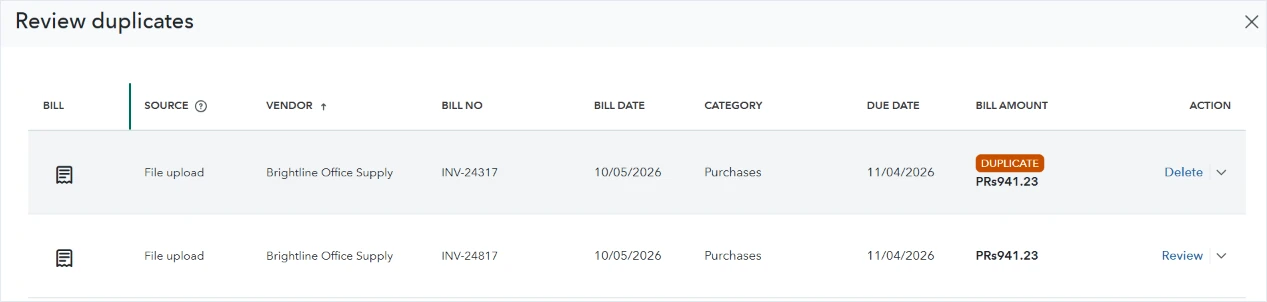
1. The duplicate was flagged, but not stopped. QuickBooks marked the second copy of INV-24817 as a duplicate, which is good. But on that copy it misread the invoice number as INV-24317, and when we saved the original and then the flagged copy, it let us save both. The duplicate label is a warning, not a control.
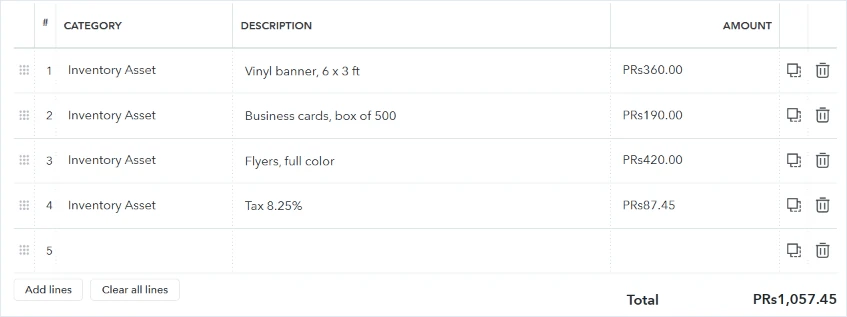
2. A total that did not add up was changed silently. The Coastal bill has three lines totalling 970.00, but the vendor printed a subtotal of 1,060.00, tax of 87.45 and a total of 1,147.45. The correct total is 1,050.03. QuickBooks recorded the three lines plus the printed tax, for 1,057.45, which matches neither the printed bill nor the correct amount, and it showed no warning. A reviewer comparing the entry with the PDF would be confused, and the 7.42 of tax charged on a wrong subtotal went through unnoticed.
3. The credit memo was entered as a bill. Brightline's credit memo for 192.69 came through as a bill with a negative amount, not as a vendor credit. You can change the transaction type yourself, but if you do not, your payables report is wrong.

4. The early payment discount disappeared. Granite's terms were 2/10 Net 30, which means 2% off if you pay within 10 days. QuickBooks saved the terms as plain Net 30. The discount was 24.90, and the reminder to pay by the 10th day was lost.
5. Laptops were coded as office supplies. On the Summit bill, QuickBooks put the laptops, docking stations and monitors in Office Supplies. For many businesses, equipment like this should be recorded as a fixed asset, depending on the capitalization policy. It also put labor and the warranty into Inventory Asset, added sales tax as a separate expense line, and copied the vendor's "(T)" tax markers into the descriptions.

6. The currency was ignored. The test company's home currency was Pakistani rupees, and the bills were in US dollars. QuickBooks booked every amount in rupees without picking up the bill's currency. If your business deals with foreign suppliers, check this every time.
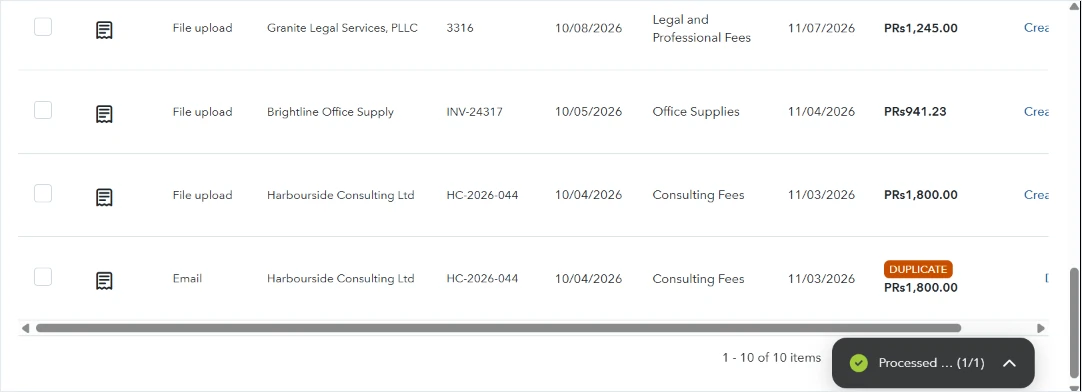
Email forwarding worked well. We emailed the Harbourside PDF to the QuickBooks forwarding address. It appeared in the bill list within minutes with the source "Email", the right dates and amount, and a duplicate flag against the copy we had already uploaded. That cross-check between upload and email is genuinely useful.
We also tested whether QuickBooks learns. After saving a Riverside bill, we uploaded a new Riverside bill it had never seen, and it linked the vendor and chose the same category for both lines, including a new item. Riverside was already coded correctly before we saved anything, though, so this test does not prove that saving one bill taught it anything.
We did not test purchase order matching or vendor credits in QuickBooks, so we make no claims about those features.
ChatGPT results: the better reviewer, but it missed a bill
We gave ChatGPT Free the same 10 documents as one PDF, with this prompt:
The attached PDF contains 10 vendor invoices and bills (11 pages) received by a small US company. Act as an accounts payable clerk preparing them for entry into accounting software.
1. Extract each document into one table with these columns: #, vendor, document type (invoice, credit memo or statement), invoice or bill number, invoice date (MM/DD/YYYY), due date (MM/DD/YYYY), payment terms, currency, subtotal, tax, total amount due, and a suggested expense category.
2. Then list every problem a reviewer should check before approving payment, such as duplicates, calculation errors, early payment discounts, credit notes, unclear dates or amounts that should not be paid.
Rules: use only what is printed on the documents. Recalculate every subtotal and total from the line items. If a value is missing or unclear, write "not shown" or "unclear" instead of guessing.
ChatGPT's biggest miss came first. It described the scanned Riverside page as blank, so that bill was missing from its table. We checked the page: it displays normally, but it is a photo with no text layer. To its credit, ChatGPT noticed the batch was short and said "the missing tenth document should be requested before treating the batch as complete." That gave it 45 of 50 header fields, all correct for the nine bills it read.

Where ChatGPT was clearly stronger was judgement:
- The duplicate: caught, with the invoice number read correctly as INV-24817, and the instruction "Do not approve two payments of $941.23."
- The Coastal error: it recalculated the lines to 970.00, the tax to 80.03 and the total to 1,050.03, worked out the 97.42 overstatement and said not to approve 1,147.45.
- The credit memo: recognized as a credit, with a note not to pay it separately and a net Brightline balance of 748.54.
- The discount: it found the 2/10 Net 30 terms, the 24.90 discount and the 10/18/2026 deadline.
- The laptops: it flagged the equipment for a capitalization review instead of treating it as a simple expense.
- The currency: for bills that printed only "$", it noted that USD was not explicitly stated rather than assuming.
- The utility bill: it paid only the current 510.49 and warned against using the account number as an invoice number.
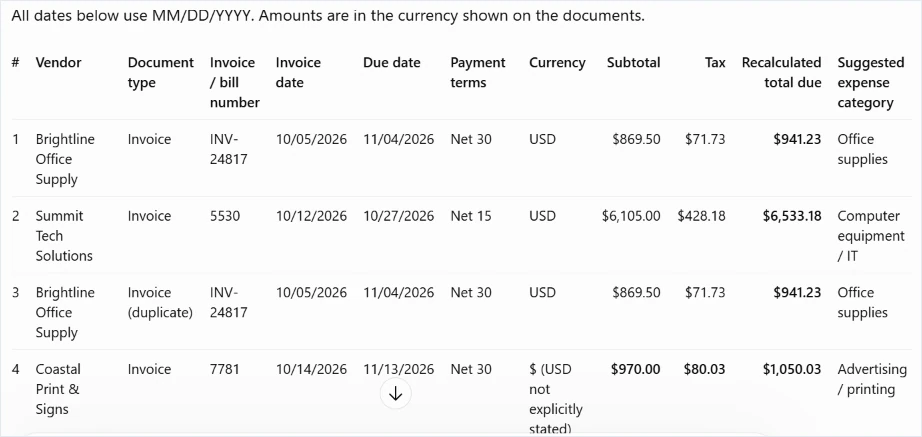
It also showed its working, which made every number easy to check.

There was one small slip: it labelled the Granite invoice a "statement." More importantly, ChatGPT only produced an answer. Nothing was entered in the books, no vendor records were created, no file was attached to an entry, and it had no way to check last month's bills for duplicates. Someone still has to type or import all of it.
The scorecard
What the test tells you
The results point to one clear lesson: reading invoices is mostly solved; reviewing them is not. QuickBooks was the better data entry tool. It read the scan, posted everything to the books and kept the PDF with each entry. ChatGPT was the better reviewer. It caught the math error, the credit, the discount and the asset question that QuickBooks let through.
Used together, they cover each other's gaps. A practical setup for a small business is to let your accounting software capture and enter the bills, then run a review pass before approval, either with a checklist like the one below, with a spreadsheet that checks totals and duplicates, or by asking an AI assistant to review the batch. If you are weighing up AI assistants for this kind of work, our ChatGPT vs Claude for accountants test and Claude vs ChatGPT for bookkeeping comparison show how each handles real accounting tasks. If you use Claude with QuickBooks, see our guide to the Claude QuickBooks integration.
How 3-way matching works
If your business uses purchase orders, 3-way matching is the most powerful check in automated invoice processing. It compares three documents before a bill is paid: the purchase order (what you agreed to buy), the receiving report (what actually arrived) and the vendor invoice (what you are being asked to pay).
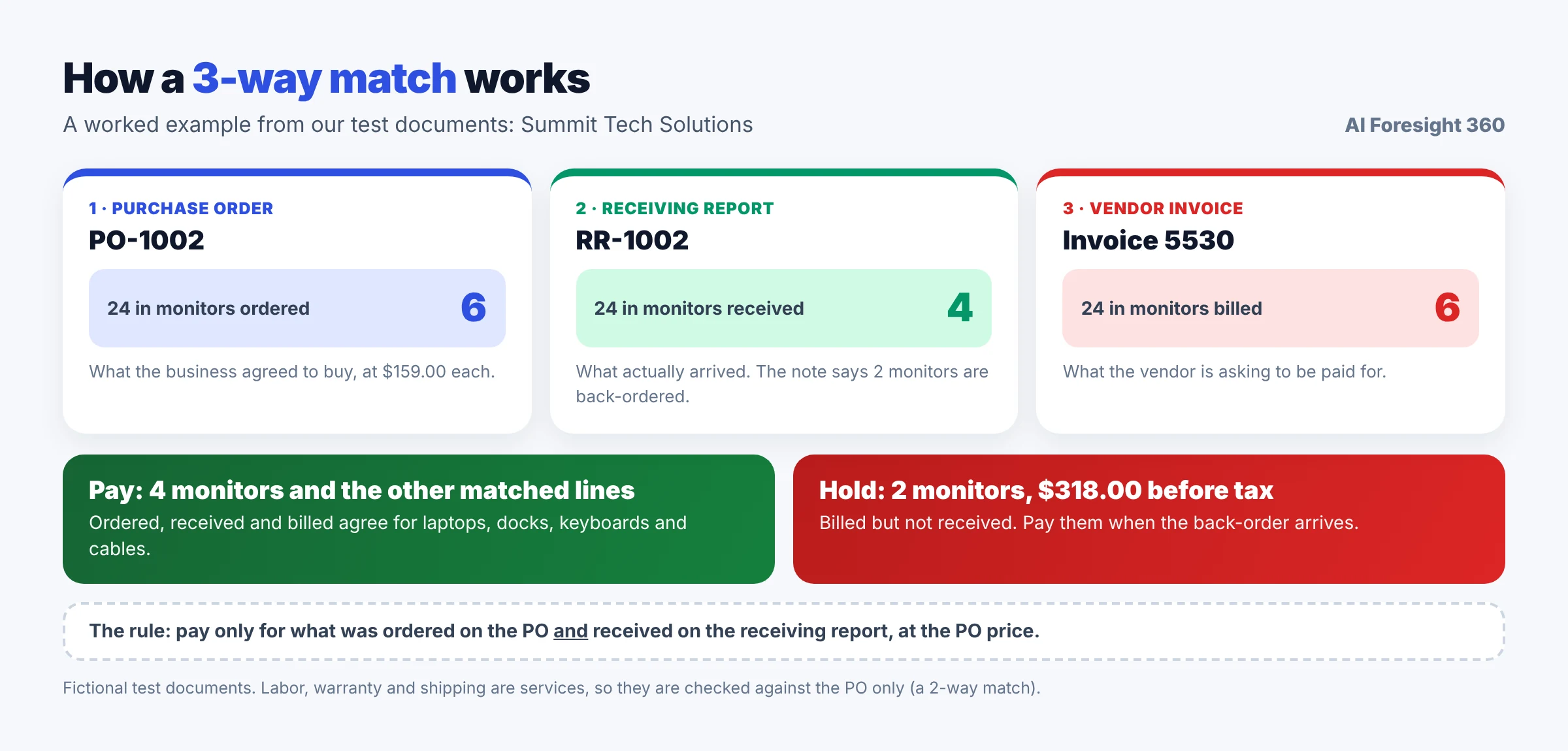
In our test pack, the Summit purchase order was for six 24 inch monitors at 159.00 each. The receiving report shows only four arrived, with two back-ordered. The invoice bills all six. A 3-way match pays for the four received monitors and holds the other two, 318.00 before tax, until they arrive. Laptops, docks, keyboards and cables matched on all three documents, so they can be paid. Services such as setup labor, warranty and shipping are not physically received, so they are checked against the purchase order only, which is called a 2-way match.
We did not test 3-way matching in QuickBooks, so this example explains the method rather than any tool's result. Dedicated AP software usually does this automatically. If your software does not, the free template below includes a 3-way match sheet that does the math for you.
Invoice fraud: the risk automation does not remove
Automation makes invoices faster to pay. That includes fake ones. The FBI's 2025 Internet Crime Report recorded 24,768 business email compromise complaints in 2025, with reported losses of about $3.05 billion. Business email compromise often works by sending a convincing invoice, or an email asking you to change a vendor's bank details, from an address that looks right. In the 2026 AFP Payments Fraud and Control Survey, 76% of the US organizations surveyed experienced attempted or actual payments fraud in 2025, and 74% were affected by business email compromise.
An AI that reads invoices perfectly will read a fraudulent invoice perfectly too. The controls that stop fraud are about process, not reading:
- Verify every bank detail change through a second channel. The FBI's business email compromise guidance advises using "secondary channels and/or two-factor authentication to verify requests for changes in account information." In practice, call the vendor on a number you already have on file, never one from the email.
- Separate duties. The person who enters or uploads a bill should not be the only person who approves and pays it.
- Restrict who can edit vendor records, especially bank details.
- Treat urgency as a warning sign. "Pay today or the account will be suspended" is a classic pressure tactic.
- Review new vendors before their first payment.
If you are connecting AI tools or agents to your finance systems, our guide to AI agent security for small business covers the access and permission risks.
How to start automating your invoices
You do not need a big project to get started. This rollout works for a small business or practice using standard accounting software.
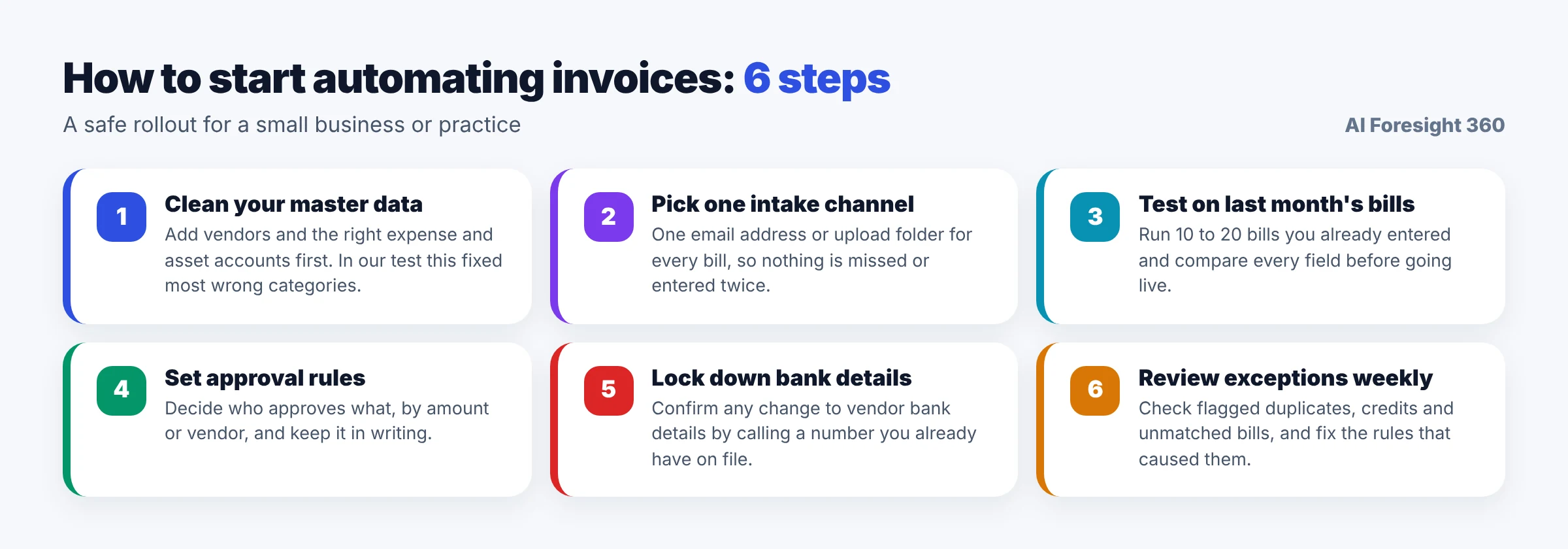
- Clean your master data first. Add your regular vendors and make sure your chart of accounts has the expense and asset accounts you actually use. In our test, this single step took QuickBooks from putting 7 of 10 bills in an inventory account to choosing a sensible category for 9 of 10.
- Pick one intake channel. Ask vendors to send bills to one email address, or forward everything to your software's address. One channel means nothing is missed and nothing is entered twice.
- Test on last month's bills. Run 10 to 20 bills you have already entered through the new process and compare every field before you trust it with new ones.
- Set approval rules. Decide who approves what, by amount or vendor, and write it down. Check which approval features your plan includes.
- Lock down bank details. Put the call-back rule in writing and limit who can change vendor payment information.
- Review exceptions weekly. Look at flagged duplicates, credits and anything that did not match, and fix the setting or rule that caused each one.
Invoice approval checklist
Whatever tool you use, run these 10 checks before approving a bill. Every one of them was either missed by a tool in our test or is a standard AP control.
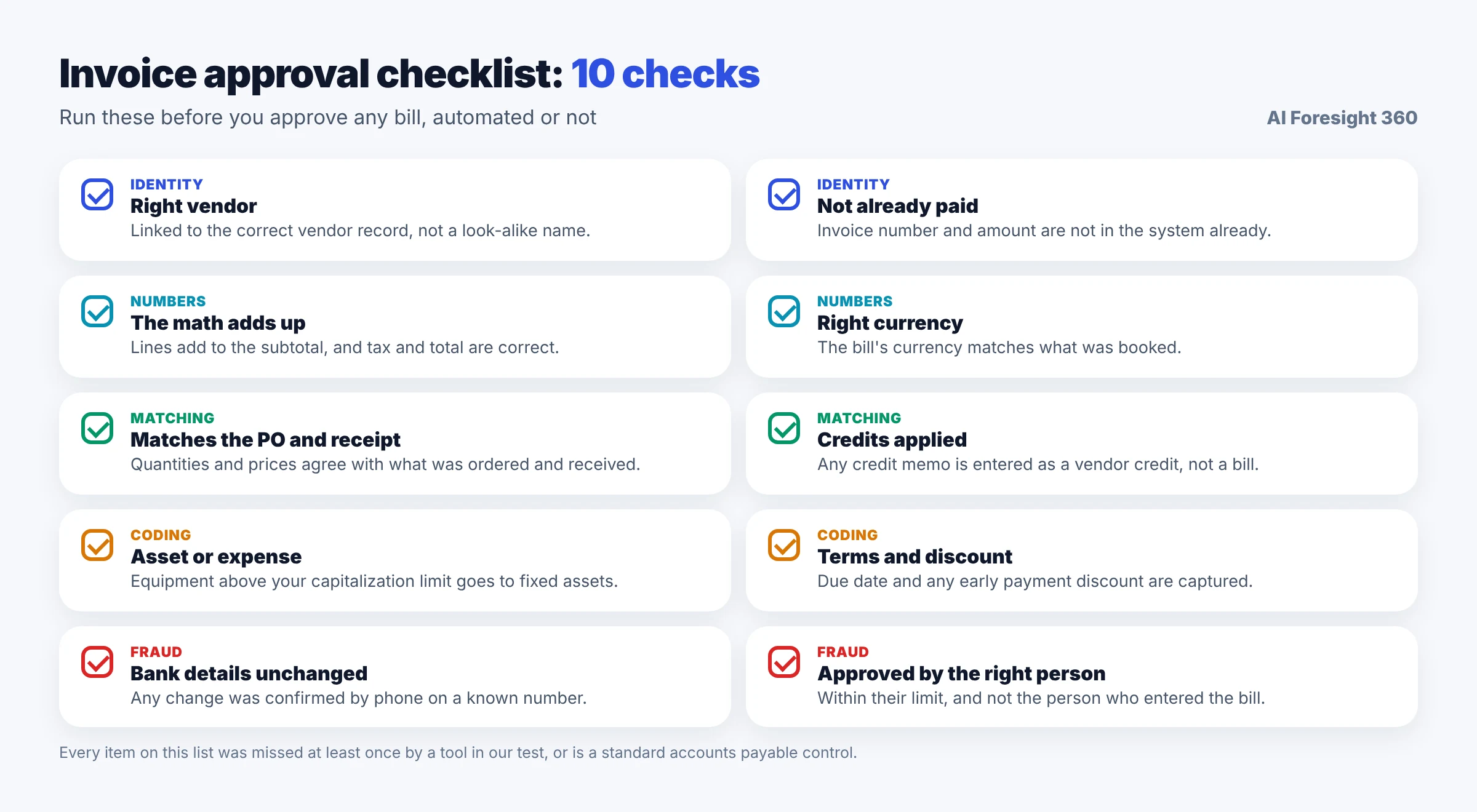
- Right vendor: the bill is linked to the correct vendor record, not a look-alike name.
- Not already paid: the invoice number and amount are not already in your system.
- The math adds up: the lines add to the subtotal, and the tax and total are correct.
- Right currency: the bill's currency matches what was booked.
- Matches the PO and receipt: quantities and prices agree with what was ordered and received.
- Credits applied: credit memos are entered as vendor credits, not bills.
- Asset or expense: equipment above your capitalization limit goes to fixed assets.
- Terms and discount: the due date and any early payment discount are captured.
- Bank details unchanged: any change was confirmed by phone on a known number.
- Approved by the right person: within their limit, and not the person who entered the bill.
Which type of automation do you need?
The right tool depends mostly on how many bills you handle and how complicated they are. This is our editorial rule of thumb, not an industry standard.
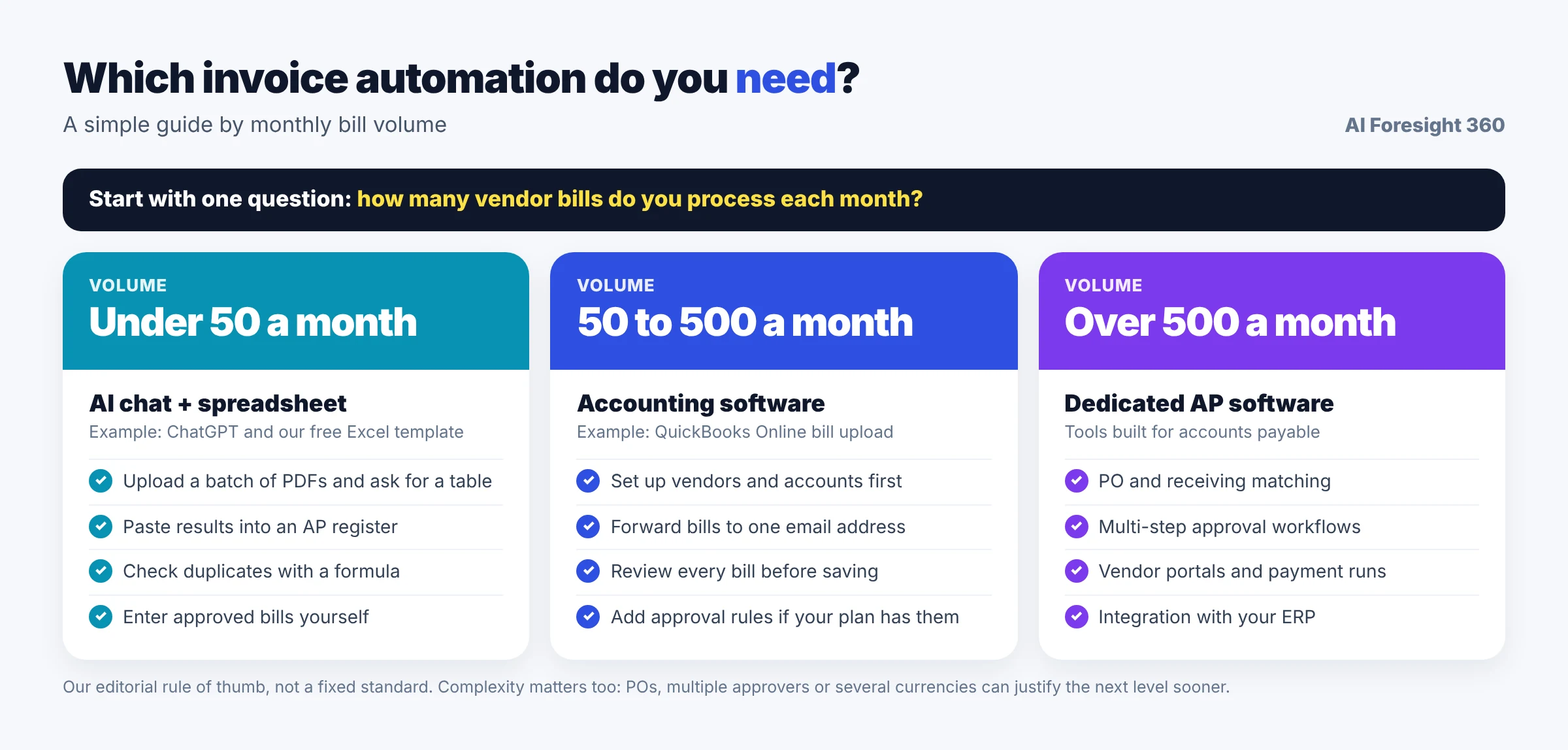
Under about 50 bills a month: AI assistant plus a spreadsheet. Upload a batch of bills to an AI assistant, ask for a table and a review like the prompt above, paste the results into an AP register and enter approved bills yourself. For more ready-made prompts, see our ChatGPT prompts for accountants and the wider AI prompts library. If you work in Excel, our Claude for Excel review shows how AI can work directly inside a spreadsheet.
About 50 to 500 bills a month: your accounting software's built-in tools. Bill upload, email forwarding, duplicate warnings and suggested categories, as in our QuickBooks test, remove most of the typing. Set up vendors and accounts first and review every bill before saving.
Over about 500 bills a month: dedicated AP software. At this volume, purchase order and receiving matching, multi-step approval workflows, vendor portals and payment runs start to pay for themselves.
Volume is not the only factor. If you use purchase orders, have several approvers or deal in several currencies, you may need the next level sooner.
What does invoice automation cost, and is it worth it?
Prices vary widely by product and plan and change often, so check each vendor's current pricing page rather than relying on any list. What you can work out yourself is the value, with a simple formula:
Monthly saving = bills per month × minutes saved per bill ÷ 60 × hourly cost, minus the software cost.
Here is an illustration with made-up inputs, not benchmarks: 200 bills a month, 10 minutes each by hand and 3 minutes to review an automated bill, at 30 an hour. That saves about 23 hours, worth 700 a month. With software at 100 a month, the net saving is 600 a month. Remember that review time does not go to zero, and that our test found bills that needed a careful human look.
The formula also leaves out costs that can matter more than time: duplicate payments, missed early payment discounts and fraud. Early payment discounts are worth more than they look. Skipping a 2/10 Net 30 discount is like borrowing at an annual rate of about 37% (2 ÷ 98 × 365 ÷ 20), so for most businesses taking the discount is the better choice. To check figures like these, use our free finance calculators.
Free Excel template: AP register with automatic checks
We built a free template that does the checks our test showed you cannot leave to software alone. It works in Excel, Google Sheets and LibreOffice, and it has five sheets:
- AP Register: one row per bill, with formulas that flag duplicate invoice numbers, the same vendor, amount and date, totals that do not add up, wrong tax and bills due within 7 days.
- 3-Way Match: compares PO, received and billed quantities, and shows what to pay and what to hold.
- Discount Tracker: shows the discount deadline, the saving and the annual cost of skipping it.
- Cost Calculator: estimates your own time and money saved, using your inputs.
- Start Here: instructions and a legend. Type only in the yellow cells.
The example rows use bills from our test, so you can see each check fire before you delete them.
Download the free automated invoice processing template (Excel)
Common mistakes to avoid
- Switching on automation before setting up vendors and accounts. Our first round showed what happens: 7 of 10 bills landed in an inventory account.
- Trusting a duplicate warning to stop a duplicate payment. In our test it was a warning only. Someone has to act on it.
- Approving the entry instead of the bill. Always look at the original PDF next to the entry, especially the total.
- Letting credit memos sit as negative bills. Convert them to vendor credits so your payables are right.
- Ignoring payment terms. If your software drops the discount terms, you lose the discount without noticing.
- Coding everything as an expense. Check equipment against your capitalization policy.
- Assuming the currency. A "$" on a bill does not tell you which dollar.
- Automating approval. Keep a named person responsible for every payment.
Frequently asked questions
What is automated invoice processing?
Automated invoice processing is the use of software to capture vendor bills, extract the data with OCR or AI, check it for errors and duplicates, match it to purchase orders, code it to the right accounts and route it for approval and payment. A person reviews exceptions and approves payment instead of typing every bill by hand.
Can AI process invoices accurately?
AI reads invoices well, but it is not perfect at judgement. In our test of 10 tricky bills, QuickBooks read 48 of 50 key fields correctly and ChatGPT read 45 of 50. Both missed issues such as a misread invoice number, an unreadable scan or a credit memo entered as a bill, so a human review is still needed before payment.
Can ChatGPT process invoices?
ChatGPT can read uploaded invoices, build a table of the data and review it for problems. In our test it caught a duplicate, a subtotal error, a credit memo and an early payment discount that QuickBooks missed, but it treated a scanned page as blank. It does not post bills to your accounting software, so you still need to enter or import the results.
Does QuickBooks have automated invoice processing?
Yes. QuickBooks Online lets you upload multiple bills or forward them by email, then reads the vendor, dates, amounts and line items and suggests categories for you to review. Intuit says the feature is included with Simple Start, Essentials, Plus and Advanced, but may not be available in all accounts yet. Duplicate flags in our test were warnings, not blocks.
What is the difference between OCR and AI invoice processing?
OCR turns an image of an invoice into text but does not understand which number is the total or the due date. Template systems add fixed rules for each vendor layout. AI extraction understands the layout and labels without a template, so it handles new vendors, but it can make confident mistakes that still need checking.
What is 3-way matching in invoice processing?
3-way matching compares the purchase order, the receiving report and the vendor invoice before payment. You pay only for items that were ordered and received, at the agreed price. For example, if six monitors were billed but only four arrived, the two missing monitors are held until they are received.
Is automated invoice processing safe from fraud?
Not on its own. Automation reads a fake invoice as accurately as a real one. The FBI recorded 24,768 business email compromise complaints in 2025, with reported losses of about $3.05 billion. Protect yourself by confirming bank detail changes by phone on a known number, separating entry from approval, and reviewing new vendors.
Can I automate invoice processing in Excel?
Partly. Excel cannot read PDFs well by itself, but you can use an AI assistant or your accounting software to extract the data, then use formulas to flag duplicates, check totals and tax, track due dates and run a 3-way match. Our free AP register template does these checks automatically.
Final thoughts
Automated invoice processing is worth doing for almost any business that pays more than a handful of bills a month. The technology for reading invoices is now genuinely good: both tools in our test read almost every field correctly, including a blurry scan and a 2-page bill.
What automation does not yet do reliably is think like an experienced AP clerk. The mistakes that cost money in our test were a duplicate that could still be saved, a total that did not add up, a credit memo treated as a bill, a lost discount and equipment coded as supplies. So set up your vendors and accounts properly, let the software do the typing, and keep a short human checklist and a named approver for every payment. That combination gives you the speed of automation without paying for its mistakes.